EE Bright Box User Manual
125
1. Login to the router’s admin pages.
2. Click on the Advanced Set-Up tab and click Accept on the ‘Please proceed with
caution’ page.
3. Click on DHCP in the left hand navigation menu.
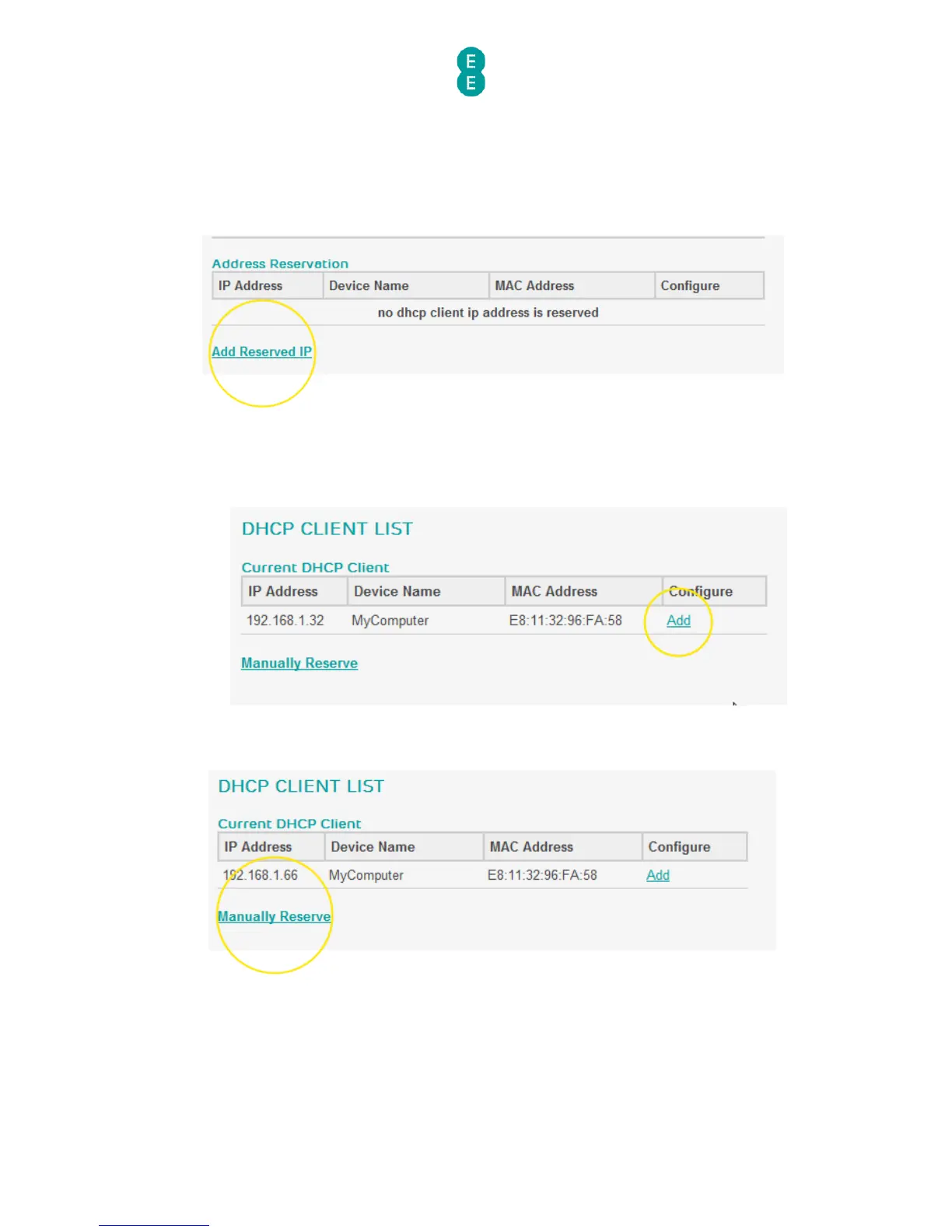
4. Click on the Add Reserved IP link in the address reservation section:
5. If the computer/device is already connected to the Bright Box, on the DHCP client list
page, select the computer or device you wish to permanently assign the IP address to
and click the Add link. You can identify the computer or device by the device name, or if
no device name is available, by the MAC address of the device. In this example we are
going to reserve the IP address for ‘MyComputer’:
6. If the computer/device is not currently connected to the Bright Box, click the Manually
Reserve link:
7. On the Edit Reserved DHCP page the current IP address of the device will be
displayed (or 192.168.1.100 if you chose Manually Reserve). If you want to change the
reserved IP address, enter any number between 2 and 254. Please note that you cannot
reserve a number that has already been assigned to another device.
8. If you chose the Manually Reserve option, enter the MAC Address of the device you
want to reserve and a Device Name (an easy to remember reference for the device)


 To Next Page