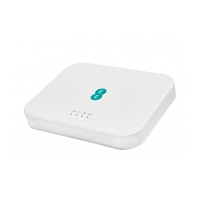
EE Bright Box User Manual
147
1. Reserve an IP address for the computer you wish to set up the access control rule on.
You can do this in the Advanced Set-Up > DHCP admin page. See
how to reserve an
IP address
on page 124 for further information.
2. Login to the router’s admin pages.
3. Click on the Advanced Set-Up tab and click Accept on the ‘Please proceed with
caution’ page.
4. Click on Firewall in the left hand navigation menu to expand the Firewall menu
5. Click on URL Blocking in the left hand navigation menu.
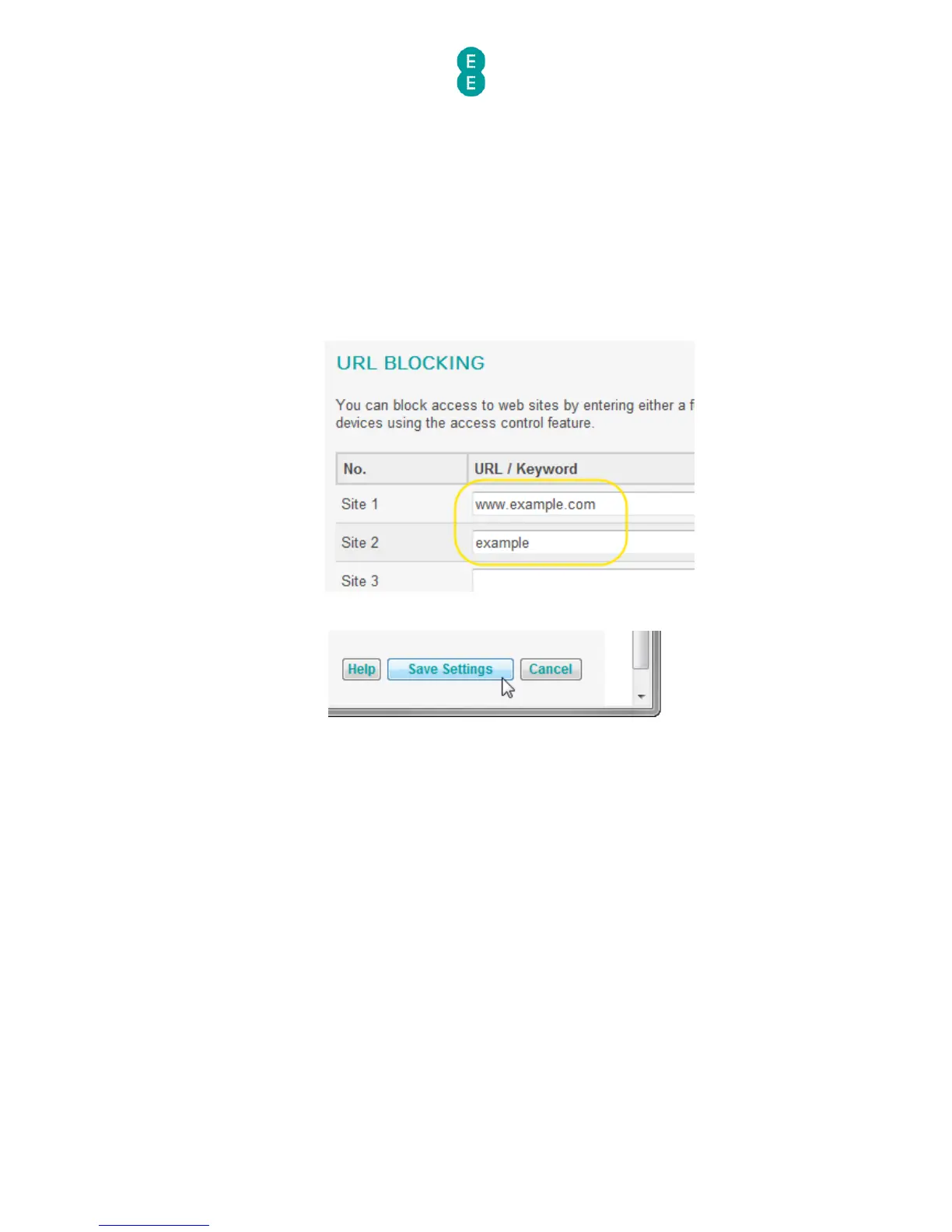
6. Enter the URL of the web address you wish to block, for example - www.example.com, or
just a keyword out of the URL e.g. (you don’t need to enter both) – example:
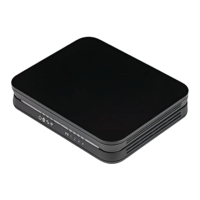
7. Scroll to the bottom of the page and click Save Settings:
8. Now, in the left hand navigation menu select Access Control:


 To Next Page