16
Chapter2AdjustingScreens
●
To switch signal formats
The monitor’s displayable resolution can be changed. Use this function in the following cases.
• DVI: When displaying a dedicated resolution and vertical scan frequency for Single Link.
• HDMI: When displaying PC signals.
Adjustable Range
• DVI: Dual Link / Single Link
• HDMI : Video / PC
Procedure
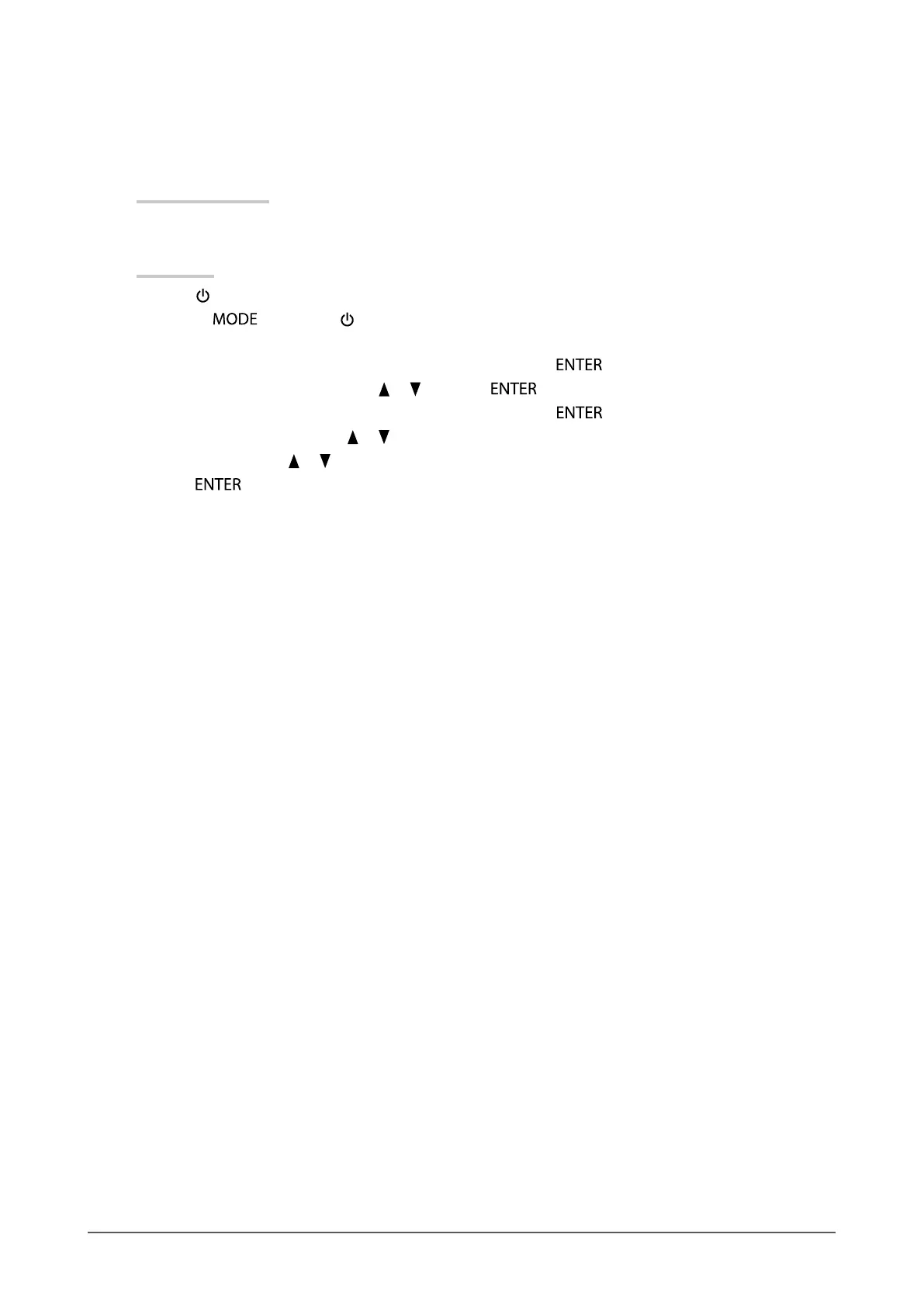
1. Press
to turn off the monitor.
2. Holding
down, press for at least two seconds to turn on the monitor.
The “Optional Settings” menu appears.
3. Choose “Signal Selection” from “Optional Settings”, and press .
4. Choose the input signal to set with
or , and press .
5. Select “Signal Format” with the selected input signal and press
.
6. Switch the signal format with
or .
7. Select “Finish” with
or .
8. Press
.
●
To set the display resolution for the OS
When you connect the monitor to the PC and nd that the resolution is improper, or when you want to change
the resolution, follow the procedure below.
Windows 8 / Windows 7
1. For Windows 8, click the “Desktop” tile on the Start Screen to display the desktop.
2. Right-click the mouse anywhere on the desktop except for icons.
3. From the displayed menu, click “Screen resolution”.
4. On the “Screen Resolution” dialog box, select the monitor.
5. Click “Resolution” to select the desired resolution.
6. Click the “OK” button.
7. When a conrmation dialog box is displayed, click “Keep changes”.
Windows Vista
1. Right-click the mouse anywhere on the desktop except for icons.
2. From the displayed menu, click “Personalize”.
3. On the “Personalization” window, click “Display Settings”.
4. On the “Display Settings” dialog box, select the “Monitor” tab and select desired resolution in the
“Resolution” eld.
5. Click the “OK” button.
6. When a conrmation dialog box is displayed, click “Yes”.



 To Next Page