42
Chapter7Troubleshooting
7-2. Imaging problems
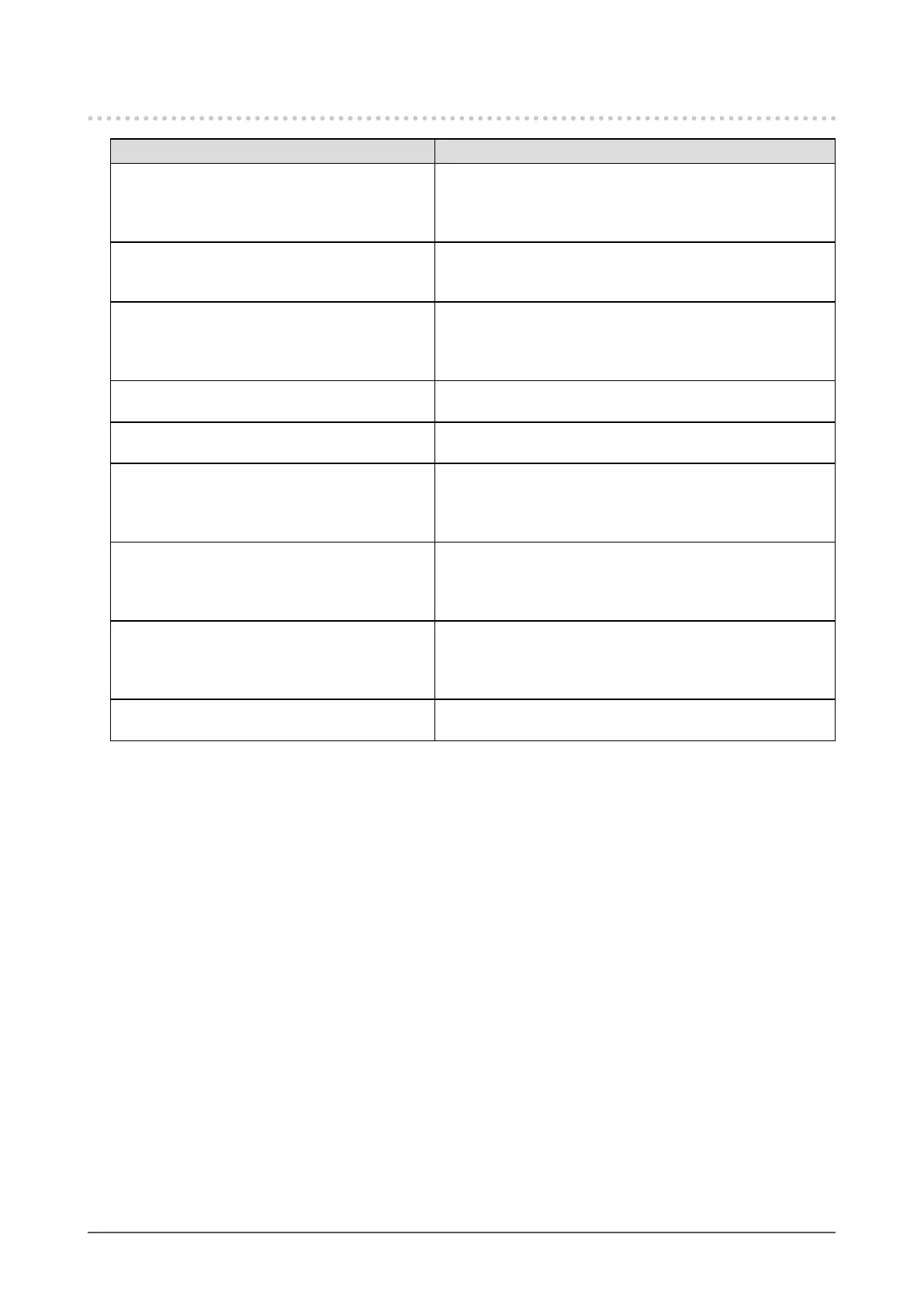
Problem Possible cause and remedy
1. The screen is too bright or too dark. • Use“Brightness”intheAdjustmentmenutoadjustit.(The
LCDmonitorbacklighthasalimitedlifespan.)Whenthe
screenbecomesdarkorbeginstoicker,contactyour
localEIZOrepresentative.)
2. Characters are blurred. • CheckwhetherthePCisconguredtomeettheresolution
andverticalscanfrequencyrequirementsofthemonitor
(see“2-1.SettingResolution”(page15)).
3. Afterimages appear. • AfterimagesareparticulartoLCDmonitors.Avoid
displayingthesameimageforalongtime.
• Usethescreensaverorpowersavingfunctiontoavoid
displayingthesameimageforextendedperiodsoftime.
4. Green/red/blue/white dots or defective
dots remain on the screen.
• ThisisduetoLCDpanelcharacteristicsandisnota
failure.
5. Interference patterns or pressure marks
remain on the screen.
• Leavethemonitorwithawhiteorblackscreen.The
symptommaydisappear.
6. Noise appears on the screen. • IntheAdjustmentmenu,set“Overdrive”to“Off”(see“2-4.
ConguringMovingImagePerformance”(page26)).
• WhenenteringthesignalsofHDCP,thenormalimages
maynotbedisplayedimmediately.
7. (DisplayPort input)
Display position of the windows changes.
• Whenthesignalisswitched,thepositionofthewindow
maybechanged.IntheAdjustmentmenu,set“DPPower
Save”to“Off”(see“6-5.SettingDisplayPortPowerSave”
(page40)).
8. (DisplayPort or HDMI input) The color
shown on the display is not correct.
• Use“Screen”-"ColorSpace"undertheAdjustmentmenu
toadjustit.
• ForHDMIsignalinput,changethe“SignalFormat”setting
(see“Toswitchsignalformats”(page16)).
9. An image does not display on the entire
screen.
• Changethe“ScreenSize”setting(see“Toselectscreen
size”(page17)).



 To Next Page