17
Chapter2AdjustingScreens
Windows XP
1. Right-click the mouse anywhere on the desktop except for icons.
2. From the displayed menu, click “Properties”.
3. When the “Display Properties” dialog box is displayed, click the “Settings” tab and select desired resolution
for “Screen resolution” under “Display”.
4. Click the “OK” button to close the dialog box.
Mac OS X
1. Select “System Preferences” from the Apple menu.
2. When the “System Preferences” dialog box is displayed, click “Displays” for “Hardware”.
3. On the displayed dialog box, select the “Display” tab and select desired resolution in the “Resolutions” eld.
4. Your selection will be reected immediately. When you are satised with the selected resolution, close the
window.
●
To select screen size
The image with the resolution other than the recommended resolution is displayed in full screen automatically.
You can change the screen size by using the “Screen Size” function from “Screen”.
DVI, DisplayPort HDMI (PC signal) input
Settings Function
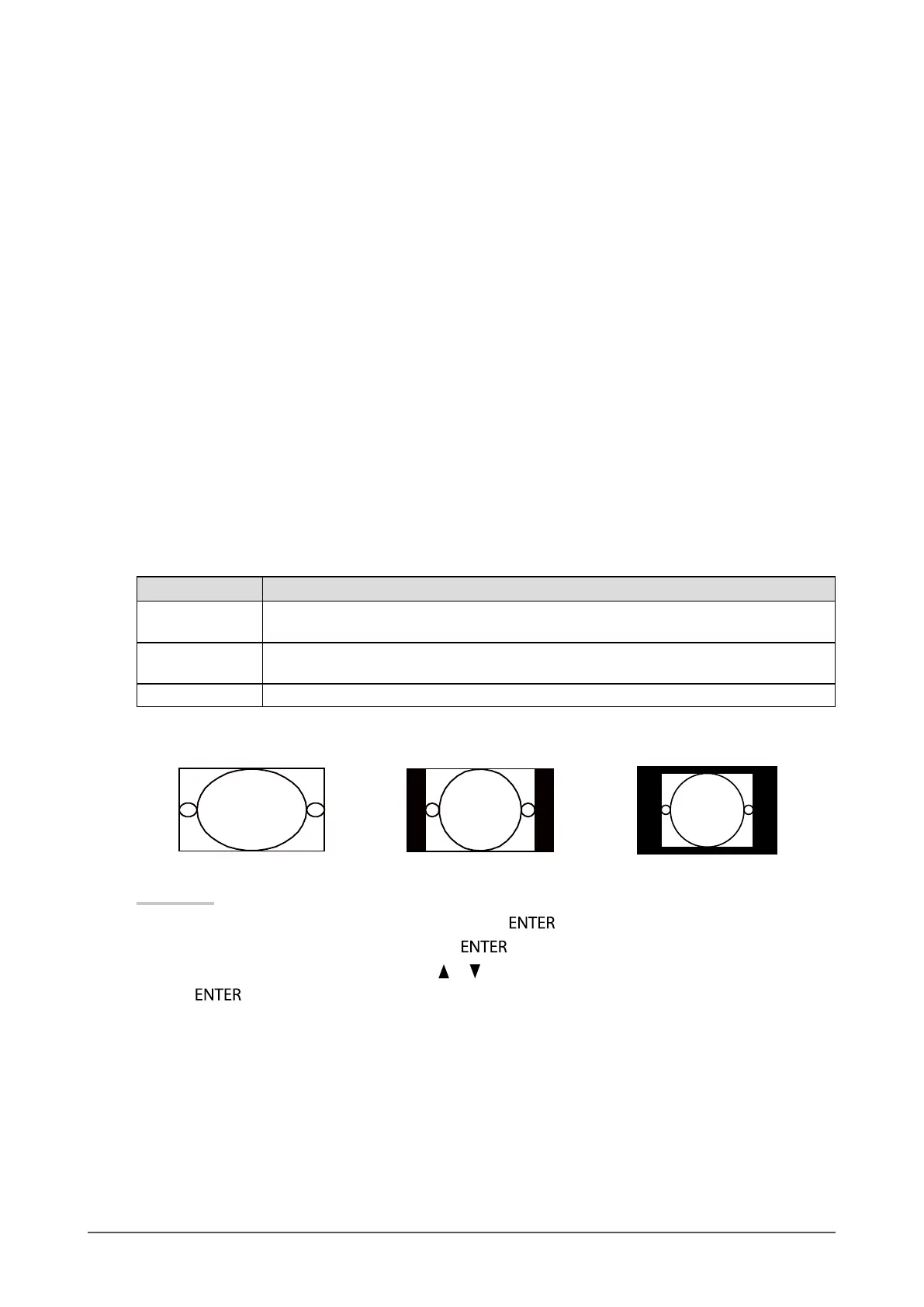
Full Displaysanimageinfullscreen.Imagesaredistortedinsomecasesbecausethevertical
rateisnotequaltothehorizontalrate.
Enlarged Displaysanimageinfullscreen.Insomecases,ablankhorizontalorverticalborder
appearstoequalizetheverticalrateandthehorizontalrate.
Normal Displaysimageswiththespeciedresolution.
Example: Image size 1280 × 1024
Full Enlarged Normal
2560×1400 1800×1440 1280×1024
Procedure
1. Choose “Screen” from the Adjustment menu, and press
.
2. Choose “Screen Size” from “Screen”, and press
.
3. Select “Full”, “Enlarged”, or “Normal” with
or .
4. Press
to exit.



 To Next Page