19
Chapter2AdjustingScreens
2-2. To select the display mode (color mode)
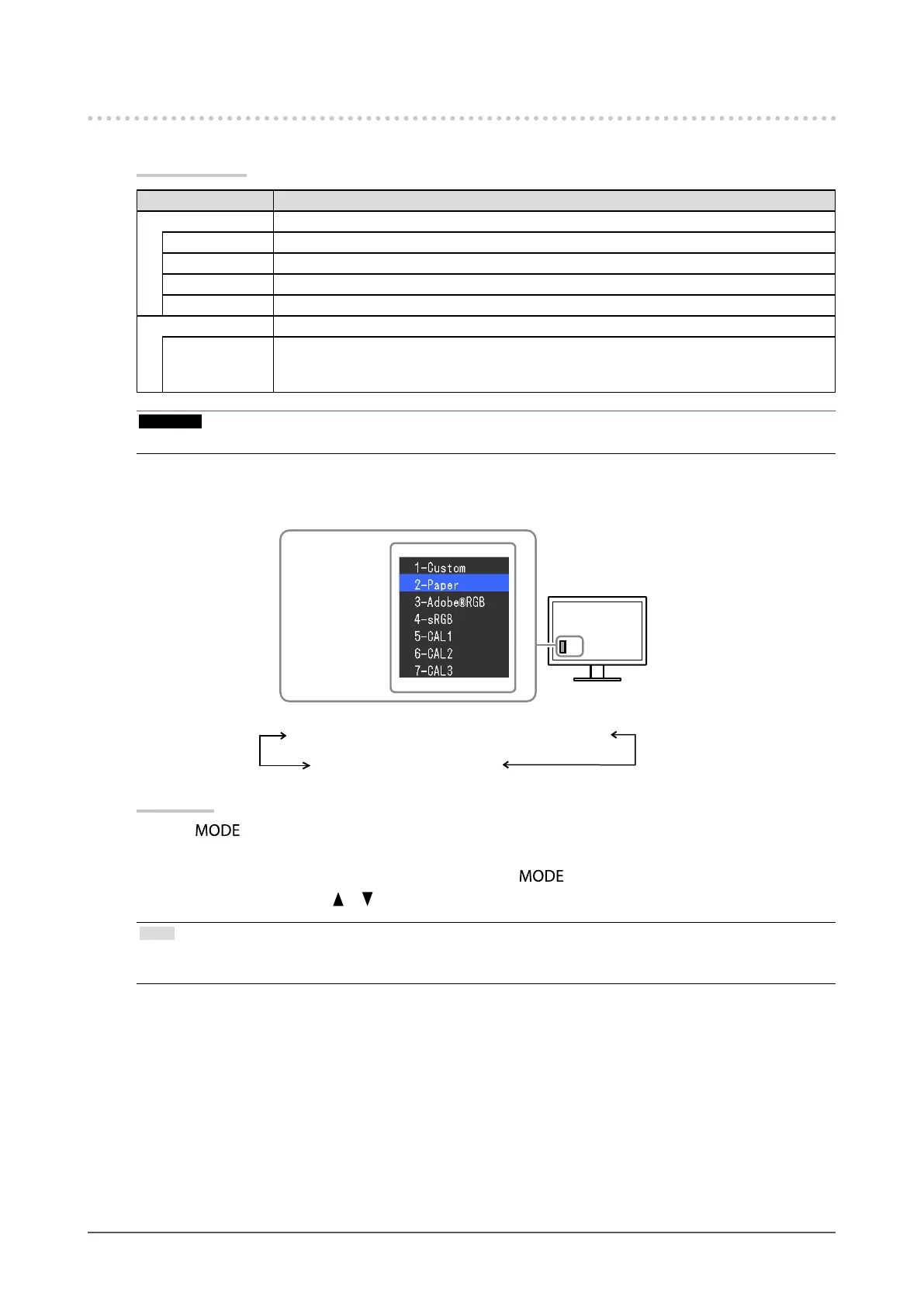
This function allows easy selection of a desired mode according to monitor application.
Display Modes
Mode Purpose
StandardMode Adjustcolorusingthemonitor’sAdjustmentmenu.
1-Custom Availableforthecolorsettingsaccordingtoyourpreference.
2-Paper Producesaprintedpapereffectbydecreasingcontrastandcolortemperature.
3-Adobe
®
RGB SuitableforcolormatchingwithAdobe
®
RGBcompatibleperipherals.
4-sRGB SuitableforcolormatchingwithsRGBcompatibleperipherals.
CALMode Adjustthemonitor’scolorusingsoftware.
5-CAL1
6-CAL2
7-CAL3
Displaysthescreenadjustedby“ColorNavigator”ColorManagementSoftwareand
“ColorNavigatorElements”PhotoColorMatchingSoftware
Attention
• Avoid operating any function of the monitor while using ColorNavigator and/or ColorNavigator Elements.
Example:
Themodemenu
appears.
1-Custom←→2-Paper←→3-Adobe
®
RGB←→4-sRGB
7-CAL3←→6-CAL2←→5-CAL1
Procedure
1. Press
.
The mode menu appears at the bottom left of the screen.
2. The mode among the list is highlighted in turn each time is pressed.
You can switch the mode with or while the mode menu is displayed.
Note
• The Adjustment menu and the Mode menu cannot be displayed at the same time.
• You can disable a specic mode to be selected. For more information, see “3-2. Skipping Unused Display Modes” (page 30).




 To Next Page