EasyManua.ls Logo

Eizo ColorEdge CX271 - User Manual

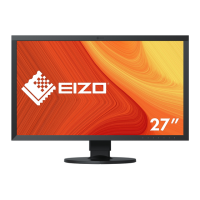
Eizo ColorEdge CX271
70 pages
Print Icon
To Next Page IconTo Next Page
Loading...
Important
Please read PRECAUTIONS, this Users Manual, and the Setup Guide
(separate volume) carefully to familiarize yourself with safe and
effective usage.
Please refer to the Setup Guide for basic information ranging from
connection of the monitor to a PC or external device to using the
monitor.
The latest Users Manual is available for download from our web site:
http://www.eizo.com
Cover

Table of Contents

Other manuals for Eizo ColorEdge CX271

Questions and Answers

  • J
    Jessica HawkinsAug 18, 2025
    What to do if my Eizo Monitor says no signal?
    • N
      Nicole BeckerAug 18, 2025
      If you see a message on your Eizo Monitor indicating no signal is being input, first ensure that your PC is powered on. Verify that the signal cable is correctly connected. Try switching the input signal using the appropriate button. Check that your PC's resolution and vertical scan frequency meet the monitor's requirements. Rebooting your PC may also resolve the issue. Additionally, ensure that you have selected an appropriate setting using the graphics board utility.
  • V
    vbuchananAug 20, 2025
    Why is my Eizo Monitor screen too bright or dark?
    • A
      Angela BellAug 20, 2025
      If your Eizo Monitor screen appears too bright or too dark, use the 'Brightness' setting in the Adjustment menu to correct it. Remember that LCD monitor backlights have a limited lifespan; if the screen darkens significantly or flickers, contact your local EIZO representative.
  • M
    Michael CraigAug 23, 2025
    Why is the adjustment menu not appearing on my Eizo ColorEdge CX271 Monitor?
    • S
      Sandra BatesAug 23, 2025
      If the adjustment menu is not appearing on your Eizo Monitor, check if the operation lock function is enabled. If you are running ColorNavigator or ColorNavigator Elements, exit the software, as it locks the operation buttons.
  • K
    Kirsten VasquezAug 26, 2025
    Why is my Eizo Monitor USB not working?
    • N
      natasha58Aug 26, 2025
      If your Eizo Monitor is not being detected via USB, or USB devices connected to it aren't working, check that the USB cable is properly connected. Review the 'USB Selection' settings in the Setting menu. Try changing the USB port. Reboot your PC. Check whether the PC and OS are USB compliant and verify the PC's BIOS settings for USB when using Windows.
  • A
    April WiseAug 28, 2025
    How to fix blurred characters on Eizo ColorEdge CX271 Monitor?
    • L
      Lisa MyersAug 28, 2025
      If the characters on your Eizo Monitor appear blurred, ensure that your PC is configured to meet the resolution and vertical scan frequency requirements of the monitor.
  • K
    Kelly KerrAug 31, 2025
    Why is there no mode menu displayed on my Eizo ColorEdge CX271?
    • J
      Jennifer StewartAug 31, 2025
      If no mode menu is displayed on your Eizo Monitor, verify whether the operation lock function is activated. If ColorNavigator or ColorNavigator Elements is running, exit the software because it locks the operation buttons.
  • C
    Christine MeyersSep 2, 2025
    How to eliminate noise on Eizo ColorEdge CX271 Monitor screen?
    • J
      Joseph GarrisonSep 2, 2025
      If noise appears on the screen of your Eizo Monitor, set 'Overdrive' to 'Off' in the Adjustment menu. Also, when entering HDCP signals, normal images may not be displayed immediately.
  • S
    Sarah HendersonSep 4, 2025
    What to do for afterimages on Eizo Monitor?
    • D
      David MitchellSep 4, 2025
      If afterimages appear on your Eizo Monitor, avoid displaying the same image for extended periods. Utilize the screen saver or power-saving function to prevent static images from being shown continuously.
  • A
    Angela RyanSep 7, 2025
    How do I remove interference patterns on my Eizo ColorEdge CX271?
    • D
      Dennis DominguezSep 7, 2025
      If interference patterns or pressure marks remain on the screen of your Eizo Monitor, leave the monitor displaying a white or black screen. This may resolve the issue.
  • R
    robertsonkimberlySep 9, 2025
    Why is there no audio output from my Eizo ColorEdge CX271 Monitor?
    • J
      Jessica DavisSep 10, 2025
      This Eizo Monitor does not support HDMI/DisplayPort audio signals.

Summary

Chapter 1 Introduction

1-1. Features

Details the monitor's key technical specifications and capabilities.

1-2. Controls and Functions

Explains the function of buttons and indicators on the monitor's front and rear panels.

Chapter 2 Adjusting Screens

2-1. Setting Resolution

Details compatible resolutions and formats for digital inputs and OS settings.

2-2. Select Display Mode (Color Mode)

Allows selection of various display modes like Standard, Paper, Adobe RGB, and CAL modes.

2-3. Adjusting Color

Guides on adjusting brightness, temperature, gamma, and color gamut for optimal color reproduction.

Chapter 3 Setting Monitor

Chapter 4 SelfCorrection

4-1. Setting Calibration Details

Sets the timing for SelfCorrection and enables/disables it for Standard Mode.

4-2. Executing SelfCorrection

Explains how to manually execute the built-in correction sensor for display calibration.

Chapter 5 Connecting Multiple External Devices

Chapter 6 Power Saving Functions

Chapter 7 Troubleshooting

7-1. No Picture

Provides solutions for issues like no power, incorrect power indicator lights, or "No Signal" messages.

7-2. Imaging Problems

Addresses common imaging issues like brightness, blurriness, afterimages, pixel defects, and noise.

7-3. Other Problems

Covers troubleshooting for issues like the adjustment menu not appearing, no mode menu, USB device detection, and audio output.

7-4. Built-in Sensor and SelfCorrection Issues

Troubleshoots problems related to the built-in correction sensor and SelfCorrection execution.

Chapter 8 Reference

Supplementary Information and Compliance

Limited Warranty

Details the product's warranty period, terms, conditions, and exclusions for service.

Eizo ColorEdge CX271 Specifications

General IconGeneral
Screen Size27 inches
Panel TypeIPS
Resolution2560 x 1440
Color Gamut99% Adobe RGB
Brightness300 cd/m²
Contrast Ratio1000:1
Aspect Ratio16:9
Viewing Angles178° horizontal, 178° vertical
Stand AdjustmentsHeight, tilt, swivel, pivot
Response Time6 ms
ConnectivityDisplayPort, HDMI, DVI-D
USB HubYes
CalibrationHardware calibration

Related product manuals