Operation and Maintenance
UFM Series 6
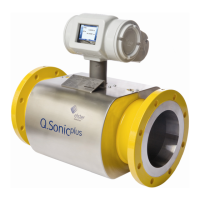
Q.Sonic-plus
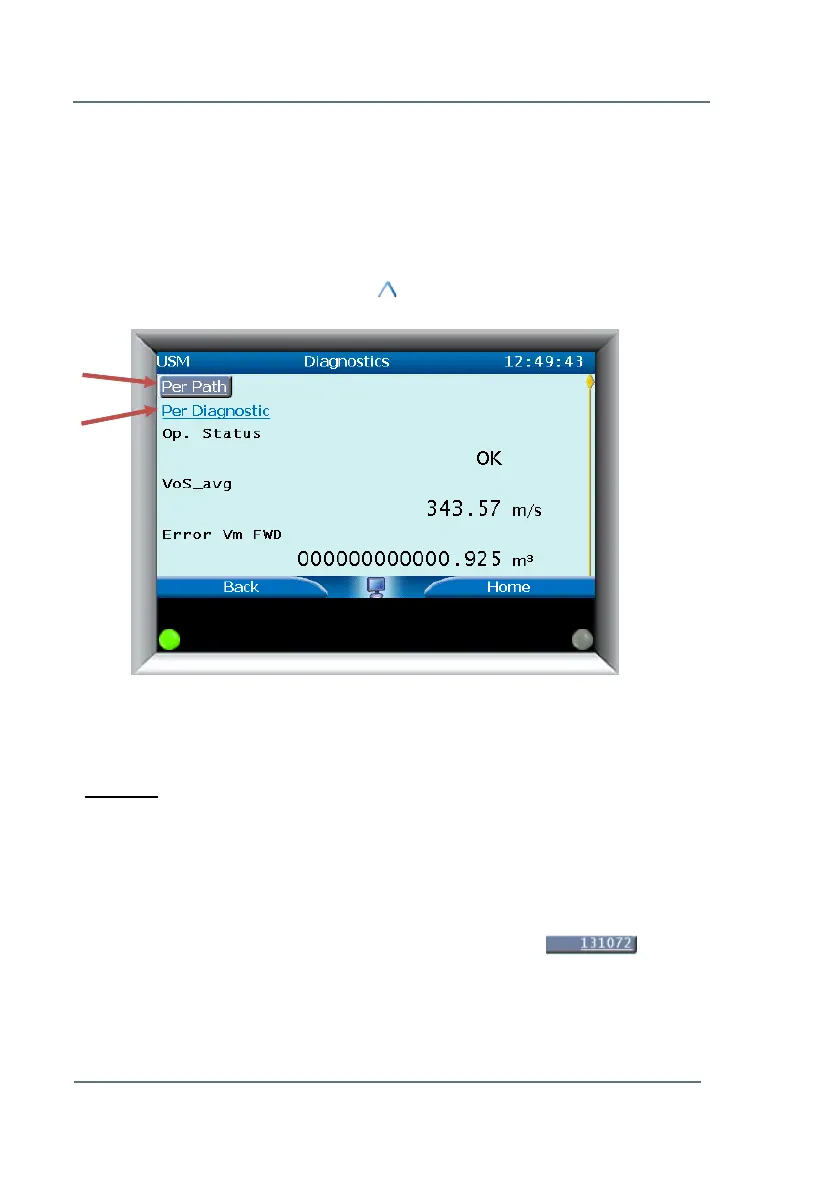
As seen in Figure 7-12, on the diagnostics page you may also choose from
two sub-menus:
Per Path
Per Diagnostic
These sub-menus are shown on the top of the display, and will disappear if
you scroll down. Use the “up” arrow to make them reappear.
Per Path
Per Path provides an overview of all paths and the current performance of
each individual path can be checked. By choosing an individual path (for
example in Figure 7-13; Path 1) you can then view the performance %,
diagnostic details (by selecting the hyperlink), VoG and VoS of that path.
By further selecting the highlighted Diagnostic result box , you
can see a detailed breakdown of the path diagnostics.
Figure 7-12: Diagnostics sub-menus


 To Next Page