EasyManua.ls Logo

Encore ENDSL-A2+R2 - User Manual

Encore ENDSL-A2+R2
80 pages
Print Icon
To Next Page IconTo Next Page
Loading...
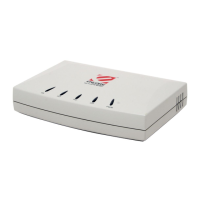
ENDSL-A2+R2
ADSL2+ Modem
One Port Full-Rated Router
User’s Manual
JULY 2007

Other manuals for Encore ENDSL-A2+R2

Questions and Answers

  • J
    Janice ClarkAug 14, 2025
    What to do if I forgot my Encore Modem login username or password?
    • J
      Jennifer WatsonAug 14, 2025
      If you've forgotten your Encore Modem login username or password, and you've changed it from the default, you'll need to upload the default configuration file. Keep in mind that this action will erase all custom configurations and restore the factory defaults, including the password. Alternatively, you can press the DEFAULT button for five seconds, and then release it. When the ADSL LED begins to blink, the defaults have been restored and the router restarts. The default username is “admin” and the default password is “trendchip”. Note that both the Password and Username fields are case-sensitive; ensure you're using the correct casing.
  • K
    Kevin DavisAug 17, 2025
    Why I cannot access the Internet with my Encore ENDSL-A2+R2?
    • R
      Randy DavisAug 17, 2025
      If you're having trouble accessing the Internet with your Encore Modem, first ensure that the modem is turned on and properly connected to the network. Check that you entered the correct user name and password. For wireless connections, verify that both the modem and any wireless stations are using the same ESSID, channel, and WEP keys, especially if WEP encryption is enabled. If the ADSL LED is off, refer to Section 5.1.3 (Page 67). Verify your WAN settings.
  • R
    rfoxAug 20, 2025
    How to fix PWR LED not lit on Encore ENDSL-A2+R2 Modem?
    • V
      Victoria HubbardAug 21, 2025
      If the PWR LED on your Encore Modem isn't lighting up, ensure the power adapter is correctly connected to both the modem and a functioning power source. Use only the adapter supplied with the device. Make sure both the modem and the power source are switched on and that the modem is receiving adequate power. Try turning the modem off and then on again. If the problem continues, it may indicate a hardware issue, and you should contact your vendor.
  • H
    heidi54Aug 25, 2025
    What to do if I cannot access the web interface of my Encore ENDSL-A2+R2?
    • L
      lwhitakerAug 25, 2025
      If you're unable to access the web interface of your Encore Modem, first ensure you're using the correct IP address for the modem. Also, confirm that there isn't a console session currently running. Check that you've enabled web service access. If a secured client IP address is configured, your computer's IP address must match it. For WAN access, remote management must be configured to allow server access from the WAN (or all). Your computer's and the modem's IP addresses must be on the same subnet for LAN access. If you've changed the modem's LAN IP address, enter the new one as the URL. Ensure there are no filters in the LAN or WAN settings that might be blocking web service.
  • M
    Michael BergAug 27, 2025
    Why is initialization of the ADSL connection failing on my Encore ENDSL-A2+R2?
    • C
      Christian AdamsAug 27, 2025
      If the ADSL connection initialization is failing on your Encore Modem, start by checking the cable connections between the ADSL port and the wall jack, ensuring the ADSL LED on the front panel is lit. Verify that your VPI, VCI, type of encapsulation, and type of multiplexing settings match what you've obtained from your telephone company and ISP. Try restarting the modem. If issues persist, double-check these settings with your telephone company and ISP.
  • M
    martinezjacobAug 31, 2025
    What to do if the ADSL LED on my Encore ENDSL-A2+R2 doesn't light up?
    • X
      xrosarioAug 31, 2025
      If the ADSL LED on your Encore Modem isn't lighting up, first check the telephone wire and connections between the modem's ADSL port and the wall jack. Make sure your telephone company has checked your phone line and has set it up for ADSL service. Try resetting your ADSL line to reinitialize your link to the DSLAM. If these steps don't resolve the issue, contact your local distributor for assistance.
  • J
    jeffrey30Sep 3, 2025
    What to do if I cannot access my Encore ENDSL-A2+R2 from the LAN?
    • J
      Jon GreenSep 3, 2025
      If you're unable to access your Encore Modem from the LAN or ping any computers on the LAN, start by checking the Ethernet LEDs on the front panel. A LAN LED should be lit for each port with a connected PC. If an LED is off, inspect the cables between your modem and the PC. For troubleshooting purposes, uninstall any software firewalls temporarily. Also, ensure that the IP address and subnet mask are consistent between the modem and the workstation.
  • B
    brayericSep 6, 2025
    Why does my Encore ENDSL-A2+R2 Modem internet connection disconnect?
    • M
      michaeltrevinoSep 7, 2025
      If your Encore Modem's internet connection disconnects, check the schedule rules. If you use PPPoA or PPPoE encapsulation, check the idle time-out setting. Contact your ISP.
  • J
    James RiddleSep 10, 2025
    What to do if the LAN LED on the front panel of my Encore ENDSL-A2+R2 does not light up?
    • T
      Timothy AllenSep 10, 2025
      If the LAN LED on the front panel of your Encore Modem does not light up, check the Ethernet cable connections between your modem and the computer or hub. Check for faulty Ethernet cables. Make sure your computer’s Ethernet card is working properly. If these steps fail to correct the problem, contact your local distributor for assistance.

Summary

Introduction

Introduction to the ENDSL-A2+4 R2 Router

Overview of the ENDSL-A2+4R2 ADSL2+ router, its features, and target users.

Product Features

Details the key features of the ADSL2+ router, including standards, protocols, and capabilities.

Hardware Installation

System Requirements

Lists the minimum hardware and software specifications needed for the router.

Package Contents

Details the items included in the router's package.

Front Panel Indicators and Description

Explains the function of each LED indicator on the router's front panel.

Back Panel Connectors

Describes the connectors and buttons on the router's back panel.

Connecting Related Devices

Step-by-step instructions for connecting the router to power, phone line, and computer.

Connecting via Ethernet and USB

Setup via Ethernet Cable

Instructions for connecting and setting up the router using an Ethernet cable.

Setup via USB Cable

Instructions for connecting and setting up the router using a USB cable.

USB Device Driver Installation on MAC OS

Mac OS Driver Installation Steps

Step-by-step guide for installing the USB device driver on Mac OS.

Configure TCP;IP Settings

TCP;IP Configuration for Windows 98 SE and ME

Steps to configure TCP/IP settings for Windows 98SE and ME.

TCP;IP Configuration for Windows XP

Steps to configure TCP/IP settings for Windows XP.

TCP;IP Configuration for Windows Vista

Steps to configure TCP/IP settings for Windows Vista.

Configure Router via HTML Interface

4.1 Login Process

Steps to access and log into the router's web-based configuration interface.

4.2 Quick Start Wizard

Guides users through initial router setup for ISP connection and basic settings.

Interface Setup

4.3.1 Internet (ISP) Configuration

Settings for connecting to the ISP, including ATM VC, VPI, VCI, and QoS.

4.3.2 LAN Configuration

Settings for the router's LAN interface, including IP address and DHCP server.

Advanced Setup Options

4.4.1 Firewall Configuration

Options to enable or disable the router's firewall and SPI.

4.4.2 Routing Settings

Lists IP destinations and gateway IPs; allows editing static routes.

4.4.3 NAT Configuration

Configuration for Network Address Translation (NAT) and its status.

4.4.4 QoS Settings

Quality of Service settings to prioritize network traffic.

4.4.5 VLAN Configuration

Virtual LAN configuration options for network segmentation.

4.4.6 ADSL Settings

Settings for ADSL mode and type (Annex, modulation).

Access Management

4.5.1 ACL (Access Control List)

Access Control List to manage remote access via IP addresses.

4.5.2 IP Filter Configuration

Firewall protection using IP/MAC filters for packets.

4.5.3 SNMP Configuration

Configuration for Simple Network Management Protocol.

4.5.4 UPnP Settings

Universal Plug and Play settings for automatic device configuration.

4.5.5 DDNS Setup

Dynamic Domain Name System setup for updating dynamic IP addresses.

4.5.6 CWMP Configuration

CPE WAN Management Protocol (TR-069) configuration.

Maintenance and Management

4.6.1 Administration (Password Management)

Setting the admin password for web management access.

4.6.2 Time Zone Settings

Setting the router's time zone and synchronization.

4.6.3 Firmware Upgrade

Instructions for upgrading the router's firmware.

4.6.4 System Restart Options

Options to restart the router with current or default settings.

4.6.5 Diagnostic Tests

Running diagnostic tests for LAN/WAN connectivity.

Status Information

4.7.1 Device Info

Shows firmware, WAN, LAN, and MAC address information.

4.7.2 System Log

Displays system communication logs and events.

4.7.3 Statistics

Shows traffic statistics for Ethernet and ADSL connections.

Troubleshooting Common Issues

5.1 Diagnosing Problems with LEDs

Using front panel LEDs to identify issues.

5.2 Web Interface Access Problems

Steps to resolve issues accessing the router's web interface.

5.3 Login Credentials Issues

Steps for forgotten login credentials.

5.4 LAN Connectivity Problems

Troubleshooting steps for LAN connectivity issues.

5.5 WAN Interface and Internet Access Issues

Troubleshooting ADSL connection, WAN IP, and Internet access.

5.6 Internet Access Problems

Steps to resolve issues with accessing the internet or connection drops.

Encore ENDSL-A2+R2 Specifications

General IconGeneral
Wireless802.11b/g
SecurityWEP, WPA, WPA2
TypeADSL2+
InterfaceEthernet
Ports4 x RJ-45
FeaturesNAT

Related product manuals