User’s Guide Introduction
A.10
60-Key Expansion Console connection
Notes: Your Installer or System Administrator must enable Expansion Console support for your extension before
you can use one or both Expansion Consoles.
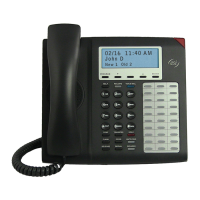
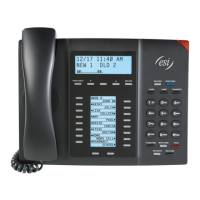
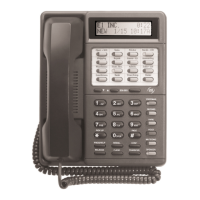
The 60-Key Expansion Console can be connected to an ESI 60, ESI 40, or 48-Key Feature Phone.
If connecting both a 60-Key Expansion Console and a Second Expansion Console to a 48-Key Feature
Phone, see “Second Expansion Console connection,” page A.11.
1. Unplug the line cord from your ESI phone.
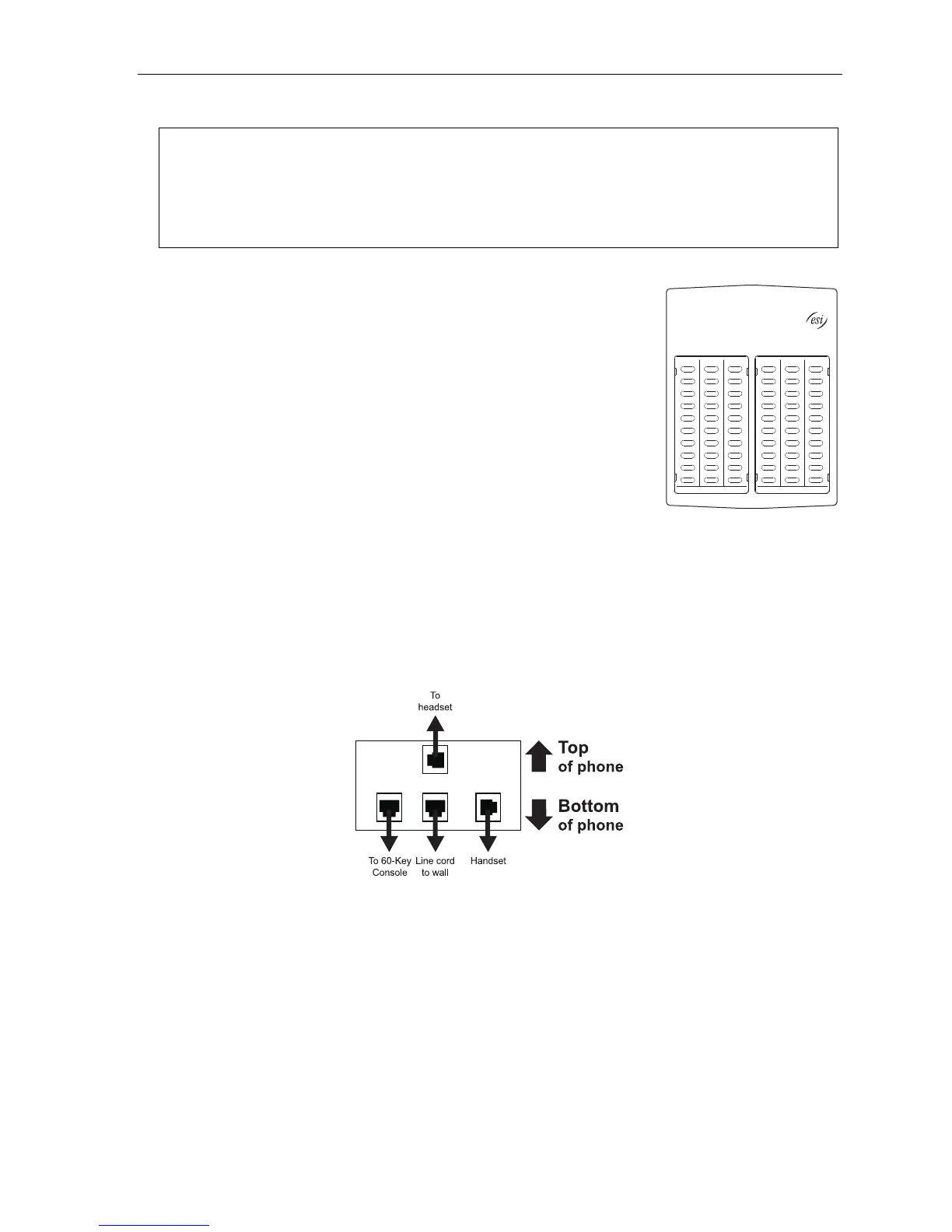
2. The 60-Key Expansion Console (right) includes a six-conductor
expansion cable. Connect one end of the expansion cable to the
appropriate connector on the bottom of the ESI phone (below).
Then, connect the other end of the expansion cable to the 60-Key
Expansion Console.
3. To keep cabling out of the way, thread the expansion cable into the
slots on the bottom of the phone and 60-Key Expansion Console.
4. Program the keys on the 60-Key Expansion Console using the same
procedure as with the phone (press PROG/HELP 2).
5. If necessary, remove the clear plastic overlay from the keys on the
Expansion Console.
6. For maximum convenience, label the paper overlay to show how
the keys are programmed (your Installer or System Administrator can do this with ESI software).
7. Install the labeled paper overlay on the 60-Key Expansion Console.
8. Install the clear plastic overlay over the paper overlay, to protect it.
9. Use the provided Velcro
®
tape to attach the left side of the 60-Key Expansion Console to the right side of
the ESI phone.
10. Plug the line cord back into your phone.
Connectors on bottom of phone


 To Next Page