User’s Guide Voice mail operation
D.1
Voice mail operation
Your ESI system provides accurate and timely messages. Others will become more comfortable leaving you
voice messages if you promptly retrieve and respond to your messages.
VOICE MAIL key
For direct access to all voice mail features, such as picking up messages or transferring directly to mailboxes:
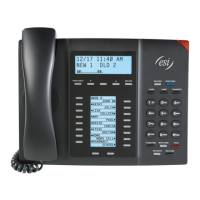
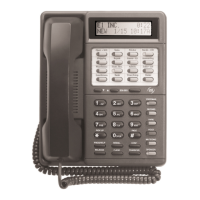
• On an ESI 60 — Use the blue VOICE MAIL key. It will blink whenever you have one or more new
messages, and the upper display will show you how many new and old messages are stored for you on the
ESI system. Once you press VOICE MAIL, the lower display will update to show your eight most recent
messages, with each new message appearing in a bold font. Use the scroll keys below the lower display
to see the next eight messages (press the left scroll key to scroll down and the right scroll key to scroll up).
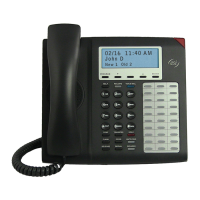
• On an ESI 40, 48-Key Feature Phone, or 24-Key Feature Phone — Use the blue VOICE MAIL key. It will
blink whenever you have one or more new messages, and the display will show you how many new and old
messages are stored for you on the ESI system.
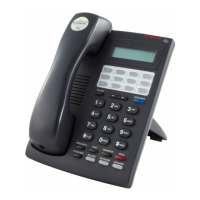
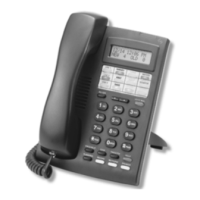
• On a legacy 12-Key Feature Phone — Assign key code 579 to a programmable feature key (see
“Programmable feature keys,” pp. C.2–C.3, and “Optional features,” page F.14). Until this has been done
for your phone, your mailbox is disabled. (When you try to access a disabled mailbox, the system will
notify you that it’s disabled.) You still can retrieve previously left messages and access user programming,
but the mailbox won’t be able to receive new voice messages. Therefore, to enable the mailbox, assign key
code 579 to a programmable feature key.
• On an ESI Cordless Handset, use the blue-outlined VOICE MAIL key. The display, directly above the
VOICE MAIL key, will show an “envelope” icon when you have one or more new messages.
Personal greetings
To program your personal greetings, press PROG/HELP 1. Initially, your mailbox has a generic greeting: “You
have reached the mailbox for extension xxx. Dial 0 to reach the operator or begin recording at the tone.” You
can record up to three different personal greetings in your own voice indicating your availability to return calls.
Examples
Sample greeting 1:
Hi, this is [name]. I’m away from my desk or on the phone right now; so please either dial zero to reach
our operator, or leave me your name, number and message at the tone and I’ll get back to you as soon
as I can.
Sample greeting 2:
Hi, this is [name]. I’m out of the office. You may dial 1 2 2 now for my assistant or, if you prefer, you may
leave me a voice message at the tone — I’ll check in regularly — or, if it’s important, either dial 4 now to
reach me on my cell phone or dial 2 now to leave me an urgent message that will page me automatically.
1
Sample greeting 3:
Hi, this is [name]. I’m away from my desk at the moment. To have me paged, dial 3 now.To reach the
operator, dial zero. Otherwise, leave your name and phone number at the beep so I can return your call.
1
(Continued)
1
These sample greetings refer to certain features which may not be activated for your extension; consult your System Administrator for additional
information, if necessary.


 To Next Page