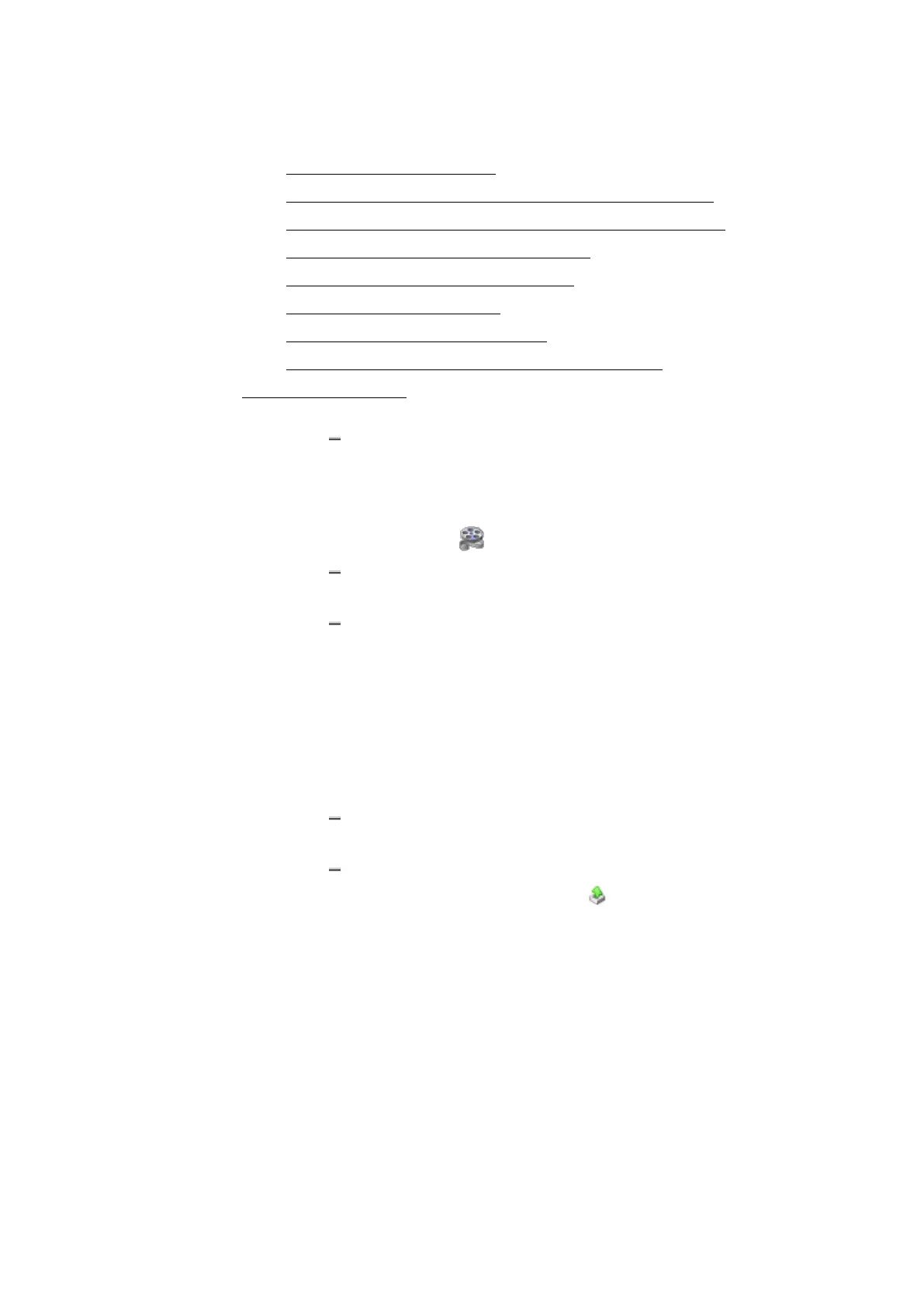
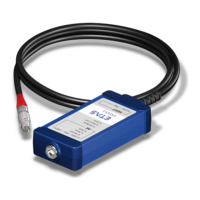
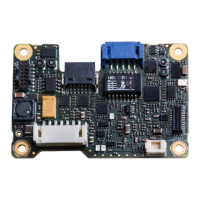
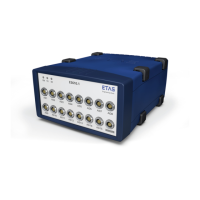
ETAS 2 Configuration Creation
l "To export measure data" below
l "To define the output raster for exported signals" on the next page
l "To convert measure data into another file format" on the next page
l "To compress measure files" on the next page
l "To extract an attachment" on the next page
l "To cancel an export" on page37
l "To check the export status" on page37
l "To see the exported file in Windows Explorer" on page37
To export measure data
1. You have the following choices to export measure data:
If you want to export a complete measure file, select the meas-
ure file in the File Explorer.
To see how you can export a measure file for a selection of sig-
nals, or how to convert a measure file into a new file format,
watch our video Exporting Signals and Files.
If you want to export a subset of signals from the configuration,
select the signals in the Variable Explorer.
You can export all signals that are assigned to a specific instru-
ment. In the Export Measure Data dialog, you can select
whether all signals from all sources shall be included or not.
Note that exporting from an instrument is currently only sup-
ported for oscilloscopes, scatter plots, and tables. In oscil-
loscopes, signals for which you have hidden the signal curve
are also exported.
2. Do one of the following:
To open the export dialog from the File Explorer or Variable
Explorer, right-click and choose Export Measure Data.
To open the export dialog from an instrument, click the export
icon in the toolbar of the instrument .
The Export Measure Data window displays the total number of
signals that will be exported. When exporting from an instru-
ment, you can additionally choose to export all signals from all
sources.
3. Define the start and end time.
If you have opened the export dialog from an instrument, it displays
the time values of the currently visible time range of the instrument
by default.
4. To choose a folder path and file name, click Browse.
MDA V8.5 - User Guide 35


 To Next Page