Chapter 9 Operation and Maintenance
> 9.5 Troubleshooting
ETERNUS DX60/DX80/DX90 Disk storage system User Guide
212
Copyright 2010 FUJITSU LIMITED
P3AM-3042-07ENZ0
Refer to the following sections for details on these functions.
• "1.3.4
RAID Migration" (page 42)
• "1.3.5 Logical Device Expansion" (page 44)
• "1.3.6 LUN Concatenation" (page 45)
■ When I/O access is slow
Check the following:
• Check that the ambient temperature does not exceed the operating environment conditions. If
so, Nearline SAS disk performance may be reduced.
• Click the icon of each part in the Storage System Status screen of GUI to check if an
abnormality is detected in ETERNUS DX60/DX80/DX90 parts.
If an abnormality is detected, contact your maintenance engineer.
• Check the path status.
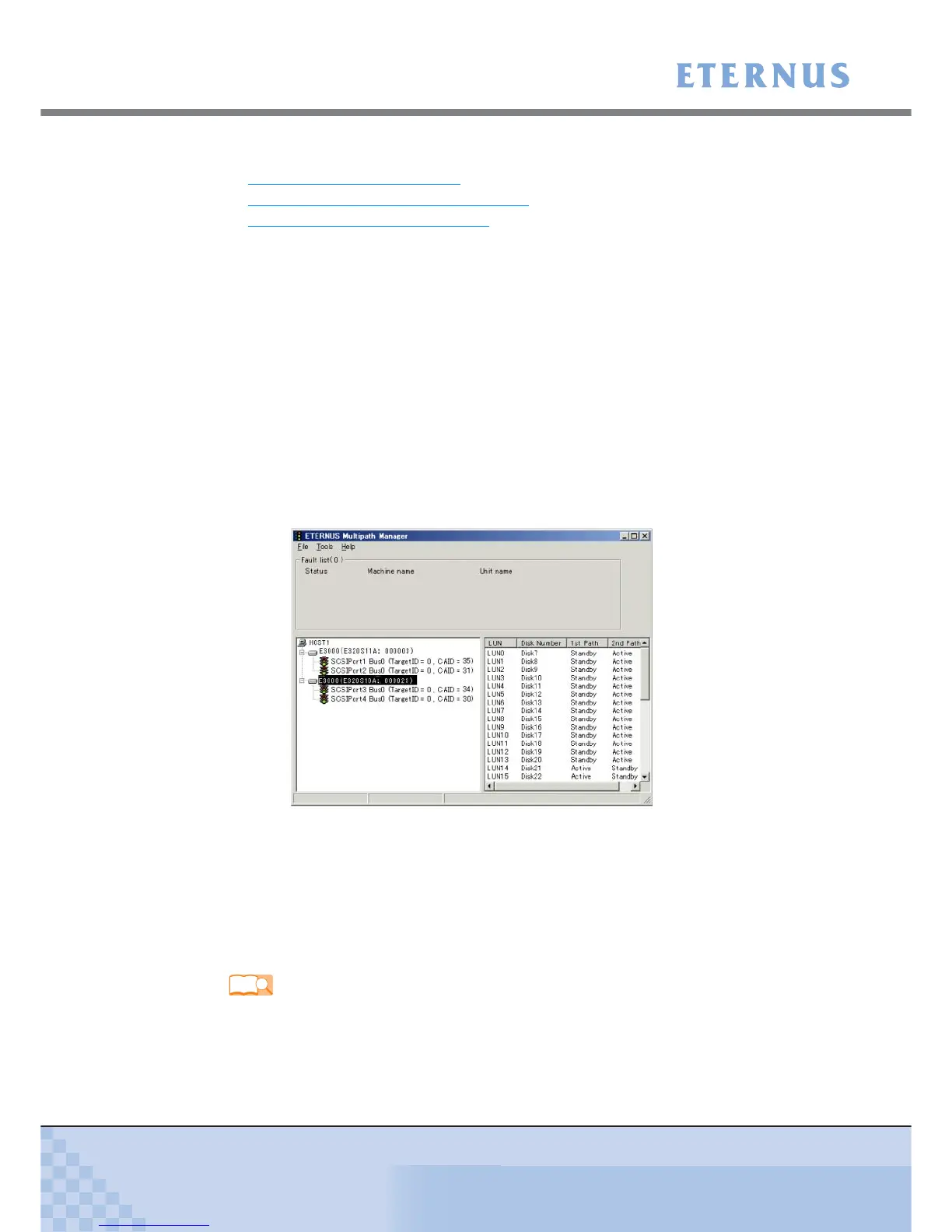
- When using ETERNUS Multipath Driver, start ETERNUS Multipath Manager.
For Windows®, click [Start] - [Program] - [ETERNUS Multipath Driver] - [ETERNUS
Multipath Manager] to start ETERNUS Multipath Manager.
If an abnormality is detected in a path, refer to ETERNUS Multipath Driver manuals and
follow the direction given in the manuals.
Figure 9.1 ETERNUS Multipath Manager Window
- When not using ETERNUS Multipath Driver, use the path management tool and check the
path status that each software provides, and handle the problem if necessary.
• Check the loading of the ETERNUS DX60/DX80/DX90. If the load is out of balance because
of operation content changing and so forth.
• When the cause is not identified, contact your maintenance engineer.
Refer
"ETERNUS DX60/DX80/DX90 Web GUI User Guide"
ETERNUS Multipath Driver manuals


 To Next Page