+1.317.845.5710
+44.1438.310163
USA (Corporate Headquarters)
Europe/Middle East/Asia
20
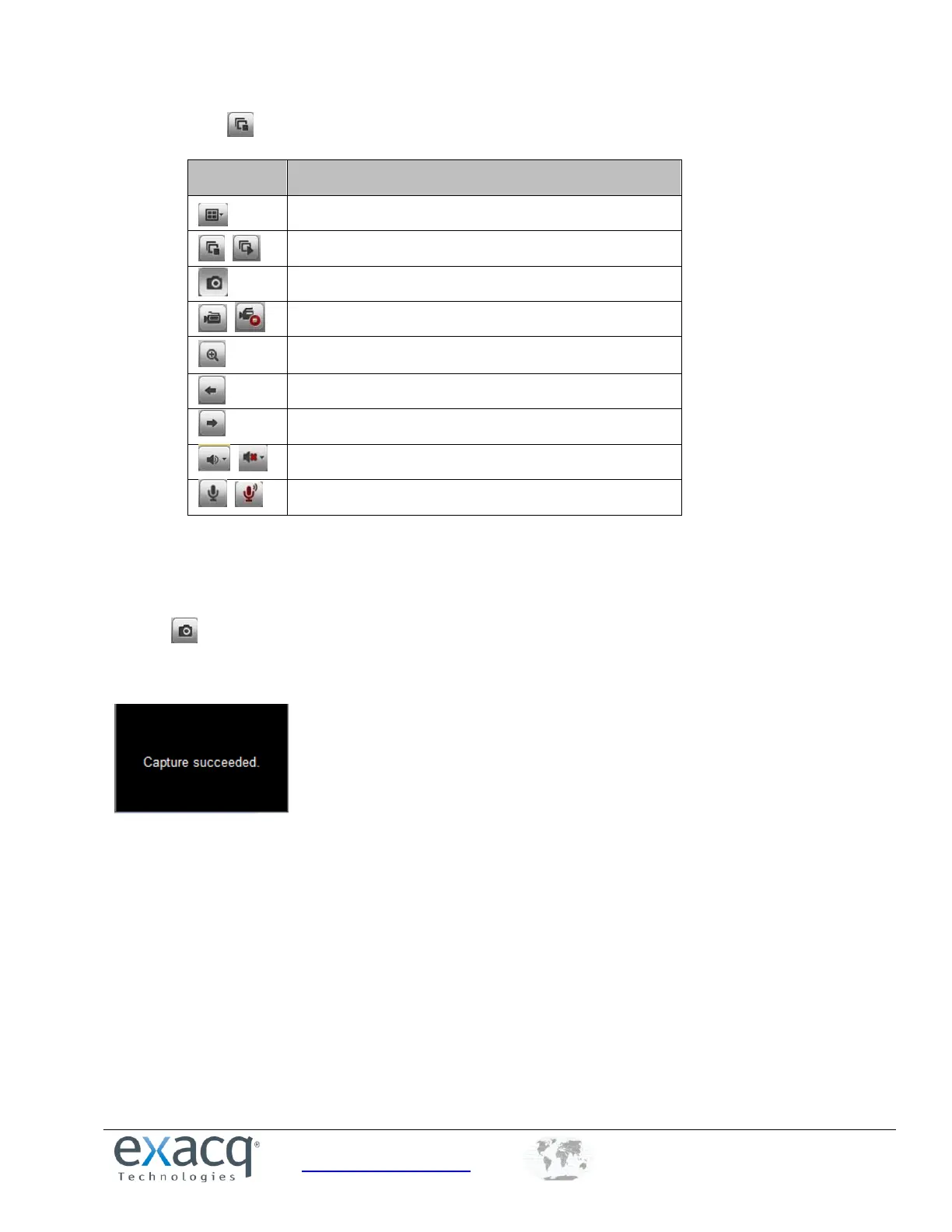
3. Click the button to start the Live View for all cameras on the device list. Additional toolbar buttons:
Select the window-division mode.
Capture pictures in Live View.
Manually start/stop recording.
Start/stop two-way audio (Stream Type must be
configured).
TIP: To display full-screen mode, double-click a live video window. To switch to the previously selected mode, double-
click the live video window again.
Capturing a Picture
Click the button on the toolbar to capture live pictures in JPEG format. When the picture is captured, the following
pop-up message box will appear at the lower right corner. The location where the picture is saved can be configured
using the Local Configuration option on the Configuration page.


 To Next Page