+1.317.845.5710
+44.1438.310163
USA (Corporate Headquarters)
Europe/Middle East/Asia
53
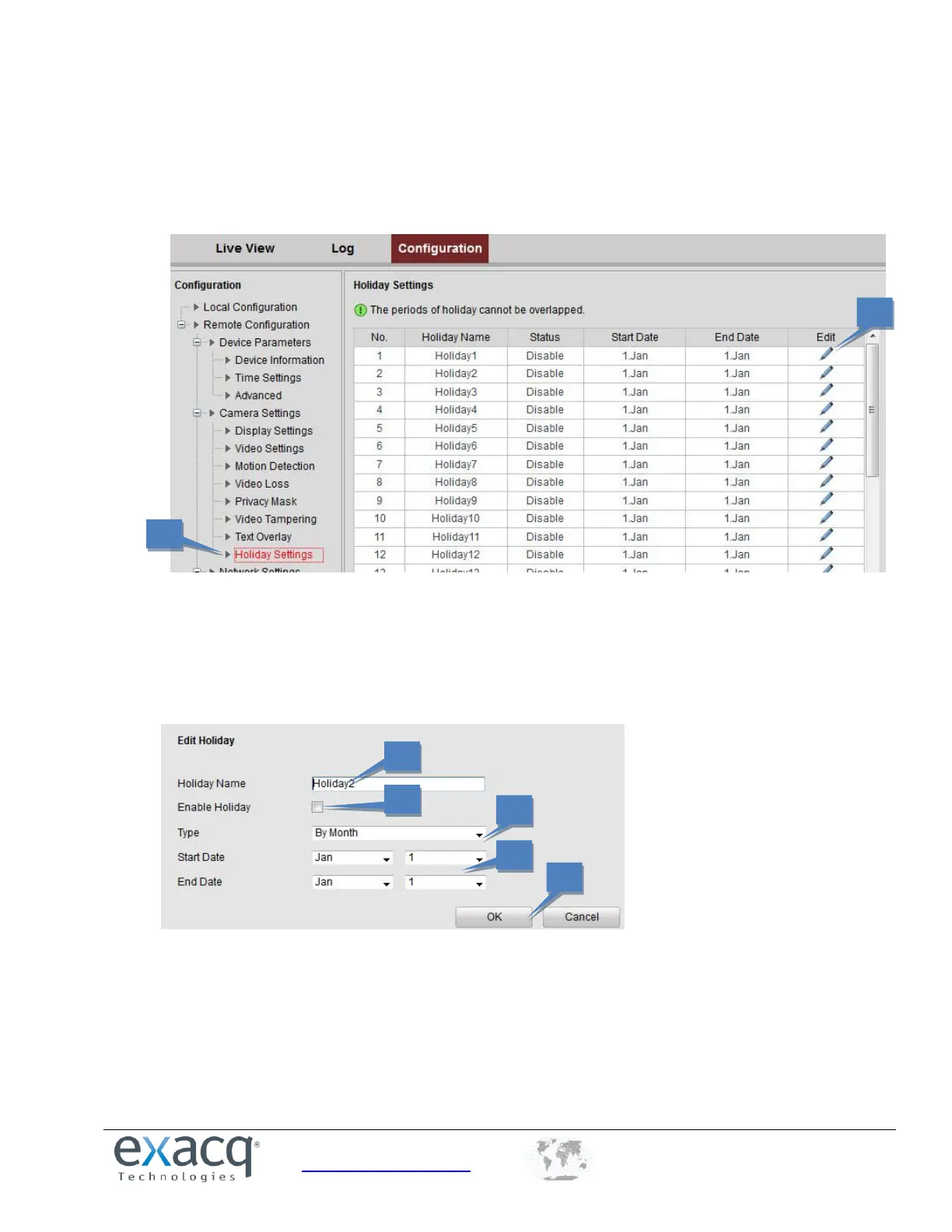
Configuring Holiday Settings
If you want a separate recording schedule on holidays, complete the following steps:
1. From the Remote Configuration menu, select Camera Settings and then Holiday Settings to open the Holiday
Settings interface.
2. Select an item from the list and click the pencil button to edit the holiday.
3. Edit the holiday name.
4. Select the checkbox to enable the holiday’s schedule.
5. Select the time interval (By Date, By Week, or By Month).
6. Set the Start Date and End Date.
7. Click OK to save the settings and go back to the Holiday Settings interface.
8. Verify the finished holiday settings on the list.
9. Repeat the same steps to configure up to 32 holiday settings.
NOTE: The Holiday option is available in the Schedule drop-down list when you have enabled holiday schedule in Holiday
settings.


 To Next Page