+1.317.845.5710
+44.1438.310163
USA (Corporate Headquarters)
Europe/Middle East/Asia
67
Restoring Default Settings
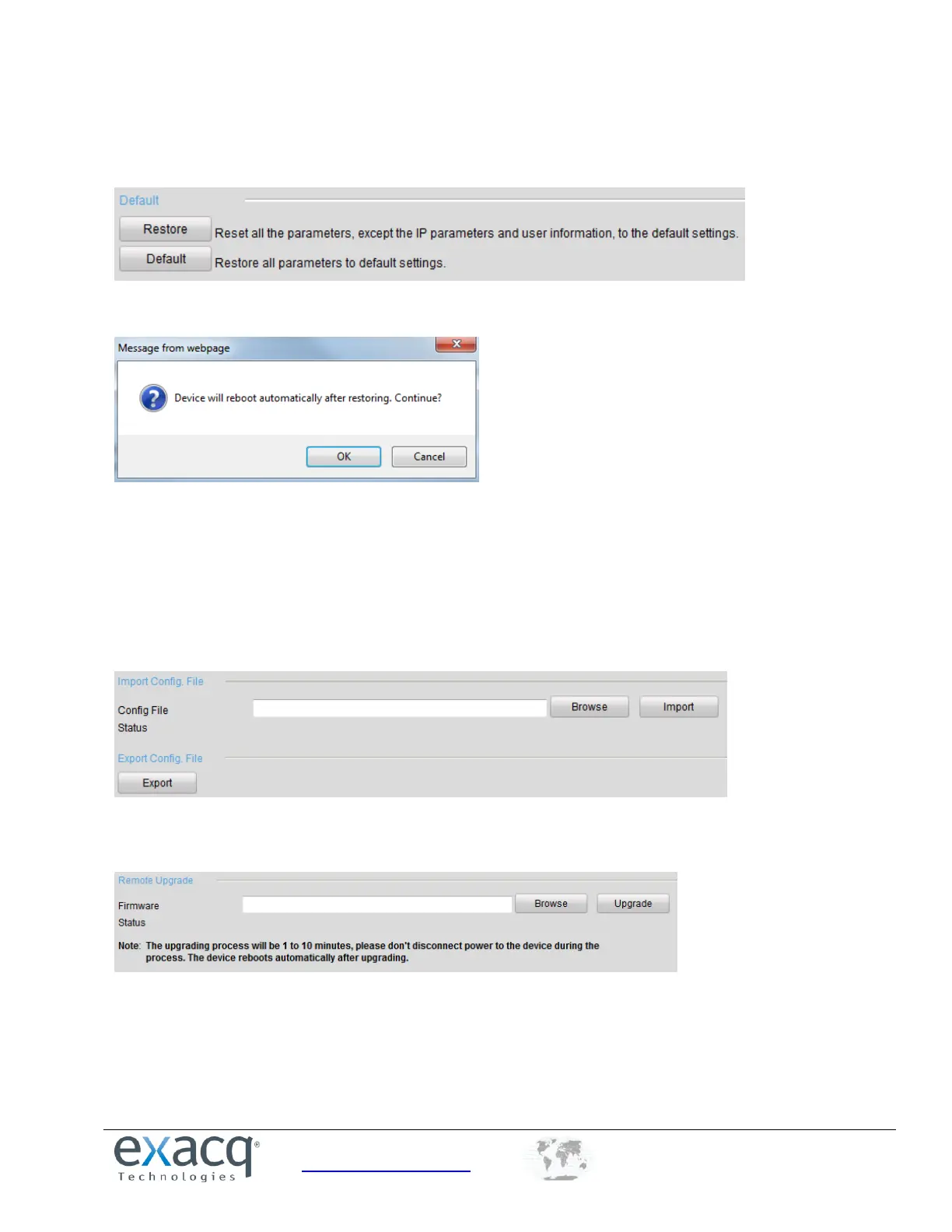
On the Maintenance page, select Restore to restore the default settings for all parameters except the IP address, subnet
mask, gateway, and port. Select Default to restore the default settings for all parameters.
Click OK to restore and reboot the device to validate the settings.
Importing/Exporting Configuration Files
The configuration files of the device can be exported to a local device for backup, and the configuration files of one
device can be imported to multiple device devices if they are to be configured with the same parameters.
On the Maintenance page, click Browse to select the file from the selected backup device and then click the Import
button to import a configuration file. After the import, the device will reboot automatically.
On the Maintenance page, click the Export button to export configuration files to the selected local backup device.
Upgrading the System
On the Maintenance page, click Browse to select the local update file and then click Upgrade to start remote upgrade.


 To Next Page