exacqVision User Manual
1/24/2011
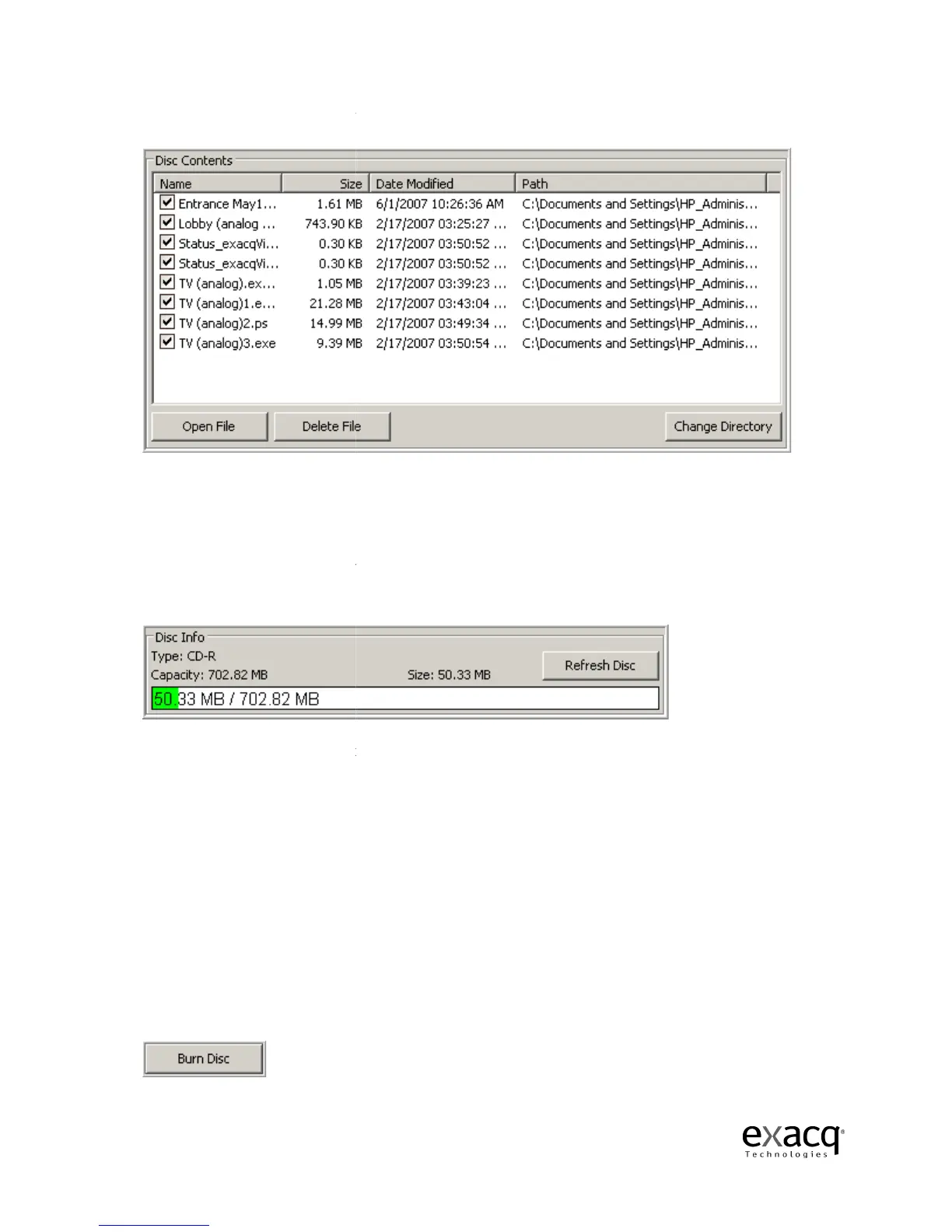
The Disc Contents list displays all of the video clips in your directory.
The system will automatically select all of the video clips.
check
boxes next to the file name.
If you would like to review one of the video clips, select the file and then click the
button. You c
an also delete a file by selecting it and clicking the
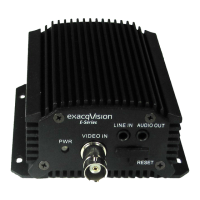
The Disc Info box displays some important information about your disc capacity.
The disc capacity thermometer (green bar) is a visual queue indicating how much disc space i
required for the files you have selected.
The first number listed (MB
have selected.
The next number represents the capacity of
you forget to insert
a disc, this number will be zero.
without inserting a writable CD or DVD, you will need to click the Refresh Disc button before
clicking the Burn CD butt
If your files exceed the disk capacity, you will need to either remove some files before Burning the
CD or insert a new Disc with a larger capacity.
the Refresh Disc button before Burning the
Once you have made all of the
Page 89
The Disc Contents list displays all of the video clips in your directory.
The system will automatically select all of the video clips.
boxes next to the file name.
If you would like to review one of the video clips, select the file and then click the
an also delete a file by selecting it and clicking the
“Delete F
The Disc Info box displays some important information about your disc capacity.
The disc capacity thermometer (green bar) is a visual queue indicating how much disc space i
required for the files you have selected.
The disc capacity
is also reflected in a numerical format.
is the amount of space required to burn all of the video clips you
The next number represents the capacity of
the disc you have inserted.
a disc, this number will be zero.
If you happen to click the “Burn CD” button
without inserting a writable CD or DVD, you will need to click the Refresh Disc button before
If your files exceed the disk capacity, you will need to either remove some files before Burning the
CD or insert a new Disc with a larger capacity.
When you insert a new disk, you will need to click
the Refresh Disc button before Burning the
new CD.
Once you have made all of the
appropriate changes, press the “Burn Disc
deselecting the
If you would like to review one of the video clips, select the file and then click the
“Open File”
” button.
The Disc Info box displays some important information about your disc capacity.
The disc capacity thermometer (green bar) is a visual queue indicating how much disc space i
s
is also reflected in a numerical format.
is the amount of space required to burn all of the video clips you
the disc you have inserted.
NOTE: If
If you happen to click the “Burn CD” button
without inserting a writable CD or DVD, you will need to click the Refresh Disc button before
If your files exceed the disk capacity, you will need to either remove some files before Burning the
When you insert a new disk, you will need to click
.


 To Next Page