FOX3 T 201 Transmitter • Configuration Software 27
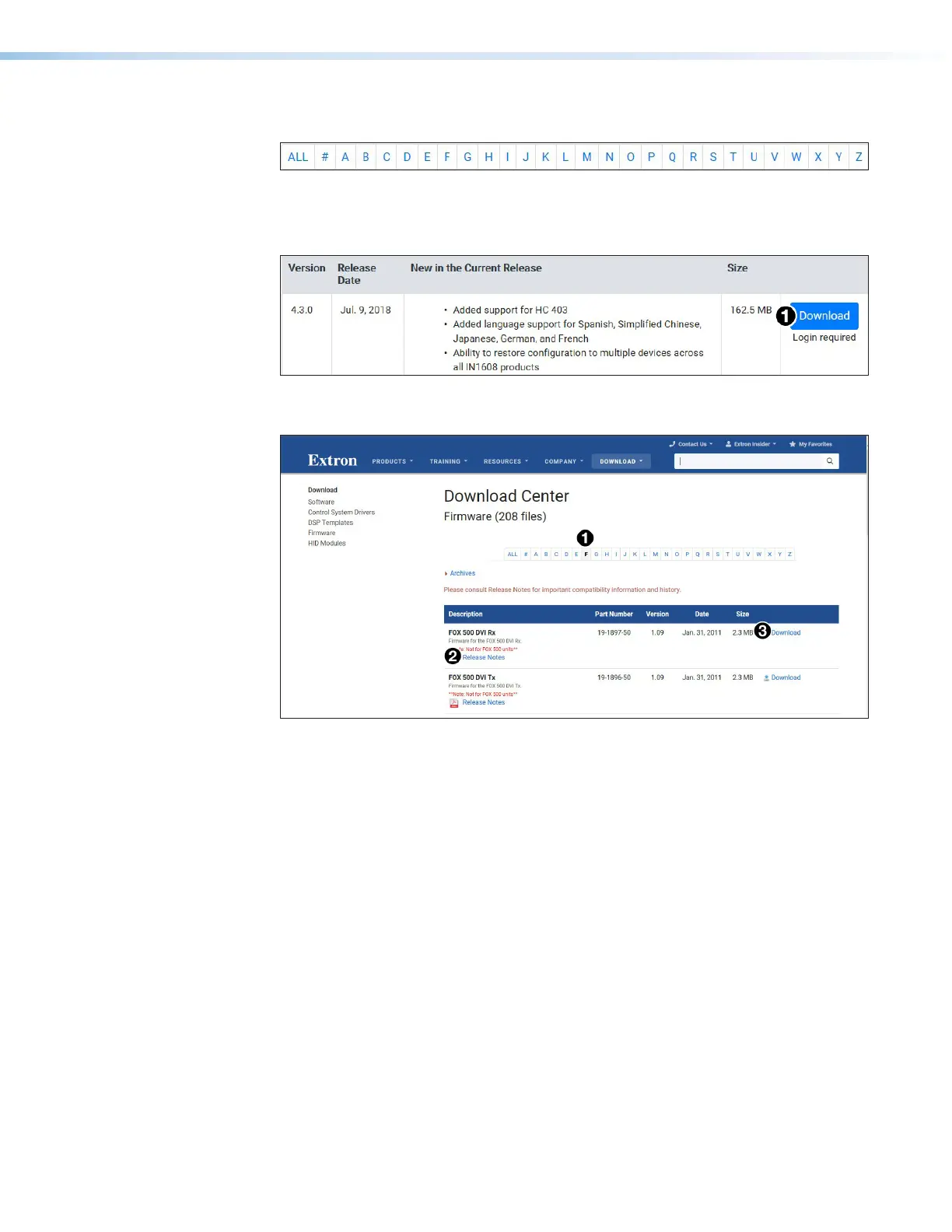
4. Scroll down to the alphabetic navigation bar (see figure13).
Figure 13. Software Installation
5. Click the appropriate letter to locate the software or firmware.
6. Click Download and follow the on-screen instructions (see figure14,
1
for PCS).
Figure 14. PCS Software Download
For Firmware:
Figure 15. Firmware Page with Alphabetic Navigation Bar
a. Click the letter F from the alphabetic navigation bar (see figure15,
1
).
b. Scroll down the page to find the firmware for the FOX3T201.
c. (Optional) Click Release Notes (
2
) for more information about the firmware
update.
d. Click Download (
3
). The product download screen opens.
e. Enter the required user information and click Download. An executable (.exe) file is
downloaded to the PC. Run this program to place the firmware on the PC for future
use. Make a note of the folder where the firmware file was saved.
7. Install the software.
a. Navigate to the folder where the software file was downloaded.
b. Double-click the executable file and follow the on-screen directions to install the
software.
For Firmware:
a. To install via PCS, see Update Firmware in the Device Menu on page33.
b. To install via the internal web pages, see the Firmware Panel on page38.
13
step 5
14
15


 To Next Page