Room Scheduling System • Room Agent Installation and Configuration 27
Edit a service account password —
1. If necessary, open the Service Account Manager dialog box (see Enable and add
service accounts, steps 2 and 3, beginning on page 24).
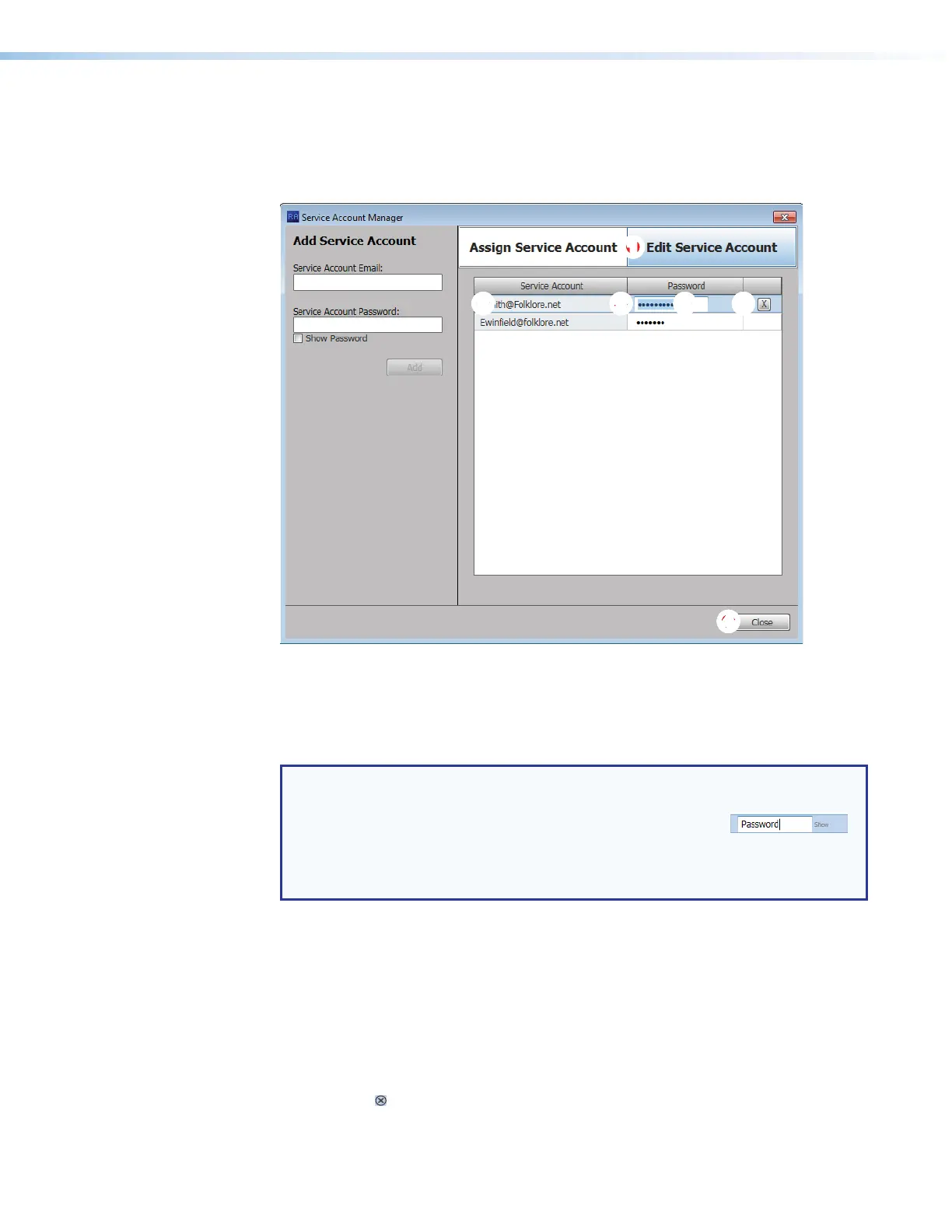
2. Click the Edit Service Account tab (see figure 26,
1
).
2222222222333333333366666666665555555555
44
44444444
11
11111111
Figure 26. Edit Passwords
3. Double-click in the Password field for the service account to be edited (
2
).
4. Highlight the password and type a new value (
3
).
5. Type the keyboard <Enter> key.
TIPS:
• The Password field is normally masked (•••). Delete the existing password to
activate the Show feature to see the password characters
as you type.
• Click Show to toggle between Show and Hide.
• After you type <Enter>, the Password field is again masked.
6. Click Close (
4
).
Delete a service account password —
1. If necessary, open the Service Account Manager dialog box (see Enable and add
service accounts, steps 2 and 3, beginning on page 24).
2. Click the Edit Service Account tab (see figure 26,
1
).
3. Double-click in the Password field for the service account to be deleted (
2
).
4. Select (click) a service account (
5
).
5. Click Delete ( ) button (
6
).
6. Click Close (
4
).



 To Next Page