EN
84
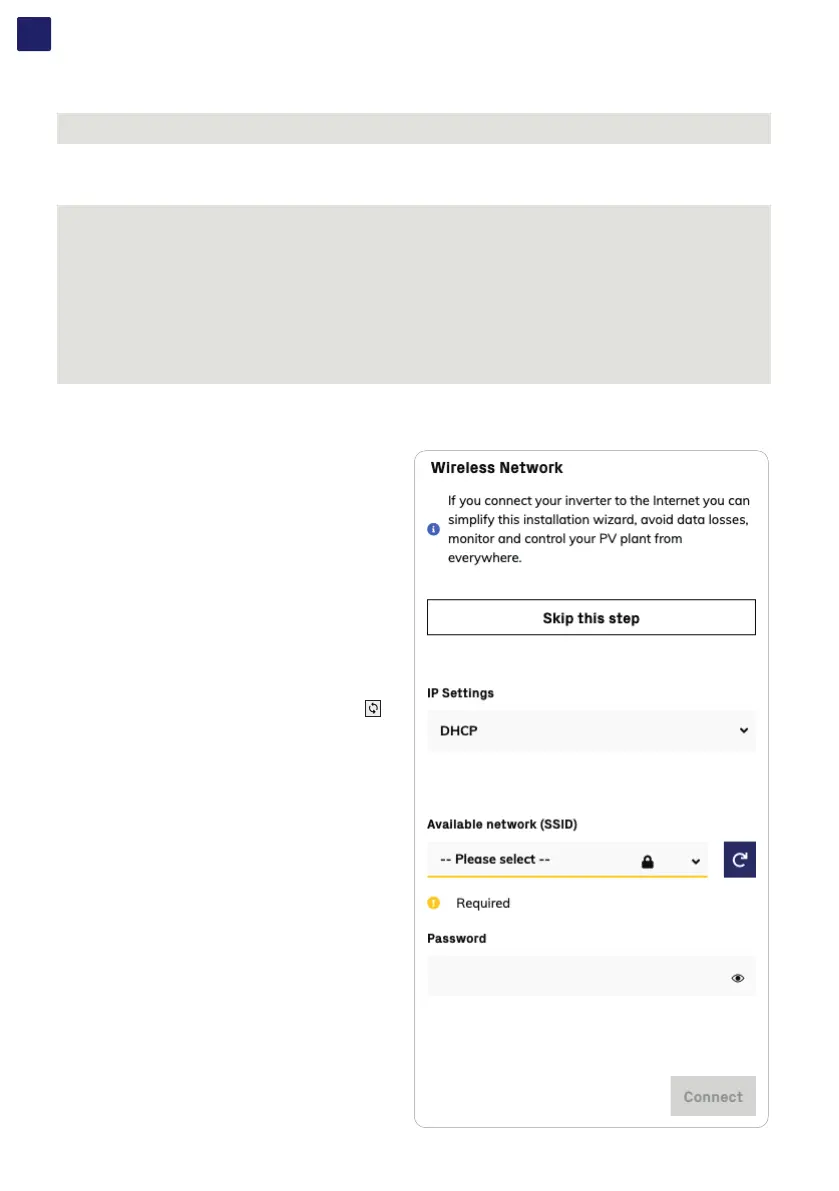
During the installation wizard, the installer will be asked to connect the inverter to a Wi-Fi router. By selecting connection to Wi-Fi router
the inverter will turn on a second Wi-Fi radio channel in order to enable connection to the Wi-Fi router.
NOTE – D By selecting “Skip this step” button the second radio channel will be kept off and you will need to use a wired Ethernet daisy
chain bus to allow the inverters to communicate.
Two Wi-Fi radio channels enables simultaneous wireless connection; one static IP address connection between inverter and installer
devices and one between inverter and switch/router.
NOTE – D Whatever option is used to connect the inverter to the switch/router (Ethernet cable or Wi-Fi) it will be always possible
to access to the Web User Interface by connecting its own device (Smartphone, tablet or laptop) to the same switch/router, and
reaching the inverter by using the assigned IP address or inverter’s host name.
NOTE – D The IP address assigned to the inverter may vary or may be unknown. Please contact the IT administrator for getting the
assigned IP address.
NOTE – D Differently from the assigned IP address, the «Host Name» of the inverter is does not change over time.
NOTE – D In order to use the «Host Name» as an alternative to the assigned IP address, for accessing to the inverters Web User
Interface from the router, the Domain Name System (DNS) service shall be available and activated.
NOTE – D The Host Name associated to each Fimer inverter is structured as indicated below:
ABB-logger ID.LOCAL
where logger ID stands for the MAC address indicated on the “Communication identification lable” applied on the inverter.
The parameters related to the customer wireless network (setted on the router) that must be known and to be entered during this step are:
• IP Settings (DHCP or Static):
If you select the DHCP function (default setup) the router will
automatically assign a dynamic IP address to the inverter
whenever it tries to connect to the user network.
With Static, the user can assign a fixed IP address to the system.
The data which has to be entered in order for IP static address
assigning to take place will appear. Complete the additional fields
at the bottom of the screen (all the fields are mandatory with the
exception of the secondary DNS server).
• Available networks (SSID):
Identify and select your own (customer) wireless network from all
those shown in the SSID field (you can carry out a new search of
the networks that can be detected with the Update button
).
Once the network has been selected, confirm.
• Password (Wireless network password):
Enter the password for the destination network (if necessary) and
start the connection attempt (it will take a few seconds).
• Click on “Connect” button.


 To Next Page