Panda fpControl
27.5.20 Chapter 2: Panda fpControl - Page 39
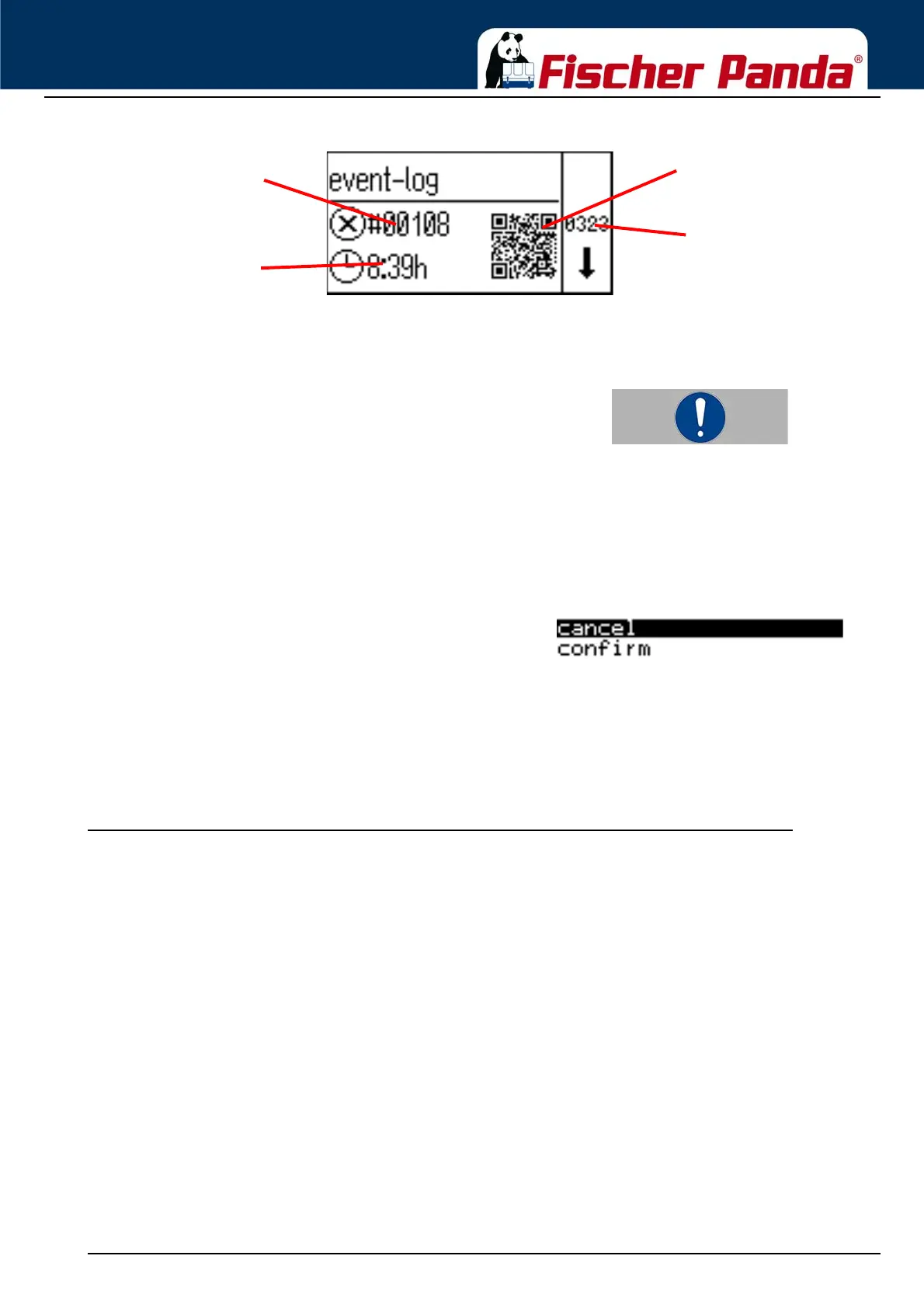
Fig. 2.5.3.4-1: Event Memory
One can scroll through the event memory by using the "Step-
up"/"Step-down" keys and then return to the Generator menu
with the "Start/Stop-Enter“ key.
NoteBy using the QR Code, the relevant fault page of the
knowledgebase.fischerpanda.de can be called up via the
Internet.
To do so, simply scan the QR Code with a smartphone
(Internet connection required).
2.5.3.5 Resetting all values of the Generator sub-menu to the default values
The menu item is selected by using the "Step-up"/"Step-down" keys and confirmed with the "Start/Stop-Enter“ key.
The respective menu item opens.
Fig. 2.5.3.5-1: Resetting all values"Cancel" or "Confirm" can be selected by using the "Step-up"/
"Step-down" keys and then confirmed with the "Start/Stop-
Enter“ key.
2.5.3.6 Returning the Main Menu
The menu item is selected by using the "Step-up"/"Step-down" keys and confirmed with the "Start/Stop-Enter“ key.
The respective menu item opens.
2.5.4 Resetting the panel language to the default (English)
1. Press and hold the "Step down" key with the panel switched off.
2. Switch on the panel and hold down the "Step down" key until the first overview screen is displayed.
3. The panel language has now been reset. All other settings are retained.
2.5.4.1 How to set the panel language after a reset.
1. Switch on the fpControl Panel CP-G
2. Wait until the first overview screen appears.
3. Scroll to the last overview screen.
4. Press the "Start/Stop-Enter" key to access the menu.
5. Scroll down to the "Panel" menu item.
6. Press the "Start/Stop-Enter" key to access the "Panel" sub-menu.
7. Scroll down to the "Choose language" menu item.
8. Press the Start/Stop-Enter key to access the "Language Selection" sub-menu.
9. Scroll to the desired language and confirm with the "Start/Stop-Enter" key.
10.Scroll down to the "confirm" menu item and press the "Start/Stop-Enter" key.
Event number
QR Code
Error code
Error time



 To Next Page