EasyManua.ls Logo

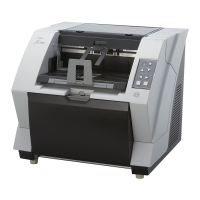
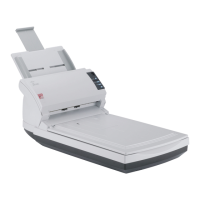
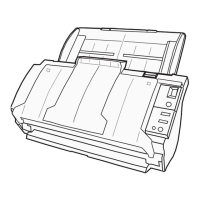
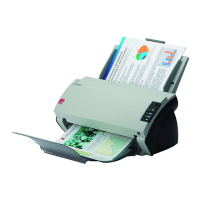
Fujitsu fi-5220C - User Manual

Fujitsu fi-5220C
153 pages
Print Icon
To Next Page IconTo Next Page
Loading...
fi-5120C/fi-5220CImageScannerOperatorGuide
fi-5120C / fi-5220C Image Scanner Operator Guide
TROUBLE SHOOTING
CONTENTS MAP
fi-5120C/fi-5220CImageScannerOperatorGuideP3PC-1322-03ENZ2
AllRightsReservedCopyright2006©PFULIMITED
file://///Hd-htgle21/Manual/fi-5120C5220C-lynx2/OG/R03/contents/EN/index.htm2006/08/2915:59:19

Other manuals for Fujitsu fi-5220C

Questions and Answers

  • L
    Luis CarterSep 2, 2025
    What to do if paper is not fed on Fujitsu fi-5220C Scanner?
    • K
      kristopher24Sep 2, 2025
      If paper is not feeding correctly in your Fujitsu Scanner, ensure your documents meet the specified "Document Quality" and "Multi feed Detection Conditions". Clean or change the Pick roller, and remove any dirt or dust from the document feed path.
  • J
    Joy LeeAug 31, 2025
    Why does multi feed frequently occur on Fujitsu fi-5220C Scanner?
    • L
      Lori MatthewsAug 31, 2025
      If multi feed frequently occurs on your Fujitsu Scanner, ensure your documents meet the specified "Document Quality" and "Multi feed Detection Conditions". Fan the documents before scanning, correctly align them on the ADF paper chute, and reduce the stack to 5 mm or less. Also, clean or replace the Pad ASSY.
  • A
    angel02Aug 29, 2025
    How to turn on Fujitsu fi-5220C?
    • C
      Chelsea AnthonyAug 29, 2025
      To turn on the Fujitsu Scanner, push the power button. Ensure the AC cable and adapter are correctly connected. If it still doesn't power on, disconnect and reconnect the AC cable and adapter. Also, confirm that you are using the AC adapter and cable supplied with your scanner.
  • B
    Bruce JonesAug 27, 2025
    What to do if the quality of generated image is unsatisfactory on Fujitsu fi-5220C?
    • J
      Jacob BrightAug 28, 2025
      If the quality of the generated image from your Fujitsu Scanner is unsatisfactory, clean any dirty locations on the scanner.
  • L
    Lindsey RossAug 26, 2025
    Why is there a shadow on the leading edge of the generated image on Fujitsu Scanner?
    • C
      Christopher BrownAug 27, 2025
      If there is a shadow on the leading edge of the generated image from your Fujitsu Scanner, clean the Feed rollers. For Windows 98, Me, 2000, and XP, adjust the [Sub-scan Setting] in the control panel under "Scanners and Cameras." For Windows 95 and NT 4.0, adjust the offset in the Scanner Control Center.
  • S
    Sandra FarrellAug 25, 2025
    How to fix vertical lines on Fujitsu Scanner?
    • P
      patriciafreemanAug 25, 2025
      If vertical lines appear in the scanned image from your Fujitsu Scanner, clean the glass as instructed in the Operator's Guide.
  • E
    elizabethcastilloAug 22, 2025
    What to do if Fujitsu Scanner is not scanning?
    • D
      Dana LeeAug 22, 2025
      If scanning does not start, try these steps: Realign and reload the documents on the ADF paper chute, and ensure the ADF is completely closed. Check the cable connection (and the USB hub's power if one is in use). If the Function Number display shows an alarm or error, consult the fi-5120C/fi-5220C Operator’s Guide for troubleshooting. You can also try turning the power off and on again.

Summary

Safety Precautions

General Safety Precautions

Covers electrical, environmental, and handling safety rules.

Operational Safety Warnings

Addresses safe operation regarding damage, odors, and internal components.

Handling and Installation Safety

Covers safe installation surfaces, plugs, ventilation, and temperature changes.

Environmental and Usage Precautions

Details static electricity, sprays, scanner use, power disconnect, and shipping locks.

Chapter 2 Basic Scanner Operations

Loading Documents into the ADF

Procedures for loading documents into the ADF.

Loading Documents on the Flatbed

Procedures for loading documents onto the flatbed.

Scanning Documents with ScandAll 21

Guides on using ScandAll 21 to scan documents.

Chapter 3 Scanning Various Types of Documents

Scanning Double Sided Documents

Procedures for scanning documents on both sides.

Saving Scanned Images in PDF Format

Methods for saving scanned images as PDF files.

Detecting Multi feeds

How to configure multi-feed detection to prevent document feeding errors.

Chapter 5 Replacing Consumables

Chapter 6 Troubleshooting

Removing Jammed Documents

Procedures for clearing document jams from the ADF.

Error Indications in the Operator Panel

Explains error codes displayed on the operator panel.

Remedying Typical Troubles

Flowcharts to diagnose and resolve common scanner issues.

Fujitsu fi-5220C Specifications

General IconGeneral
Film scanningNo
Color scanningYes
Input color depth24 bit
Maximum scan size210 x 297 mm
Optical scanning resolution600 x 600 DPI
Flatbed scan speed (b/w, A4)2 sec/page
Scanner typeFlatbed & ADF scanner
Sensor typeCCD
ISO A-series sizes (A0...A9)A4, A5
Maximum ISO A-series paper sizeA4
Auto document feeder (ADF) input capacity50 sheets
USB version2.0
Standard interfacesSCSI, USB 2.0
Bundled software-FJ TWAIN driver. -Scandall. -Adobe Acrobat. -ISIS Driver. -QuickScan (demo). -Soft IPC (demo). -VRS 4.1 Basic.
Dimensions (WxDxH)302 x 569 x 229 mm
Power requirements100-240 VAC
Power consumption (standby)6 W
Power consumption (typical)34 W
Operating temperature (T-T)5 - 35 °C
Operating relative humidity (H-H)10 - 80 %
Weight and Dimensions IconWeight and Dimensions
Weight8400 g

Related product manuals