9. ROUTES
9-6
Note: You can select the route information data to display on the [Waypoints] page
with the context-sensitive menu. Right click the “Edit Columns” to show the context-
sensitive menu. Check or uncheck items as appropriate then click the [OK] button.
9.4.2 How to use the User Chart page
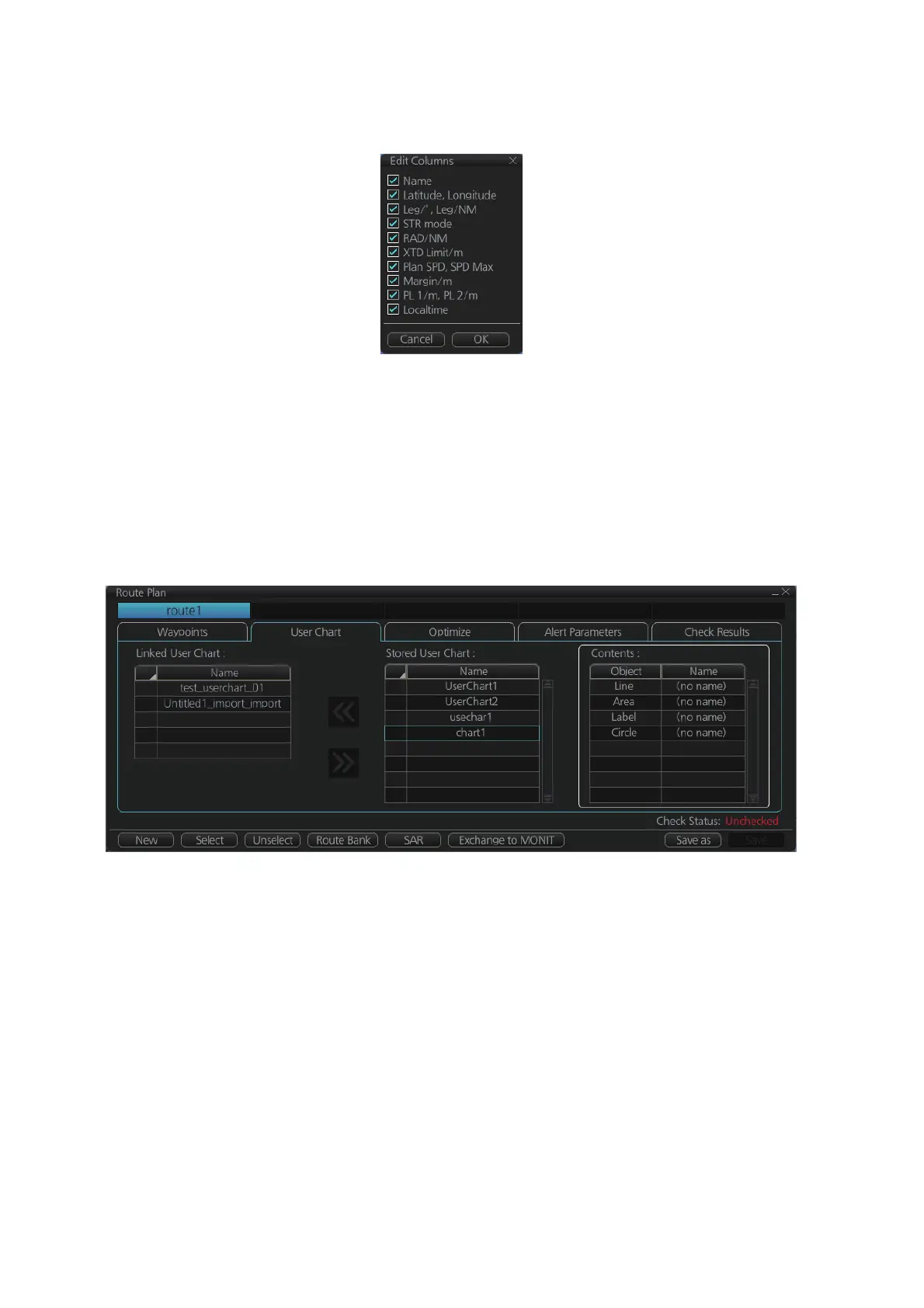
The [User Chart] page lets you link user charts to routes. To link a user chart, click the
box to the left of the user chart name in the [Stored User Chart] list to show a check-
mark. Click the << button to copy that name to the [Linked User Chart] list. To de-link
a user chart, click the box to the left of the user chart name in the [Linked User Chart]
list then click the >> button to erase the name. The contents of each user chart are
shown in the [Contents] window.
Linked User Chart: List of user charts linked with selected route.
Stored User Chart: List of stored user charts.
<< button: Link a stored user chart. Check the chart in the [Stored user chart] list then
click this button. The user chart name is then copied to the [Linked User Chart] list.
>> button: Click to remove selected (checkmarked) user chart from the [Linked User
Chart] list.
Contents: Lists the objects saved to the user chart selected.



 To Next Page
 Loading...