p.12
Welcome to G-CONNECT
A
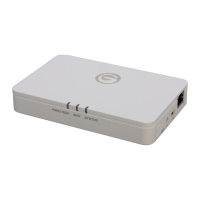
Power Button
Press the Power button on the device to turn the G-CONNECT ‘On’ or ‘O’. The Power
HDD light will begin to ash and the Wi-Fi
®
light and Status light will blink when the
device is turned on. The Power/HDD light will blink periodically through your
work session.
When turning the device ‘O’ you will see the Power/HDD light brighten and then the
Status light will blink rapidly, followed by all lights shutting o.
B
Wi-Fi Button
The Wi-Fi button is used to enable/disable Wi-Fi and the device.
If you need to perform a factory reset on your G-CONNECT, press and hold the Wi-Fi
button until the Status LED on the front of the device begins to ash. See
details in the FAQ’s: Factory Reset section of this manual.
Power Port
Connect the device to the power adapter to enable wireless access.
USB Port
On the rear of the device is a USB 2.0 port and Ethernet port. Use the USB port when
you connect the device to a laptop or desktop computer.
E
Ethernet Port
Use the Ethernet port to connect G-CONNECT to your local Internet router, and use
the device as a private Wi-Fi hotspot for wireless devices.
C
D














 To Next Page