p.40
Overview of iPad
®
/iPhone
®
App
Navigation Bar
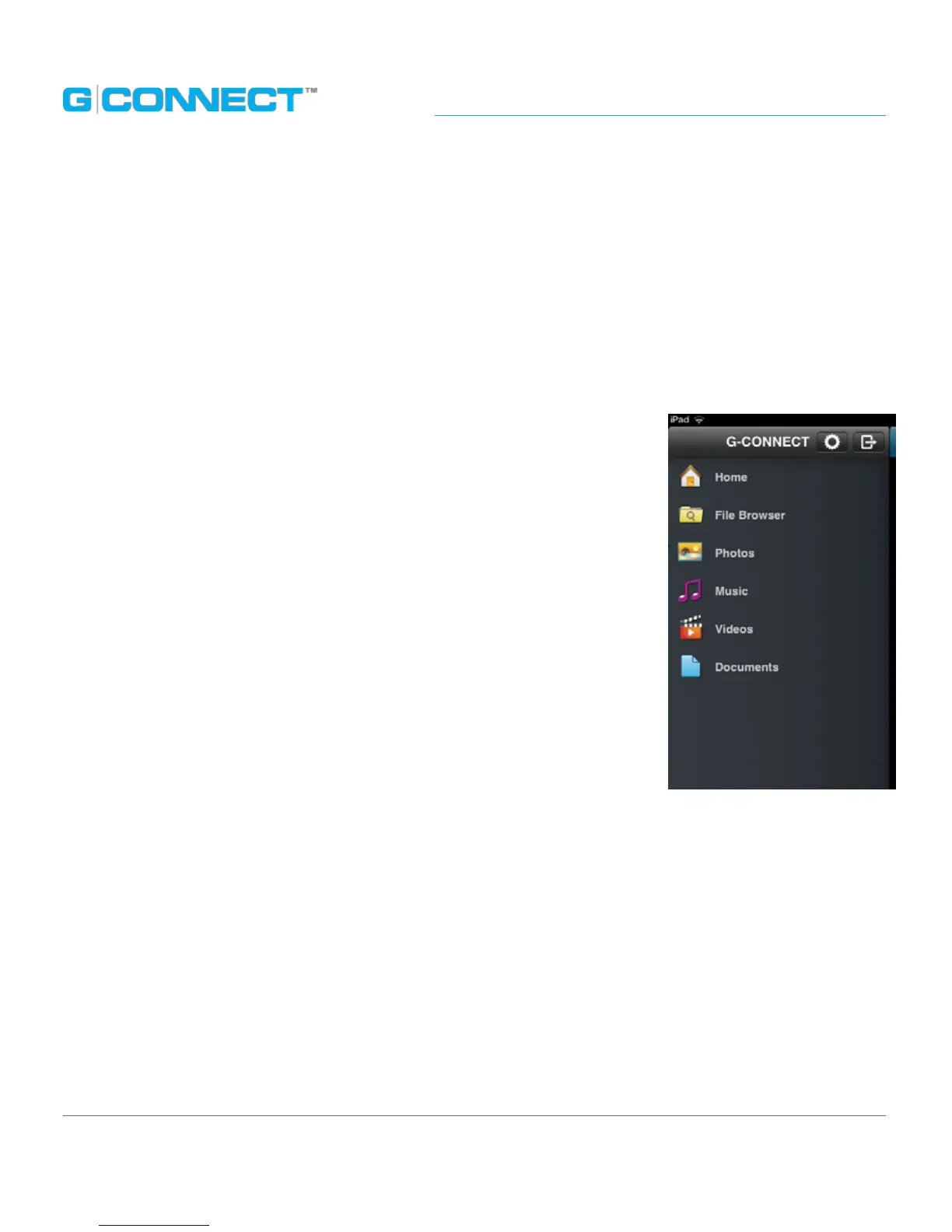
The left-side Navigation Bar is where you can select options and drill down into folders in order
to nd their media. This organization is similar to a le directory structure.
The top of the Navigation Bar will always show where you are as you drill down, like in a
breadcrumb path. This Navigation Bar will display ‘G-CONNECT’ when you log in and will
change as you drill down into dierent folders.
• Search eld: Allows you to enter keywords in this eld to search
for les on your G-CONNECT. Click on the magnify glass or hit
<ENTER> to perform the search.
• Breadcrumb path: This path displays the folder levels that
a le is stored within.
• File Browser: Use File Browser to nd and manage content on
your device, based on a folder structure.
• Photos: Filters the photo media types on your device, such
as .JPG, .PNG and .TIF les.
• Music: Filters the music media types on your device, such
as .MP3 les.
• Videos: Filters the video media types on your device, such
as .MOV and .MP4 les.
• Documents: Filters the document media types on your device, such as PDF, .DOC and .XLS les.
• Getting Started: This allows you to learn more about the G-CONNECT iPad App and some
common functionality.
• Delete: Use the native iPad swipe on a le in the List Viewing mode to reveal the red Delete
button. Tap on the button to delete the le.
• Sign Out: Located at the top of the Navigation Bar. This option allows you to sign out of the
iPad App.














 To Next Page