p.47
Overview of Web Application
Private and Public Content
Admin and Guest users can access content located on the G-CONNECT device via the
File Browser. The device comes with two ways to secure content either by placing them
in a Private area or a Public Folder.
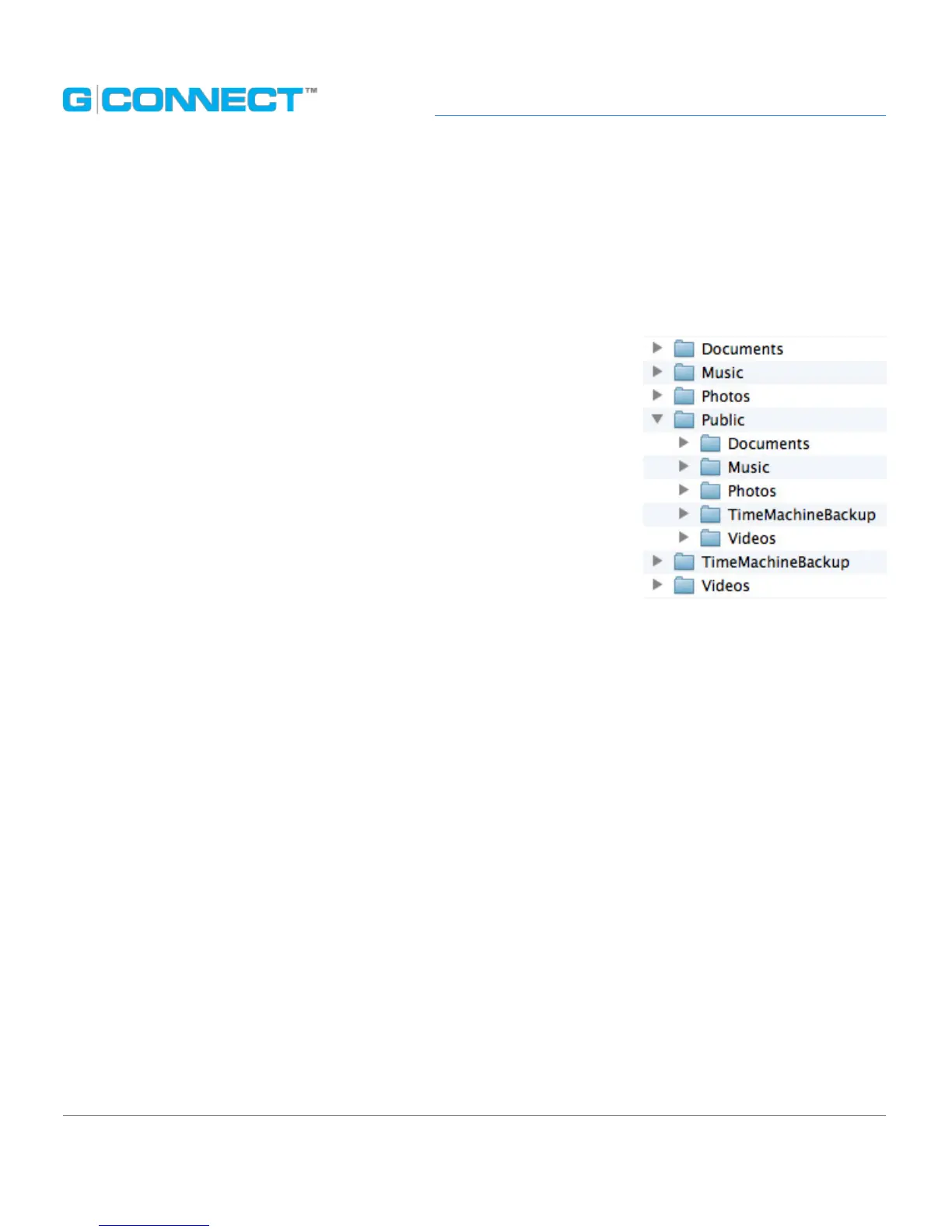
Admin users have access to all content on the G-CONNECT
device. They may place specic content into the Public folder
in the File Browser. Any content that the Admin places in
this Public folder is viewable by Guest users as well. All other
content that is not placed in this Public folder is only viewable
by the Admin user and is deemed Private.
Within the Public folder is a set of four default category folders:
Photos, Music, Videos, and Documents, which is a good system
for organizing content.
Provide Guest Access
As an Admin user, you can give friends and family access to your G-CONNECT as a
‘Guest’ user. Any content you place in the ‘Public’ folder on your G-CONNECT will be
accessible by Guest users.
By default, Guest access is enabled. The password that Guests will use to log into the
G-CONNECT is the same password used to access the wireless network (SSID).
In the Wireless Settings tab of the Preferences page, there is a checkbox to ‘Enable guest
folder access’. If you would like to disable Guest access, you will need to uncheck this
option.
Note: If Guest access is disabled, you will not see the ‘Guest’ option in the dropdown box
when logging in.














 To Next Page