p.20
Setting Up G-CONNECT
Copy Content in USB Mode
Now that your G-CONNECT device has been setup, you are ready to add content to
the device. There are many ways to add your les to the G-CONNECT.
The recommended way in which you can add content quickly to the device is via your
personal computer using the included USB Y-Cable.
1. First, you will need to power o the G-CONNECT by pressing the power button
found on the device until the LED’s begin ashing.
2. When the LED’s turn o, it is safe to disconnect the power adapter. Plug the two
identical ends of the Y-Cable into your personal computer and the third into your
G-CONNECT.
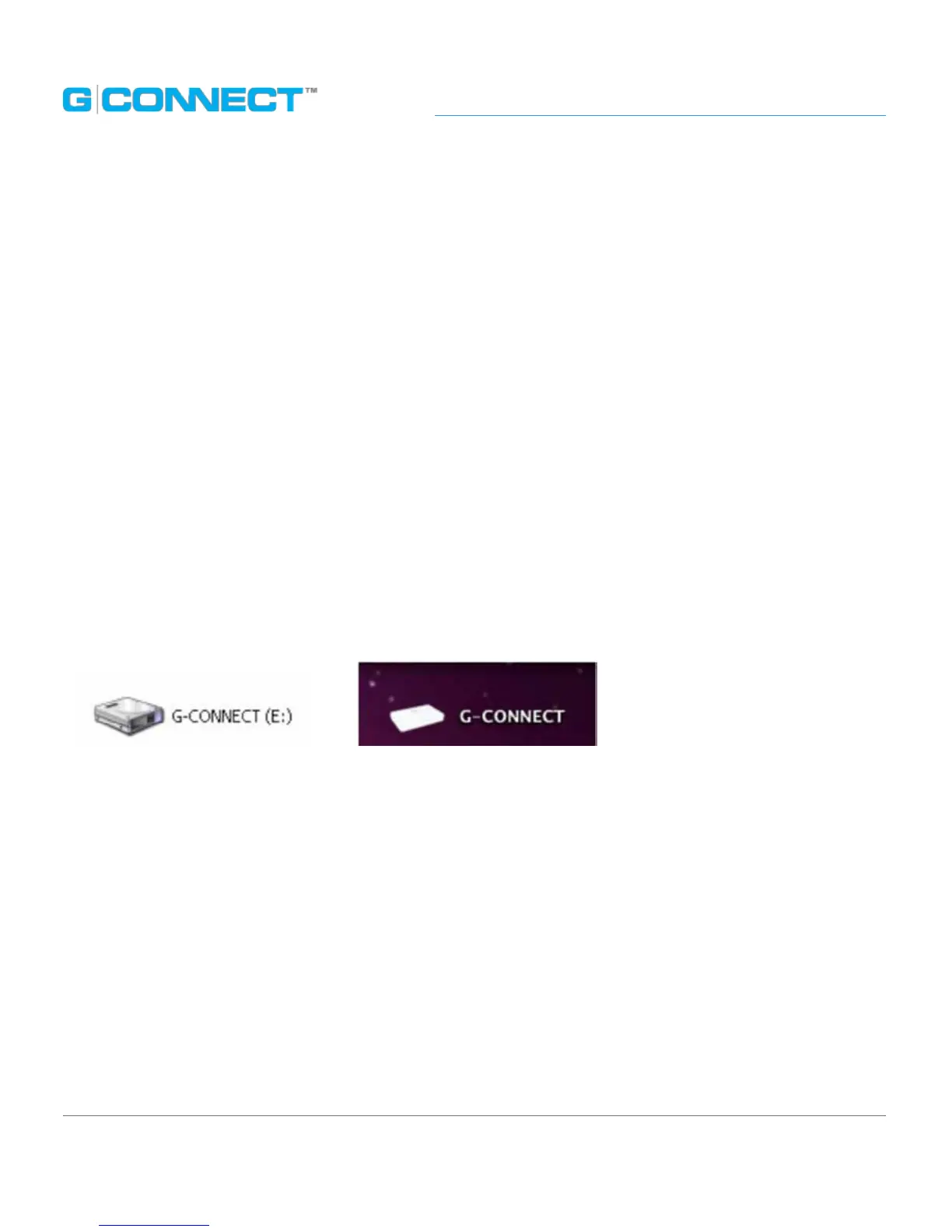
3. Your G-CONNECT should now appear as a drive on your desktop if using a Mac
®
and
in ‘Computer’ if using a Windows
®
PC.
4. Drag and drop les from your personal computer into the default folder types on
the G-CONNECT. It is recommended, but not required, that you use these folders to
organize your les.
As an Admin user, les can be placed in the top-level folders that are private and only
visible by users who sign in using the Admin account. Files can also be placed into the
Public folder which is accessible by both the Admin and any Guest that logs into the
G-CONNECT.
Note: The Wi-Fi
®
password is used as both the password to the Wireless Network and
the password to the ‘Guest’ account.














 To Next Page