p.15
Setting Up G-CONNECT
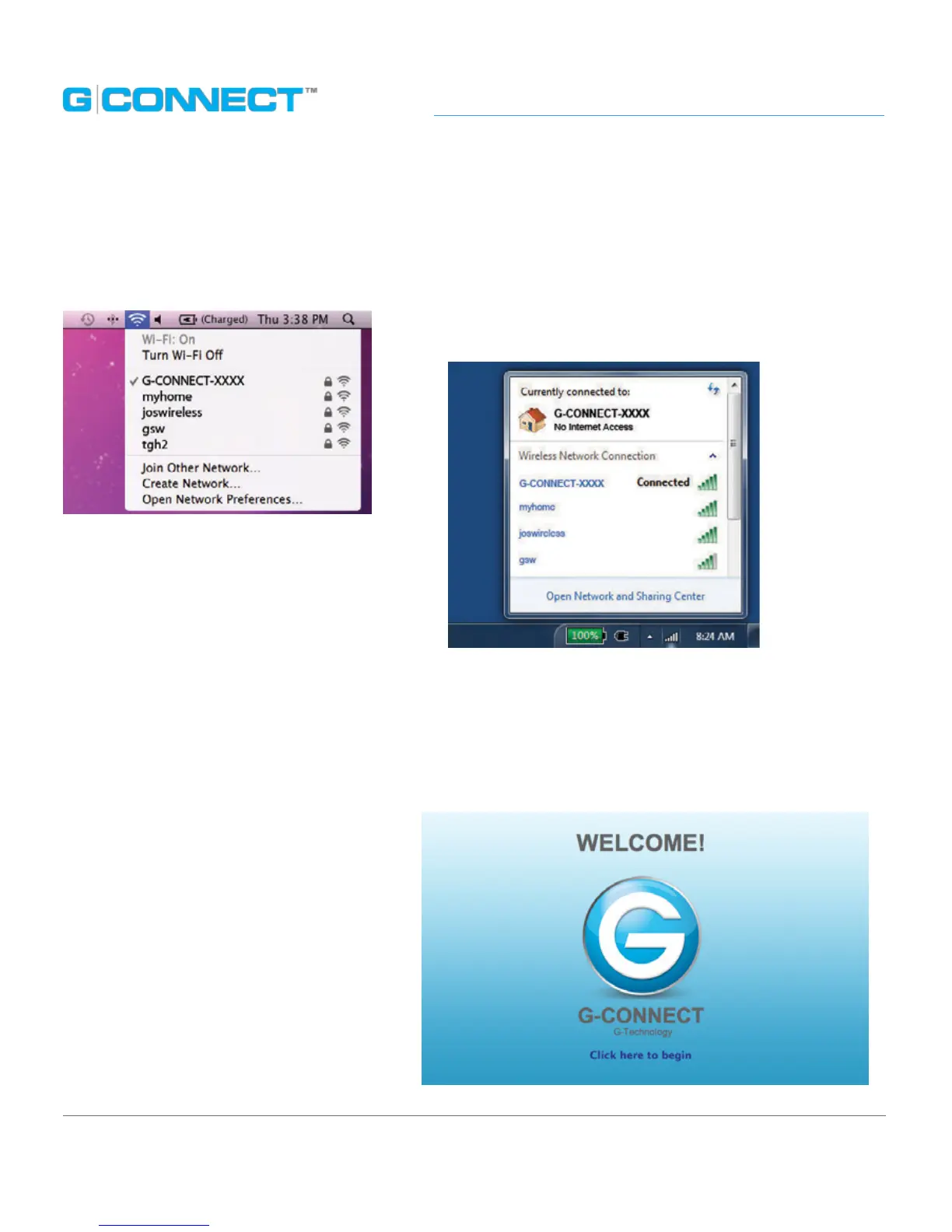
Find the wireless network named ‘G-CONNECT-XXXX’ and connect to it.
Note: The last four characters after the name G-CONNECT are the last four digits of your device’s internal
product key, which is a unique number assigned to each device.
Once you are connected to the
‘G-CONNECT-XXXX’ wireless
network, open a new browser
window and type ‘http://www.
gtech-connect.com’ to go to the
G-CONNECT Welcome page.
Select the ‘Click here to begin’ link to
start the Setup process.
Windows
®
PC: If you are using Windows PC, go
to your bottom taskbar and double-click to open
the ‘Wireless Network Connection Status’ icon.
Click on the ‘View Wireless Networks’ button to
choose a wireless network.
Mac
®
: If you are using a Mac, go to the
top taskbar and click on the wireless
network icon.














 To Next Page