p.37
Overview of iPad
®
/iPhone
®
App
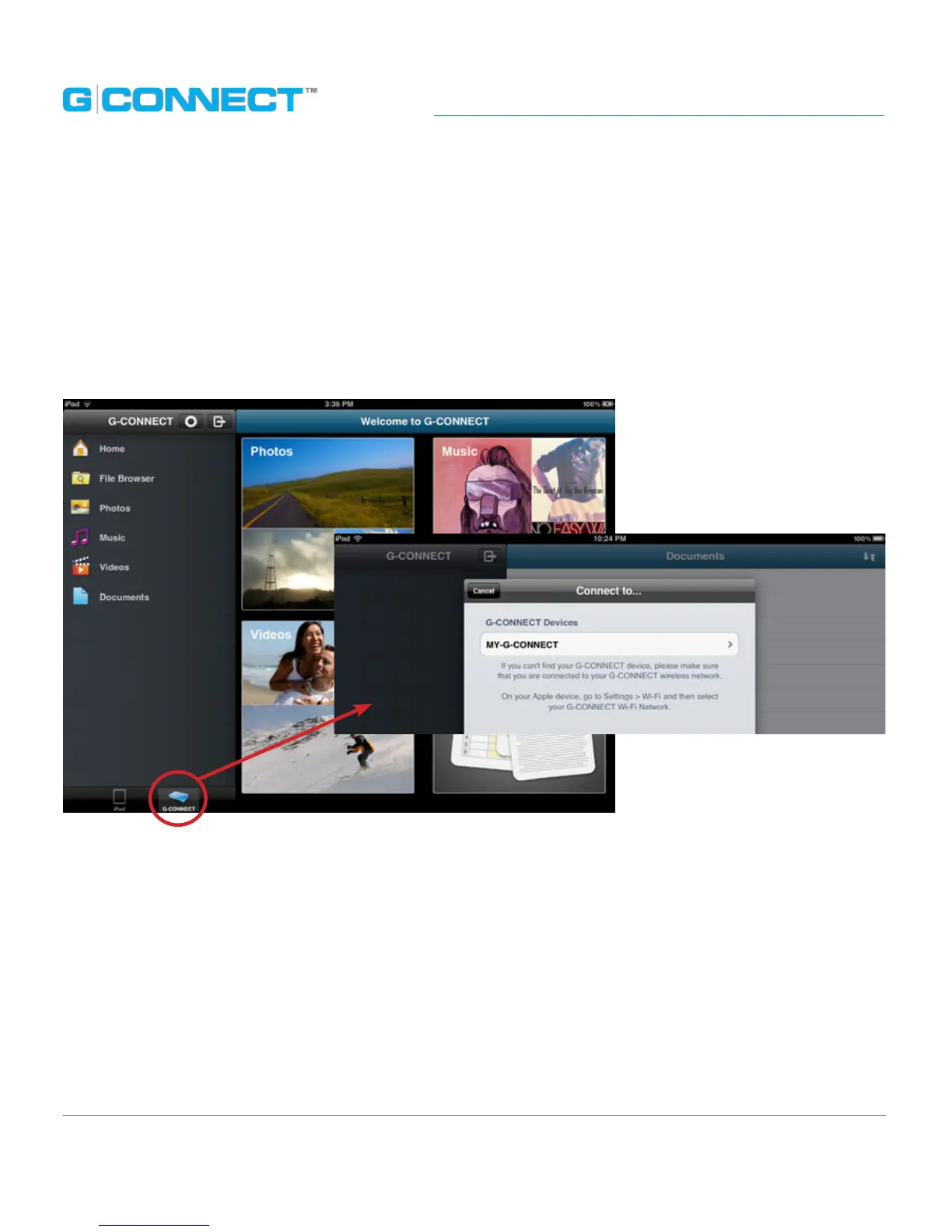
Once you tap the G-CONNECT iPad App icon, the rst screen you will come to
is the iPad Welcome to G-CONNECT page. On the bottom left of the screen you
will nd an iPad icon and a G-CONNECT icon.
Select the G-CONNECT icon and the ‘Connect to’ screen will be displayed. This screen will
display a list of devices that are connected to your G-CONNECT Wireless Network. You
should see your device listed here.
Note: If there are multiple G-CONNECT devices within range that are connected to the
G-CONNECT Wireless Network, they will be displayed in a list format.
Note: If you do not see your G-CONNECT device listed, you may not be connected
to the wireless network. Go to the Settings icon on your iPad and verify that you are
connected to the G-CONNECT Wireless Network. If you still do not see your G-CONNECT
device on this list, see the FAQ’s: Problems with Connectivity section of this document.














 To Next Page