Installation
6 · G&D DVIVision
Installing the computer module (DVIVision-CPU)
The computer, whose signals are transmitted to the remote console, is connected to
the computer module. A local console can optionally be connected to the computer
module.
Connecting the computer
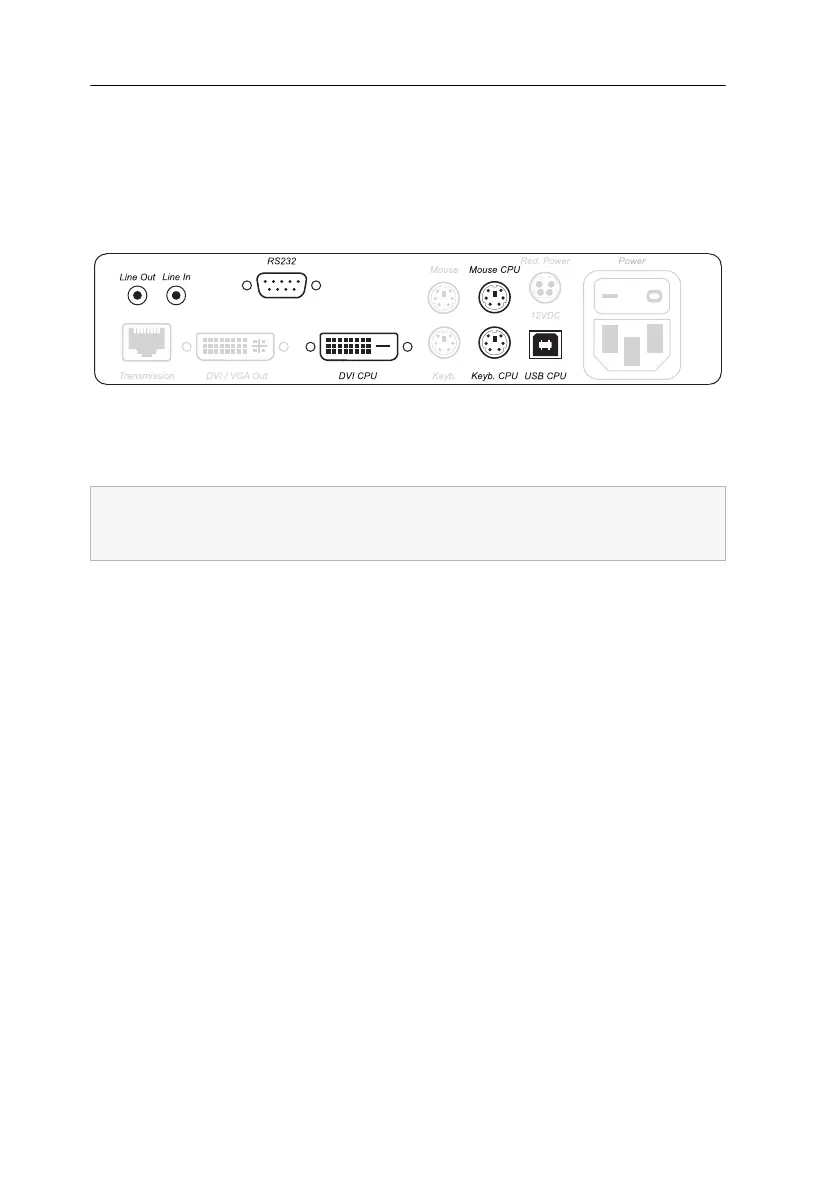
DVI CPU: Connect the digital video output of the computer to this interface. For this
purpose, use the DVI-D-M/M-2 cable.
USB CPU: Connect the USB interface of the computer to this interface. For this pur-
pose, use the USB-AM/BM-2 cable.
Keyb. CPU: Connect the PS/2 keyboard interface of the computer to this interface.
For this purpose, use the PS/2-M/M-2 cable (purple plugs).
Mouse CPU: Connect the PS/2 mouse interface of the computer to this interface. For
this purpose, use the PS/2-M/M-2 cable (green plugs).
Additional interfaces of the variants DVIVision-AR and -ARU:
Line Out: Connect the Line-In interface of the computer to this interface. For this
purpose, use the Audio-M/M-2 cable.
Line In: Connect the Line-Out interface of the computer to this interface. For this
purpose, use the Audio-M/M-2 cable.
RS232: Connect the nine-pole serial interface of the computer to this interface. For
this purpose, use the RS232-M/F-2 cable.
Figure 1: Interfaces to connect the computer to the computer module
The mouse and keyboard signals of both consoles can either be transmitted to the
computer through the USB interface USB
CPU or through the PS/2 interfaces
Mouse
CPU and Keyb. CPU.


 To Next Page