Astro
Dog Tracking System Owner’s Manual 69
Appendix
Upgrading DC 20 and Astro 220 software
from the Garmin Web site
During the life of your Astro Dog Tracking System,
Garmin may offer periodic upgrades to the operating
software downloaded from the Garmin Web site.
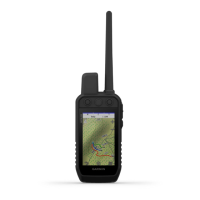
Upgrading Astro 220 software
To upgrade software on the Astro 220:
1. Be certain you have installed Garmin MapSource Trip
and Waypoint Manager as explained on page 69.
2. Turn on the Astro 220 and connect it to your
computer’s USB port using the cable provided with the
unit.
3. Go to the http://garmin.com/products/Astro. Click on
Updates & Downloads.
4. Follow instructions for using WebUpdater or click
download from Unit Software from the Web site and
follow instructions.
NOTE: Do not turn off the Astro 220 or DC 20 during
data transfer to avoid data corruption.
Upgrading DC 20 software
The DC 20 uses your Astro 220 as a wireless transfer
device when transferring software updates and detailed
dog tracks.
1. Be certain you have installed Garmin MapSource Trip
and Waypoint Manager as explained on
page 69.
2. Turn on the Astro 220 and connect it to your
computer’s USB port using the cable provided with the
unit.
3. Turn on the DC 20, place it within 12 inches of the
Astro 220.
4. Go to the Garmin Web site and open the product
page for the Astro System. Then select Updates &
Downloads.
5. Open the Astro 220 Dog Info page for the DC 20 you
are updating and press MENU > Upgrade Dog Unit
and follow on-screen instructions.
6. Follow instructions for using WebUpdater or click
download from Unit Software and follow instructions.




 To Next Page