98 GPSMAP 60CSx Owner’s Manual
APPENDIX >
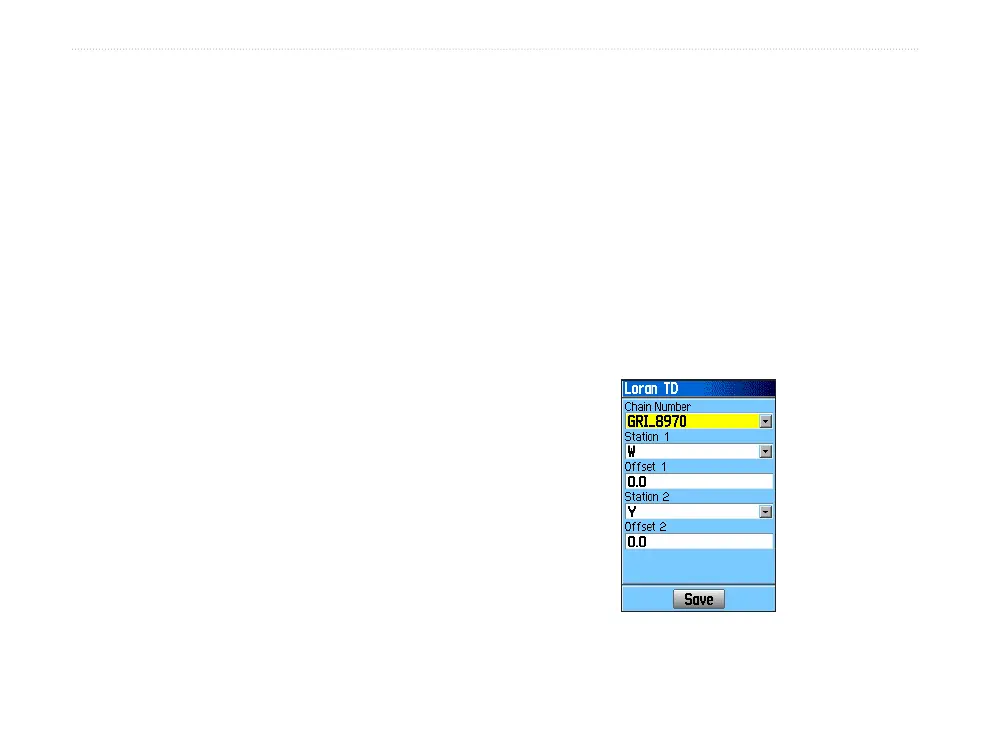
To set up Loran TD from the Setup Menu:
1. Press MENU twice to open the Main Menu.
2. Use the ROCKER to highlight the Setup icon,
and press ENTER to open the Setup Menu.
3. Use the ROCKER to highlight the Location
icon, and press ENTER to open the Location
Setup Page.
4. Highlight the Position Format field, and press
ENTER to open the format list.
5. Highlight Loran TD, and press ENTER to open
the Loran Setup Page.
6. To change the settings of any of the five fields,
highlight the field, press Enter to select from
options or enter the setting data.
7. When finished, highlight the Save button, and
press ENTER.
If the active GRI Chain, secondary stations, or offsets
have been changed since the waypoint was created,
the waypoint references the active GRI-chain and
secondary stations and adjust the TD coordinates
accordingly. Remember that the GPSMAP 60CSx
is not relying on the LORAN signal for navigation
and actually converts the TD coordinate to a useful
latitude and longitude coordinate before storing
the waypoint to memory or using it for navigation.
Because of this, the unit can navigate to a TD
coordinate anywhere in the world.
You must know your GRI chain number and
secondary stations to create a LORAN TD position.
For more information, read our LORAN TD Position
Format Handbook, available on the Garmin Web site,
at www.garmin.com/support/userManual.jsp.
Loran TD Setup Page



 To Next Page