20 Garmin Mobile
™
XT Owner’s Manual
routinG
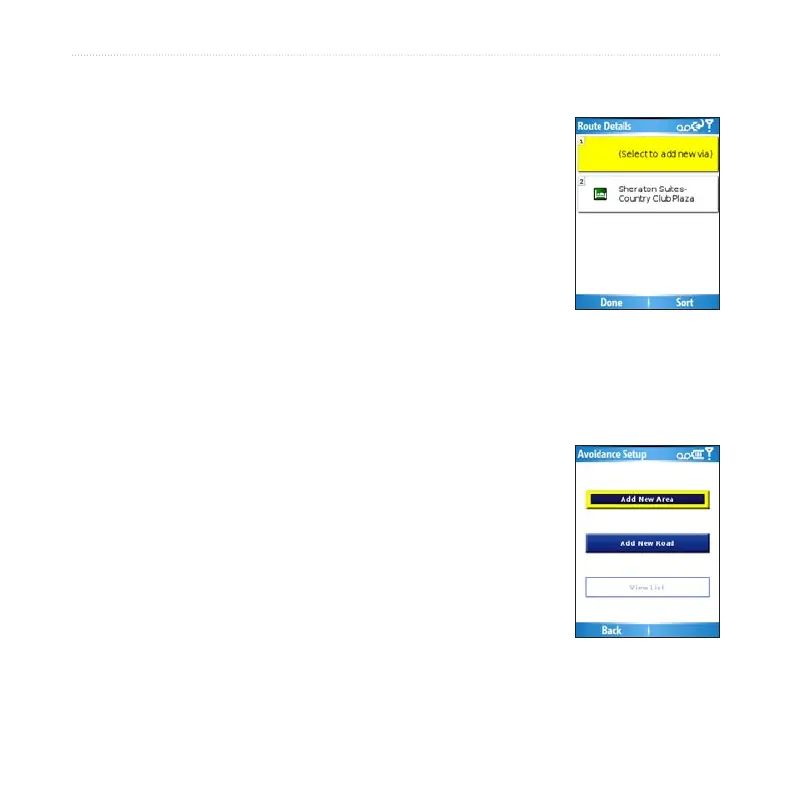
With an active route, select (Menu >) Tools > Route Details > Edit.
Select Add new via.
Select Find, Browse Map, Use Current Location, or
Edit Coordinates to select a via.
Select Select to add the via to your route.
To remove a via from the list, select (Menu >) Tools > Route
Details > Edit. Then, select the via and select Delete.
To change the order of the vias along the route, select (Menu >)
Tools > Route Details > Edit. Then select a via in the list and
select the Up or Down arrows to move it. You can also select
Sort to automatically reorder the vias.
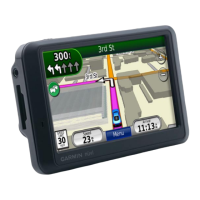
Avoiding Roads and Areas
You can exclude specic roads or areas from all of your routes.
Garmin Mobile XT avoids using these roads or areas in routes
unless there is no alternative.
You can avoid general types of roads (such as unpaved roads and
toll roads) by changing your routing settings. You can also adjust
your routing settings to avoid trafc events if you are connected
to Garmin Online.
1.
2.
3.
4.


 To Next Page