Setup and Calibration 4-5
January 2008
Setting the Display
Backlight
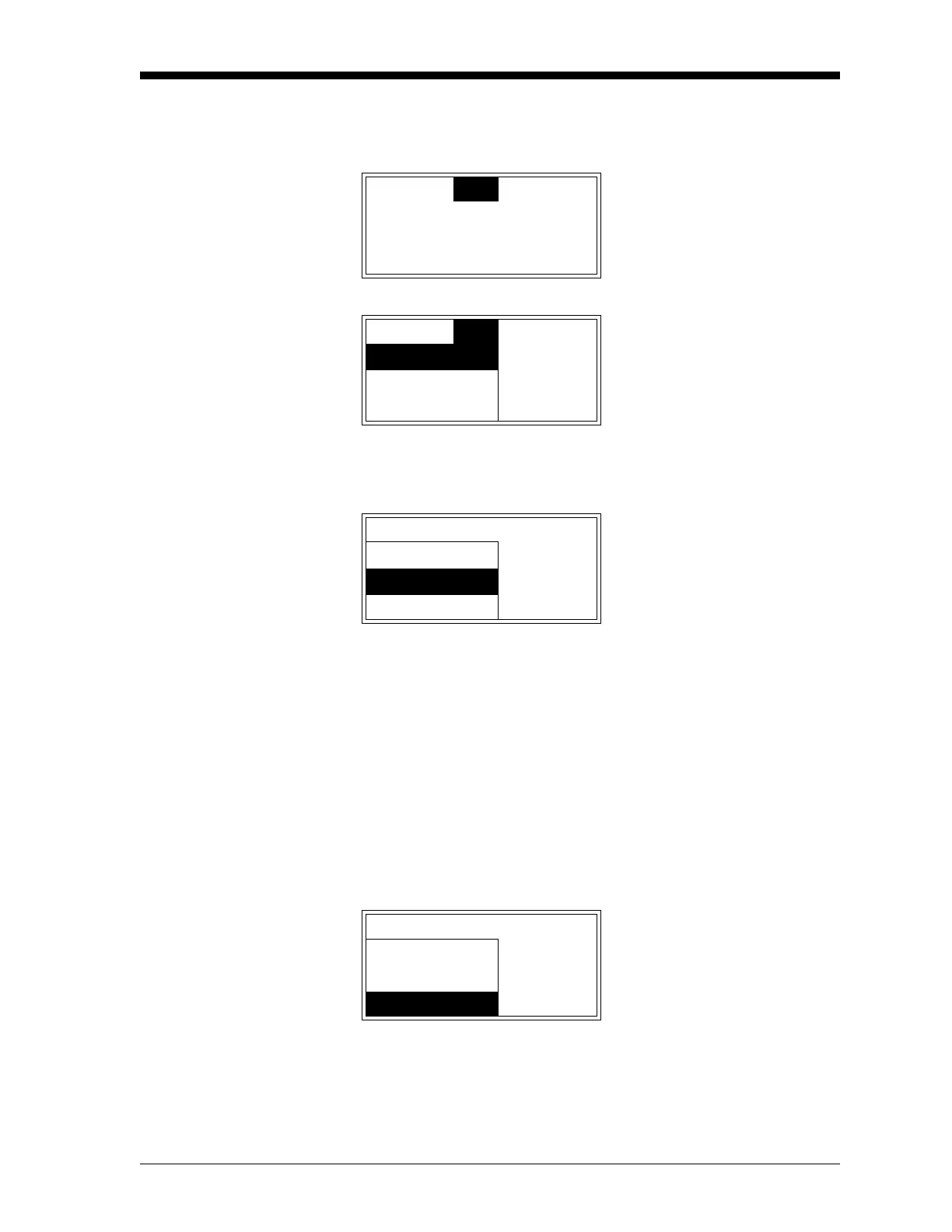
After entering the User Program, as described on page 3-4, the main
menu appears. To set the display backlight, proceed as follows:
Note: “Lock All” and “Versions” menu options also appear on the
above list.
Note: The “Fault Alarm” and “Analog Output” options are also
available in the above list box.
The display backlight has three possible settings:
• Off - the backlight is permanently turned off
• On - the backlight is continuously on
• Timed - the backlight comes on whenever a key is pressed and
remains on until a specified time interval has elapsed without any
keypad activity
Note: If “Off” or “On” was chosen above, the following two prompts
do not appear and you are returned to the User Menu
Cal
Opt
Disp Use the [W] and [X] keys to
select
[Opt] and press [ENTER].
Cal
Opt
Disp Use the [S] and [T] keys to
select
[User] and press [ENTER].
User
Lock Menus
User Use the [
S] and [T] keys to
select
[Backlight] and press
[ENTER].
Contrast
Backlight
Comm
User Backlight Use the [
S] and [T] keys to
select the desired option and
press
[ENTER].
Off
On
Timed


 To Next Page
 Loading...