56 57
TRACK
The Track function allows recording the track actually fol-
lowed by the boat. The Track function can be enabled and
disabled several times during navigation; in this case, sepa-
rate track segments will be drawn.
Starting a track
To enable the Track function, press the PAGE key to display
the menu bar, select TRACK, START and press ENTER to con-
firm. A small circle on the boat’s position will indicate the
track starting point.
Stopping a track
To disable the Track function, press the PAGE key to display
the menu bar, select TRACK, STOP and press ENTER to con-
firm.
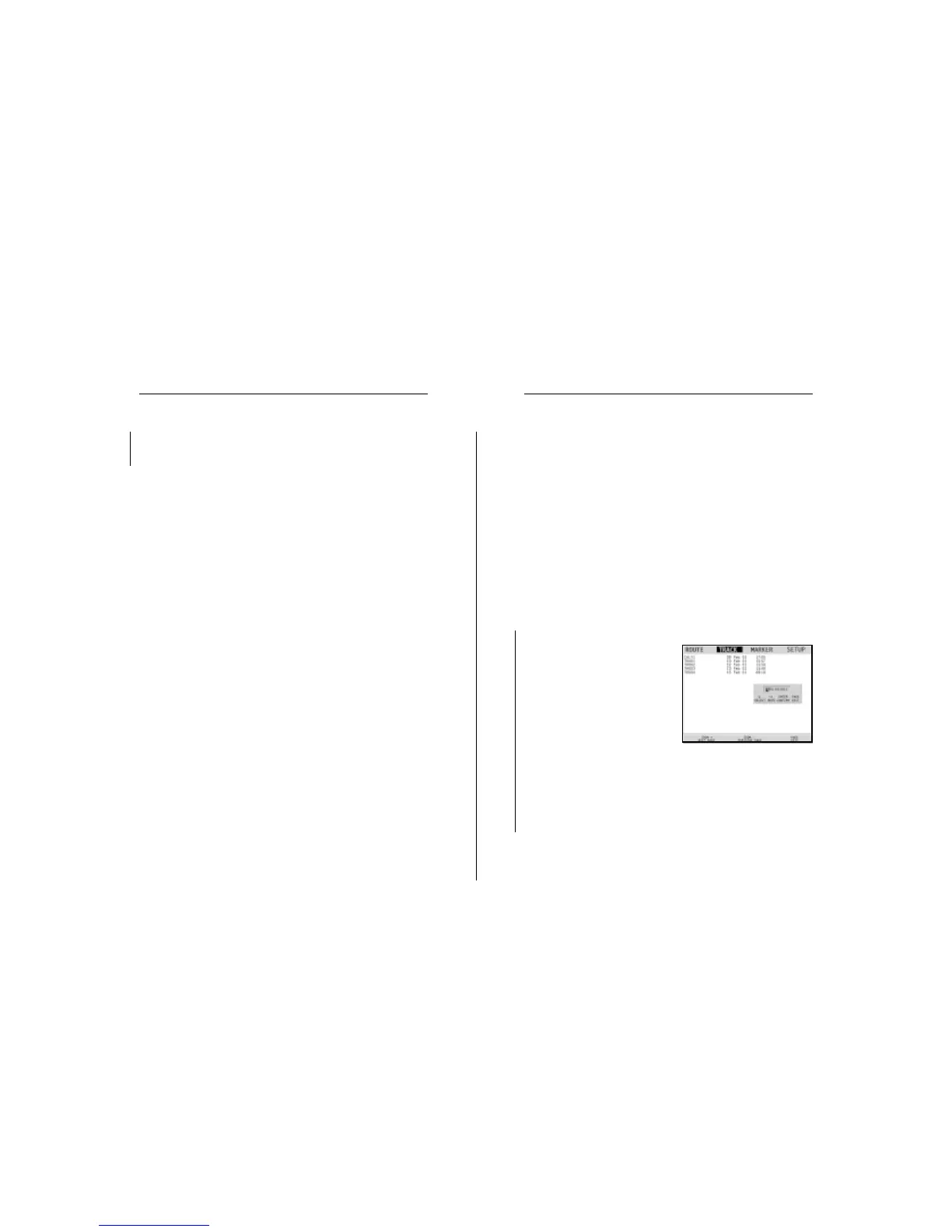
Storing a track in the CompactFlash™
Press the PAGE key to display the
menu bar, select TRACK, STORE
and press ENTER to confirm. To
change the default file name and
confirm the operation, use the
joystick.
The “TRACK STORED” message
will confirm that the track has
been stored correctly. Once
stored, the track will disappear from the screen.
Each time a track is stored in the CompactFlash™, the plotter’s
memory is cleared and the indicator of memory used in the
TRACK menu is reset to 0%.
Recalling a track from the CompactFlash™
Press the PAGE key to display the menu bar, select TRACK and
Advanced
By selecting CURRENT, the route currently displayed will be
deleted; the route can also be deleted by keeping the CLR key
pressed for 3 seconds in Navigation mode.
Reversing a route
Press the PAGE key to display the menu, select ROUTE and
then REVERSE (if no route is currently displayed, the “NO
ROUTE PRESENT” message is displayed).
The waypoint order will be automatically reversed allowing
navigation in the opposite direction. To display information
on the new route, select the ROUTE/INFO option.
Advanced
Route Track


 To Next Page