68 69
Route to the nearest service
NOTE: This option is available only with the NAVIONICS car-
tridges containing the Port Services features. It allows finding
and heading for the nearest port featuring the service desired.
Press the GOTO key, select NEAR by the joy-
stick, choose the desired service and press EN-
TER to confirm, or CLR to cancel the operation.
The GEONAV will show the three destinations
closest to the boat’s position (if in Navigation
mode), or to the cursor’s position (if in Cursor mode), and po-
sition automatically on the closest destination (flashing).
Select one port at a time by using the joystick; a window will
show the distance and time to arrive (estimated on the boat’s
current speed). Press ENTER to confirm the selection.
The GEONAV will insert a waypoint in the port selected, de-
lete automatically the existing route (if in Navigation mode), or
append the waypoint to the existing route (if in Cursor mode),
then go back to Navigation mode and enable automatically the
Autozoom function.
Route to a track segment
Press the GOTO key and select
TRACK by the joystick. A window
will show, for each track seg-
ment, the line color, the name,
the recording start date and time
as well as the recording duration
and length.
The list can be sorted by using
the joystick to select the sort field and to confirm. Use the
joystick to select the target segment (the latest 8 segments
used will be highlighted) from the catalog and to confirm.
Once the desired port has been selected, the GEONAV will
insert a waypoint in the port position and append the new leg
to the existing route (if no route is available, the new waypoint
will be connected to the boat’s position).
Press the PAGE key to go back to Navigation mode and enable
automatically the Autozoom function.
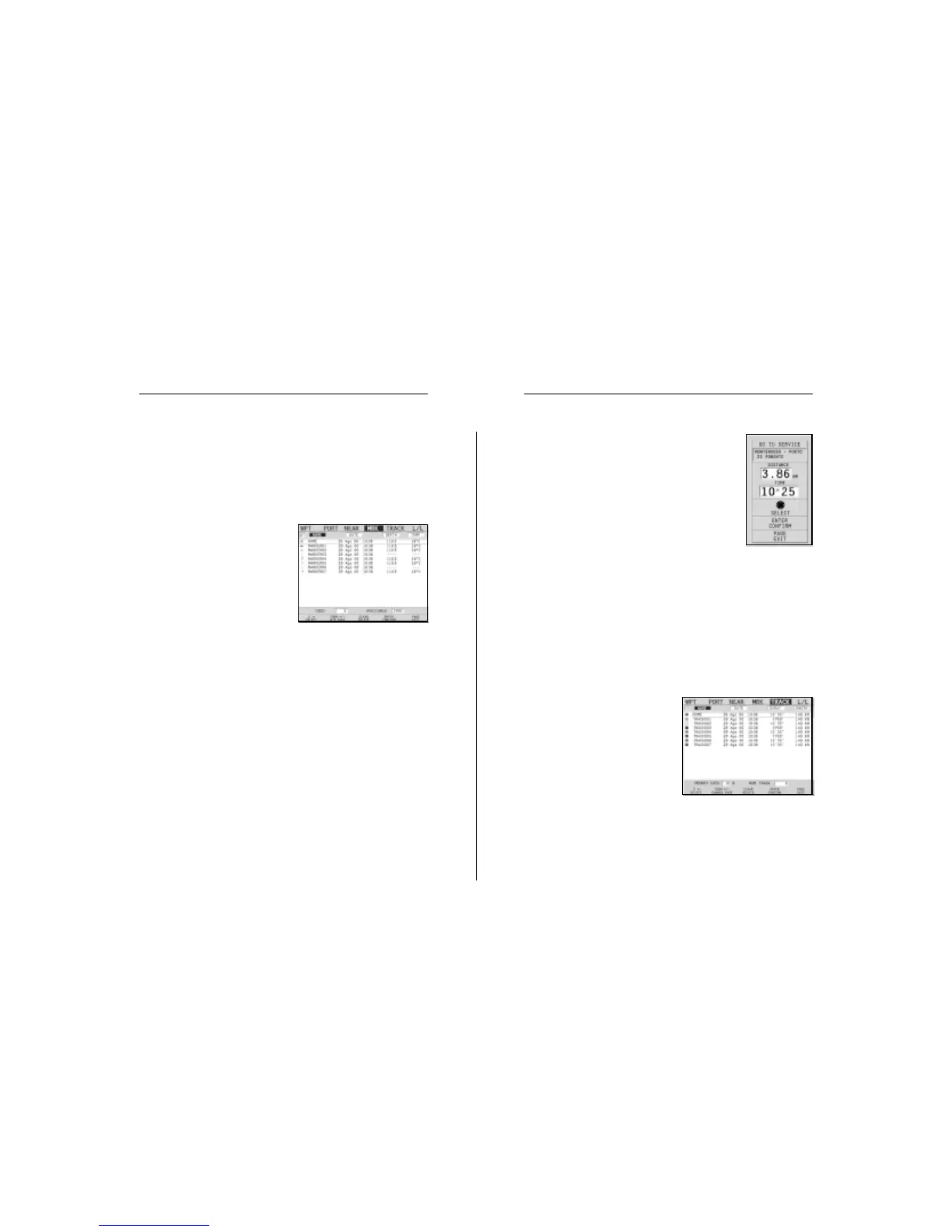
Route to a marker
Press the GOTO key and select
MRK by the joystick. The catalog
displayed will list, with respect
to each marker, the symbol, the
name, the insertion date/time,
as well as, if available, the sea
depth and temperature values as
detected when entered.
Moreover, the catalog shows the number of markers entered
in the current page and the number of markers still available.
The list can be sorted by using the joystick to select the sort
field and confirm.
By using the joystick, choose the desired marker (the latest 8
markers used will be highlighted) from the catalog displayed,
then press ENTER to confirm.
Once the desired marker has been selected, the GEONAV will
insert a waypoint at the marker position and append the new
leg to the existing route (if no route is available, the new
waypoint will be connected to the boat’s position).
Press the PAGE key to go back to Navigation mode and enable
automatically the Autozoom function.
NOTE: To delete a single marker, select it from the GOTO Marker list and press the
CLR key.
Goto


 To Next Page