56
USB Power Delivery
Note that you should use the appropriate wattage/voltage USB-C power
adapter for your computer model.
USB-C power adapter specifications: 85 W or above (20 V, 4.25 A or above)
Applications include storage, display, networking, single-cable docking, and
more.
NOTE:
When the notebook computer (i.e. Tablet + Keyboard Dock) is connected
to the office dock or vehicle dock, using the USB Power Delivery function is
not recommended. This is because a protection mechanism will regulate the
performance under such a circumstance, resulting in limited performance.
Thunderbolt ports are backward-compatible with USB-C devices. An
USB-C device plugged into a Thunderbolt port will function normally.
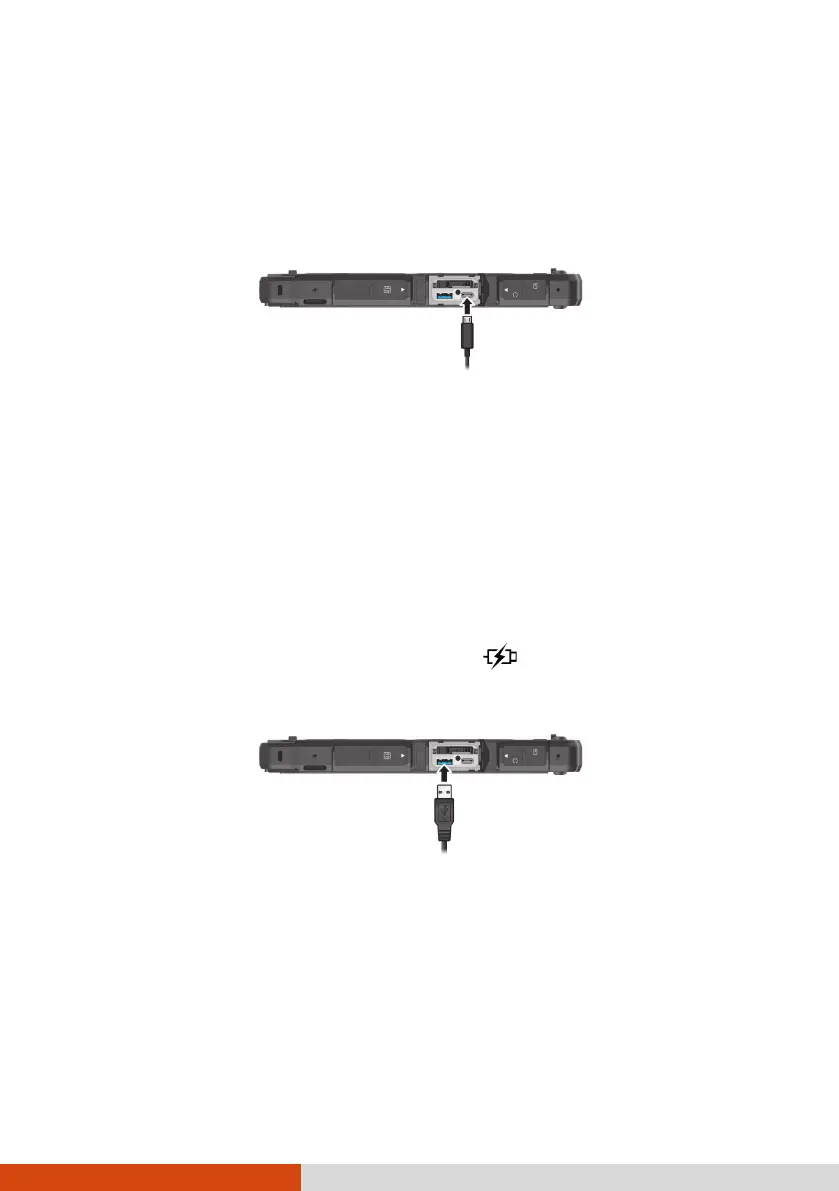
Connecting a Device for USB Charging
The Tablet supports a PowerShare USB port ( ). You can use this port to
charge mobile devices even when the computer is in power-off, sleep, or
hibernation state.
A connected device is charged by either external power (if the AC adapter is
connected) or by the computer’s battery (if the AC adapter is not connected).
In the latter case, charging will stop when the battery level gets low (20%
capacity).
Notes and Cautions on USB Charging
To use the USB charging feature, you must first enable the feature by
running the BIOS Setup program or the G-Manager program. (See



 To Next Page