EasyManua.ls Logo

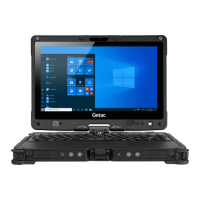
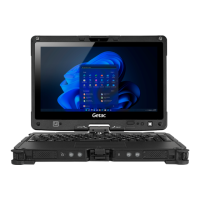
Getac V100 - User Manual

Getac V100
187 pages
Print Icon
To Next Page IconTo Next Page
Loading...
Rugged Mobile Computing Solutions
V100
USERS MANUAL

Table of Contents

Other manuals for Getac V100

Questions and Answers

  • S
    Samantha ThompsonAug 28, 2025
    Why external monitor displays nothing when connected to Getac Laptop?
    • D
      Donna HamptonAug 28, 2025
      If the external monitor displays nothing when connected to your Getac Laptop, ensure that the monitor is turned on and the signal cable is properly connected. Try pressing the Fn+F9 hot key or changing the display settings in Display Properties.
  • B
    Brandi PaulAug 31, 2025
    Why external keyboard does not work on Getac V100?
    • D
      Donna MillerAug 31, 2025
      If the external keyboard does not work with your Getac Laptop, ensure that the keyboard cable is properly connected.
  • R
    ryan95Aug 31, 2025
    What to do if application program does not work on Getac Laptop?
    • T
      Taylor ParkerAug 31, 2025
      If an application program on your Getac Laptop does not work correctly, make sure that the software is correctly installed. If an error message appears, consult the software program’s documentation. If you are sure the operation has stopped, reset the computer.
  • K
    kathleen89Aug 30, 2025
    How to speed up hard disk drive on Getac V100 Laptop?
    • C
      Chelsea GreenAug 30, 2025
      If the hard disk drive operations on your Getac Laptop seem slow, use a tool such as Window’s Disk Defragmenter to defragment the files.
  • L
    Linda WilkinsonAug 30, 2025
    How to reduce radio interference on Getac V100 Laptop?
    • L
      Lori KochAug 30, 2025
      If radio interference exists with your Getac Laptop, move your computer away from devices causing the interference, such as microwave ovens and large metal objects. Try plugging your computer into an outlet on a different branch circuit from the affecting device. You may consult your dealer or an experienced radio technician for help.
  • P
    Patrick DavisAug 29, 2025
    What to do if PC card does not work on Getac Laptop?
    • T
      Todd BridgesAug 30, 2025
      If the PC card is not working on your Getac Laptop, ensure that the PC card controller driver is correctly installed and the PC card is correctly seated. If the card requires an IRQ, make sure that one is available.
  • L
    Lindsay McclureAug 29, 2025
    Why simultaneous display does not work on Getac Laptop?
    • R
      rhonda21Aug 29, 2025
      If simultaneous or multi-display is not working on your Getac Laptop, ensure that you turn on the external monitor before turning on the computer. You can also press the Fn+F9 hot key to toggle through the display options or change the settings in Display Properties in Windows.
  • S
    Stacey MarshallAug 29, 2025
    How to fix no sound on Getac Laptop?
    • B
      Brooke BrownAug 29, 2025
      If no sound is coming from your Getac Laptop, make sure that the volume control is not set too low and the audio driver is correctly installed. Also, ensure the computer is not in Standby mode and the speaker is properly connected.
  • M
    michaeljordanAug 28, 2025
    Why Getac V100 Laptop does not recognize a newly installed device?
    • J
      Jonathan LeeAug 28, 2025
      If your Getac Laptop doesn't recognize a newly installed device, run the BIOS Setup program to identify the new type. Check if any device driver needs to be installed and if the device requires any jumper or switch settings. Also, check the cables or power cords for correct connections and ensure any external device with its own power switch is turned on.
  • R
    Rebecca SmithAug 28, 2025
    What to do if the modem does not work on Getac V100?
    • J
      jacobestesAug 28, 2025
      If the modem on your Getac Laptop isn't working, make sure that the modem driver is correctly installed and the telephone line is properly connected. Check that the COM port in the communication software is correctly set, and ensure power management is turned off.

Summary

Getting Started with Your Getac V100

Operating Your Computer

Keyboard and Input Devices

Covers internal keyboard functions, touchpad usage, software keyboard, and touchscreen operation.

Managing Power for Optimal Performance

AC Adapter and Battery Management

Details on AC adapter usage, battery charging, checking levels, and replacement procedures.

BIOS Setup and System Recovery

BIOS Setup Utility Guide

Covers accessing, navigating, and configuring BIOS settings for system optimization.

System Recovery Procedures

Detailed steps on how to restore the computer to its factory default Windows settings.

Troubleshooting Common Issues

Troubleshooting Overview and Checklist

Provides a preliminary checklist and covers common problems like battery, display, and connectivity.

Regulatory and Safety Information

Getac V100 Specifications

General IconGeneral
BrandGetac
ModelV100
CategoryLaptop
LanguageEnglish

Related product manuals