2-10
Operating Your Computer
Navigating on the Screen
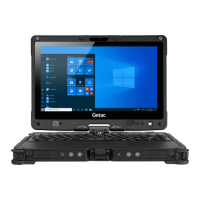
The screen of your computer is touch-sensitive. You can operate the
computer by touching the screen with your finger (or the stylus/digitizer pen
if purchased).
CAUTION: Do not use a sharp object such as a ballpoint pen or pencil on the
touchscreen. Doing so may damage the touchscreen surface.
NOTE: An AG/AR film has been attached to the screen before shipment. The
film is a consumable, which will be worn out by possible scratches. You can
purchase a new one when replacement is required.
Using the Touchscreen
NOTE: Instead of a hard tip, your stylus (optional) has a soft tip so that it
does not scratch the AG/AR film. It is normal for the soft tip to wear out
after a long period of use. You can purchase a new one when needed.
The following table shows how you use the touchscreen to obtain equivalent
mouse functions.
Term/Action
Equivalent
Mouse Function
Tap: Touch the screen once. Click/Point
Double-tap: Touch the screen twice rapidly. Double-click
Tap and hold: Tap and hold until a popup menu
appears.
Right-click
Drag: Hold the stylus (or finger) on the screen and drag
across the screen until reaching your destination.
Drag


 To Next Page