29
Operations & Maintenance Manual: Using the Device
PROCEDURE 3. USE THE RECORD & SNAPSHOT FEATURES (OPTIONAL)
Use only a passive-type USB flash drive. Do not use USB drives powered by another external source.
WARNING
Use only a passive-type USB flash drive. Do not use USB drives powered by another external source.
WARNING
The GlideScope Titanium system is equipped with video and audio recording features and the ability to save a
snapshot of the live display on the monitor. The GlideScope Titanium system saves this data to a USB flash drive,
and you can view the recordings or snapshots on the video monitor or a computer.
By default, audio recording is disabled on the GlideScope Titanium system. If you would like the system to record
audio in addition to video, complete the procedure Configure User Settings to enter the User Settings screen,
and then change the Audio Recording setting to On.
While recording, a number next to the icon indicates approximately what percentage of the USB flash drive has
been used. When the USB flash drive is full, recording stops.
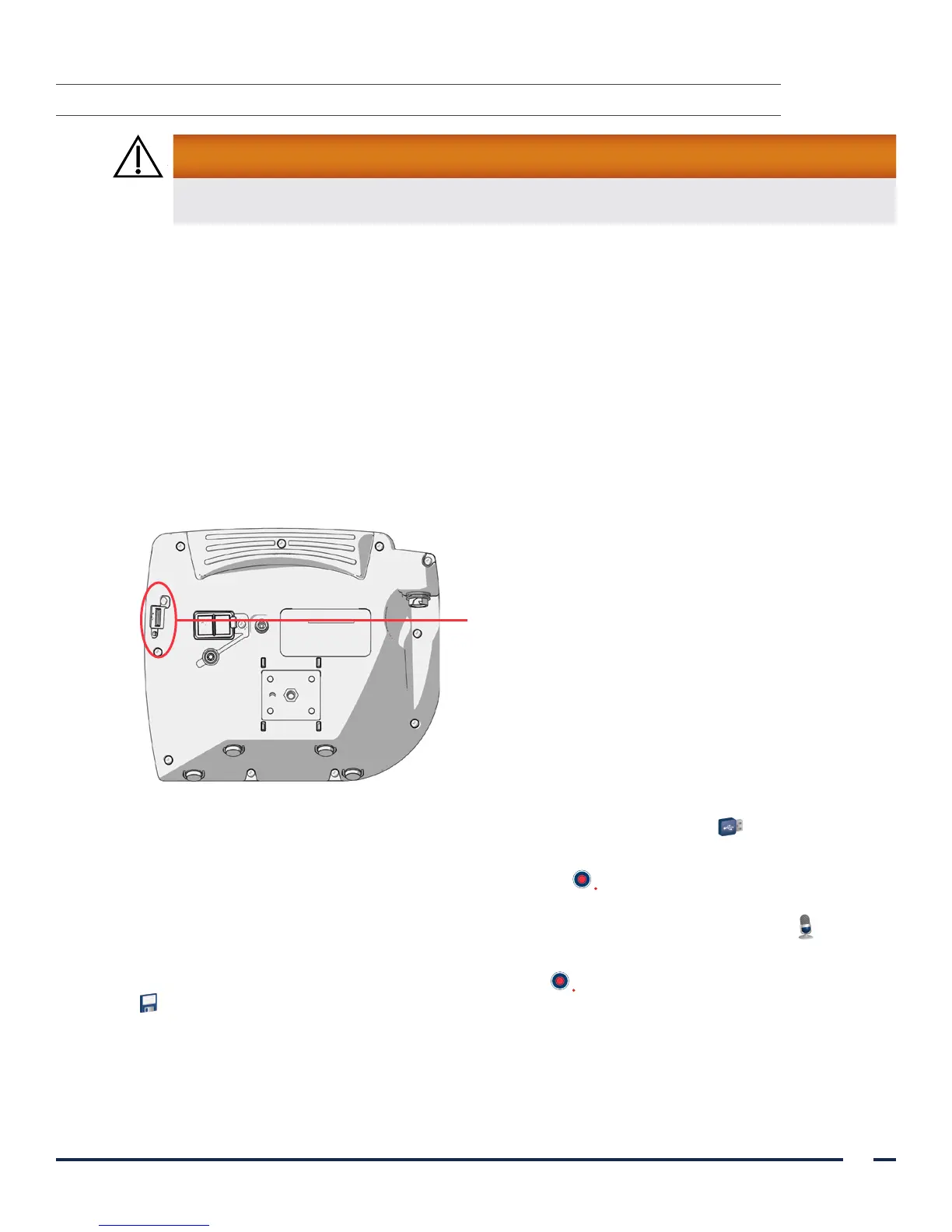
1. On the back of the monitor, remove the USB port cap, and then insert a USB flash drive into the port.
Note: If you do not insert a USB flash drive, the video recording, audio recording, and snapshot features will
not be available.
USB port
2. Ensure that the USB flash drive is detected by checking if the USB Flash Drive icon on the bottom of the
screen is displayed.
3. If you want to record the intubation, press the Record button . Video recording starts and is saved to the
USB flash drive.
If audio recording is enabled in the User Settings display, the Audio Recording is Active icon will
appear on the screen, and audio will be recorded with the video.
4. When you are finished recording, press the Record button again, and then wait for the Saving File icon
to disappear.
Note: If you remove the USB flash drive before the Saving File icon disappears, the recording will be lost.


 To Next Page