31
Operations & Maintenance Manual: Using the Device
PROCEDURE 4. USE THE PLAYBACK FEATURE (OPTIONAL)
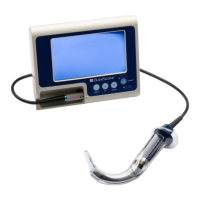
Recorded videos and snapshots on a USB flash drive can be viewed on the GlideScope Video Monitor.
1. On the back of the monitor, remove the USB port cap, and then insert a USB flash drive into the port.
2. Ensure that the USB flash drive is detected by checking if the USB Flash Drive icon on the bottom of the
screen is displayed.
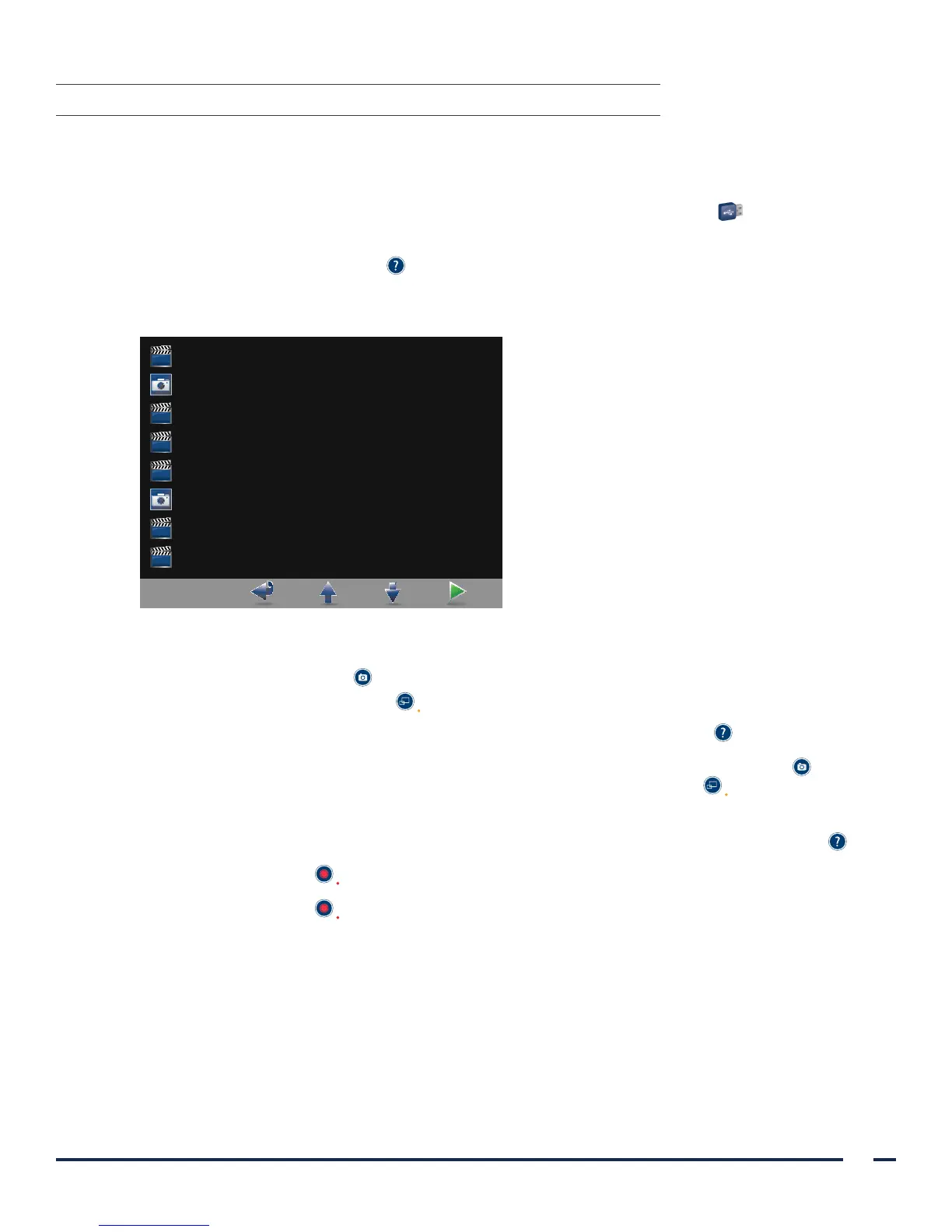
3. Press and hold the Tutorial button 3 seconds or longer. The playback menu is displayed.
Figure 15. Playback Menu
20140114_205213.jpg
20131101_132217.jpg
Tutorial
20140114_203419.avi
20140110_203355.avi
20130411_143605.avi
20131101_132115.avi
20130411_213043.avi
4. Navigate the menu as follows:
• Press the Snapshot button to move up the list of playback files.
• Press the External Video button to move down the list of playback files.
5. When you have selected the item that you want to play, press the Tutorial button . Playback starts.
6. When the file is being played back and is displayed on the screen, press the Snapshot button to playback
the next file above the one currently displayed. Press the External Video button to play the next file
below the one currently displayed.
7. If the file being played back is a video, pause and resume playback by pressing the Tutorial button .
8. Press the Record button to return to the playback menu.
9. Press the Record button again to close the playback menu.


 To Next Page