26
to match the frequency of the transmitter you want to scan or monitor, and
the MODE should be set to Auto, or, if desired, AM, FM or NFM. Note that
the scanner will automatically select the default mode based on the frequen-
cy you enter when MODE is set for AUto. In most cases it will not be neces-
sary to change this.
We also recommend that you label your CONV object by giving it a name in
the TAG field. This will make it easier for you to find the CONV object later,
and identify it when the scanner stops to monitor activity. Enter your CONV
object by following these steps.
As we mentioned above, a brand new radio will launch into Program Mode
when it is first turned on, which allows for creation and editing of Scannable
Objects. If this is the first time you have turned on your radio, you should
see these softkey labels at the bottom of your screen:
NEW EDIT GLOB
If not, press the PGM (Program) key now.
Press the
NEW
softkey to begin entry of a new object.
Press the
CONV
softkey to begin entry of a CONVentional Channel object.
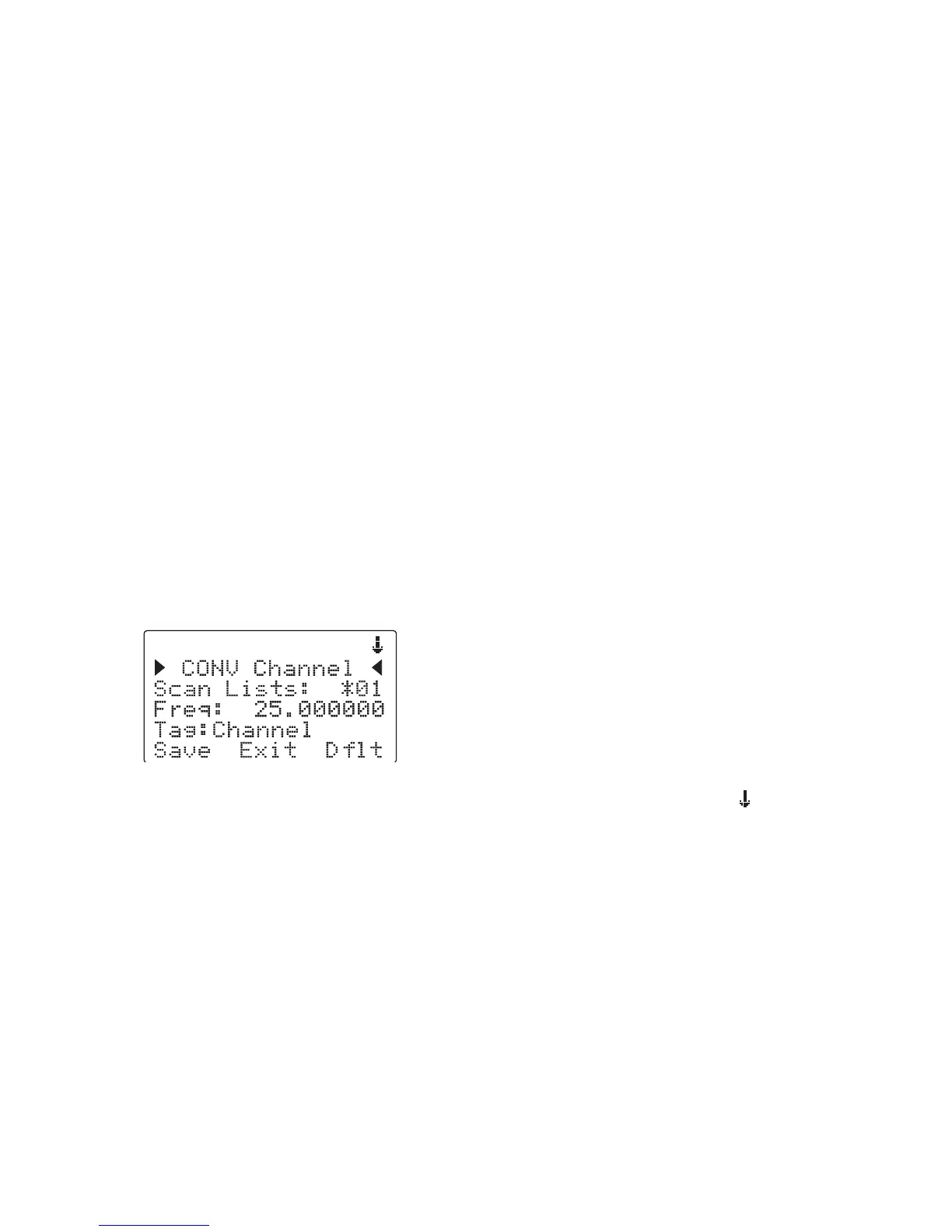
Your scanner's display should read as follows:
Now, take a moment and study the display. You will notice that the
icon is
active. Its purpose is to indicate that you are at the very top position of the
menu for a conventional channel object, and there are more parameters that
can be accessed if you scroll down. We also see three new softkeys:
Save Exit Dflt
The Save softkey will save your new CONV object to the file system when
pressed (but don't press it yet!). The
Exit
softkey aborts the creation of
the new CONV object, and the
Dflt
softkey restores the selected CONV
menu parameter to its default setting.



 To Next Page