27
If you press the
6
key on the bottom of the 5-way pushbutton pad, you can
scroll down and see all of the parameters that can be specified for a CONV
object. Go ahead and take a peek - then scroll back to the very top of the
display so you can begin entering information for your first CONV object.
HINT: Pressing FUNC
5
or FUNC
6
will jump to the top or bottom of a
menu, respectively.
Note that as you scroll both the upward and downward scroll indicators will
illuminate to indicate that there are parameters above and below the current
cursor position, until you get to the very end of the menu, where only the up-
ward scroll indicator will be on to indicate that there are no more parameters
below the current cursor position. Also note that a few lines of context sensi-
tive help are available for each menu item. To see the help text for a menu
item, press FUNC, then press SEL on the 5-way pushbutton pad. To exit
help, press SEL again.
As you scroll the object menu, you will see a line that states:
66
EXPERT BELOW
66
This line is found in the object menus and the Global configuration menus.
Its purpose is to delineate between the basic settings that are important to
each object and the operation of the radio, and the expert settings that may
be of interest to advanced users, but, if left alone, will not adversely impact
the operation of the radio. For more information about the Basic and Expert
settings, please refer to the Detailed Menu Reference at the end of this Own-
er's Manual.
Use the
56
keys to scroll the screen until the flashing cursor appears next
to the
Freq:
label. Key in a known local frequency and press the ENT key,
or press the
DONE
softkey - either one will do the same thing. There! You
just entered the frequency for your first CONV object.
By default, your new CONV object will be tagged “Channel”. If you'd like to
change this, just scroll the screen down one click until the flashing cursor
highlights the
Tag:
field, then press SEL to edit the tag. You can move the
cursor around using the
34
keys on the 5-way pushbutton pad, use the CL
key to clear the old text, or press FUNC CL to erase the entire field. To enter
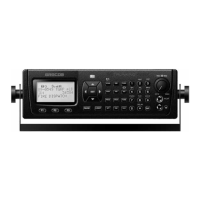
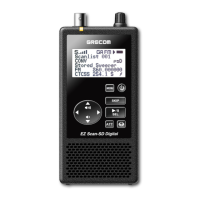
text, find the letter you want to enter on the front panel of the radio, press the
numeric key beneath it, then press 1, 2, 3, or 4 depending on the position of
the letter in the group for that number. For example, to enter FIRE, press:
3 3
F
4 3
I
7 3
R
3 2
E



 To Next Page