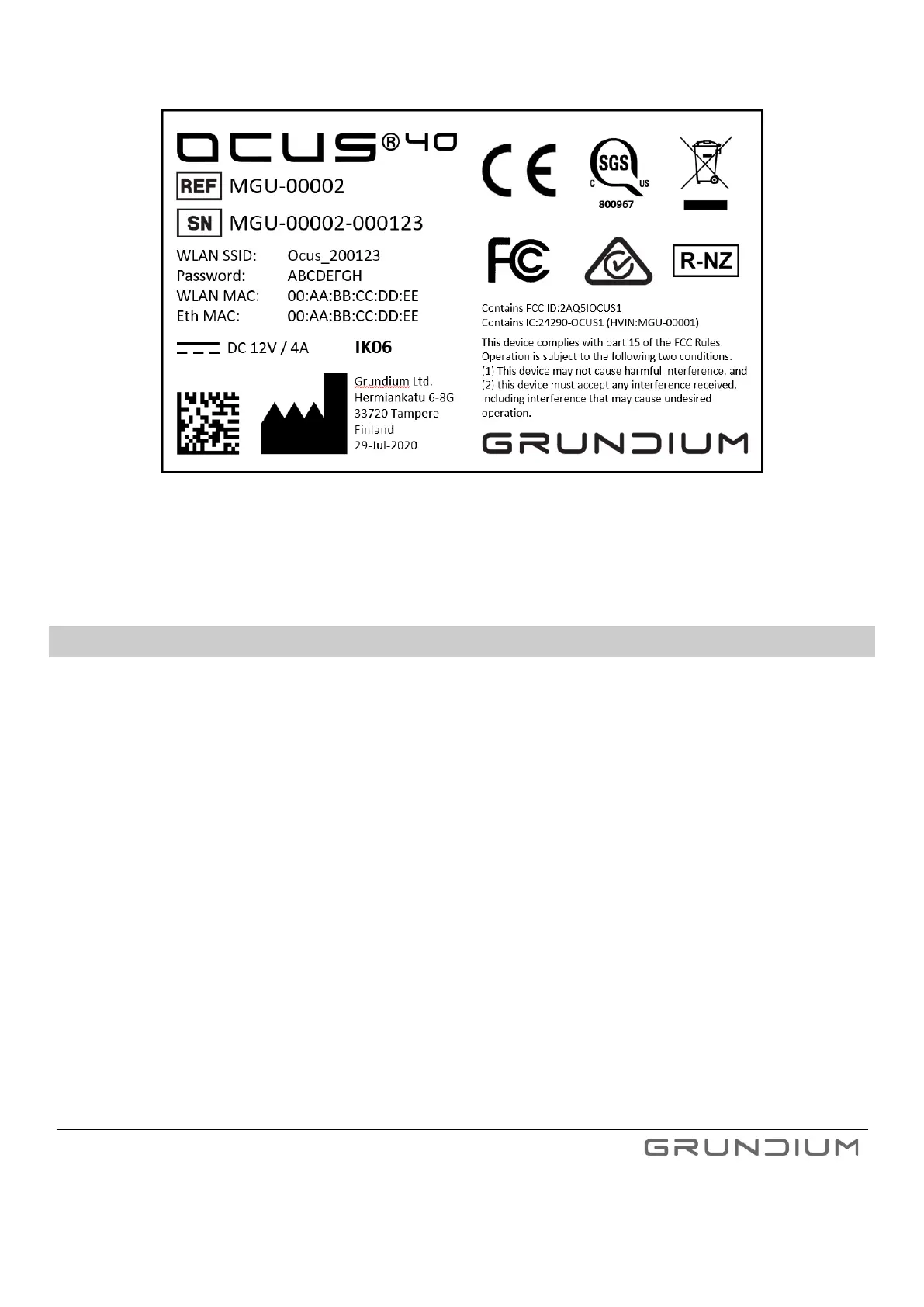
Image 4. Label example with a serial number, SSID and a password.
Note: For the first use, the scanner requires that the network has a DHCP server providing IP address. If the use of static IP is
required, this can be done after the first time use in device settings.
7.1 SETTING UP THE NETWORK FIREWALL CONFIGURATION BASED ON THE MAC -ADDRESS
If the network you use has a firewall, make sure that the scanner is allowed to make requests to Grundium Cloud using the
outgoing connection to the Internet (TCP ports 80 & 443 for use within same network and optionally TCP port 471 for use from
remote network). If the firewall uses a MAC filter, you can find the MAC address of the scanner on the label at the bottom of the
scanner. Also, traffic between devices in the network must be allowed.
•
Port TCP/443 must be open for outbound requests from the scanner to Grundium cloud *.grundium.net (use
*.grundium.net instead of IP address).
•
Port TCP/443 must be open for outbound requests from the user’s computer to Grundium cloud *.grundium.net (use
*.grundium.net instead of IP address).
•
Port TCP/443 must be open for traffic between the computer and scanner when in the same VLAN or separate VLANs.
•
Your network must be setup to allow an external DNS (in this case the DNS service provided by Grundium cloud) to
provide name to IP resolution for internal IP addresses. This setup will provide the best user experience.
Optional:
To allow your users to access Ocus also from an outside network (e.g., from home in absence of VPN or from another
institution’s network): in addition to the above for internal use, allow the scanner to make outbound requests via TCP/471
to *.grundium.net (use *.grundium.net instead of IP address).



 To Next Page