Saavutustenkatu 3, 33720 Tampere, Finland
©2022 Grundium. All rights reserved.
6-8G, 33720 Tampere, Finland
©2022 Grundium. All rights reserved.
16.2 ADDING NEW TEAM MEMBERS
1. Select Team management from the menu under your name in the top right of the screen (see image 37 ).
2. Add users to the team by clicking Add. An e-mail address is required for each user.
Image 40. E-mail address of a new team member is required when adding new users.
3. Close the menu when done.
17 KEEPING THE SOFTWARE UP TO DATE
From time to time, Grundium provides software updates. When a new update is available, you will get a notification and
instructions on how to update the software. Scanner intended usage flow must be verified after each software update. This
involves testing at least that the connectivity, scanning and exporting function properly
18 INFO WINDOW
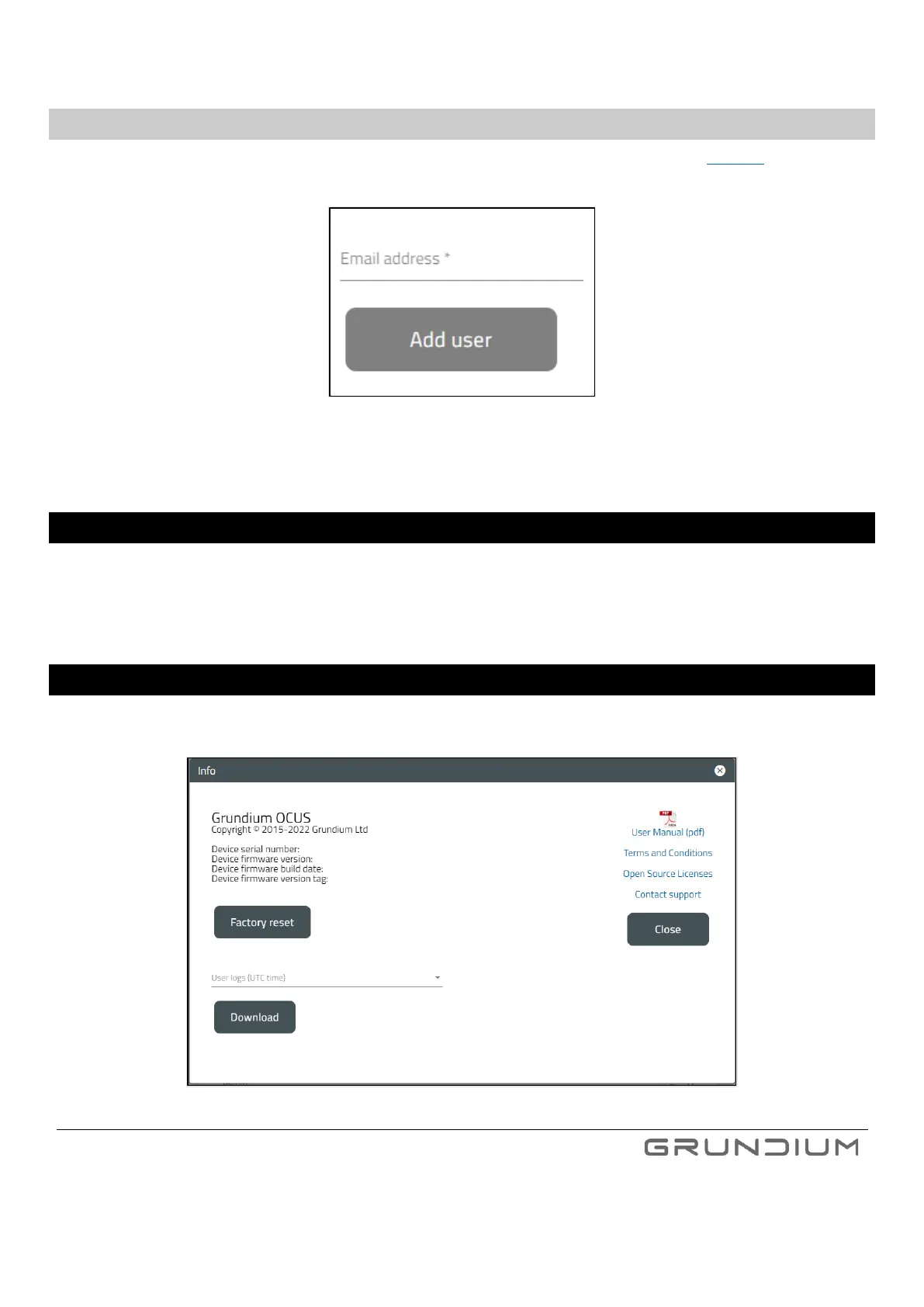
Click i to open the info window. Under the info window it is possible to view Ocus Scanner information, perform factory reset,
download user LOG-files, access user manuals, terms and conditions, Open-Source Licenses, and contact support.
Image 41. Info window.



 To Next Page