Saavutustenkatu 3, 33720 Tampere, Finland
©2022 Grundium. All rights reserved.
6-8G, 33720 Tampere, Finland
©2022 Grundium. All rights reserved.
5.
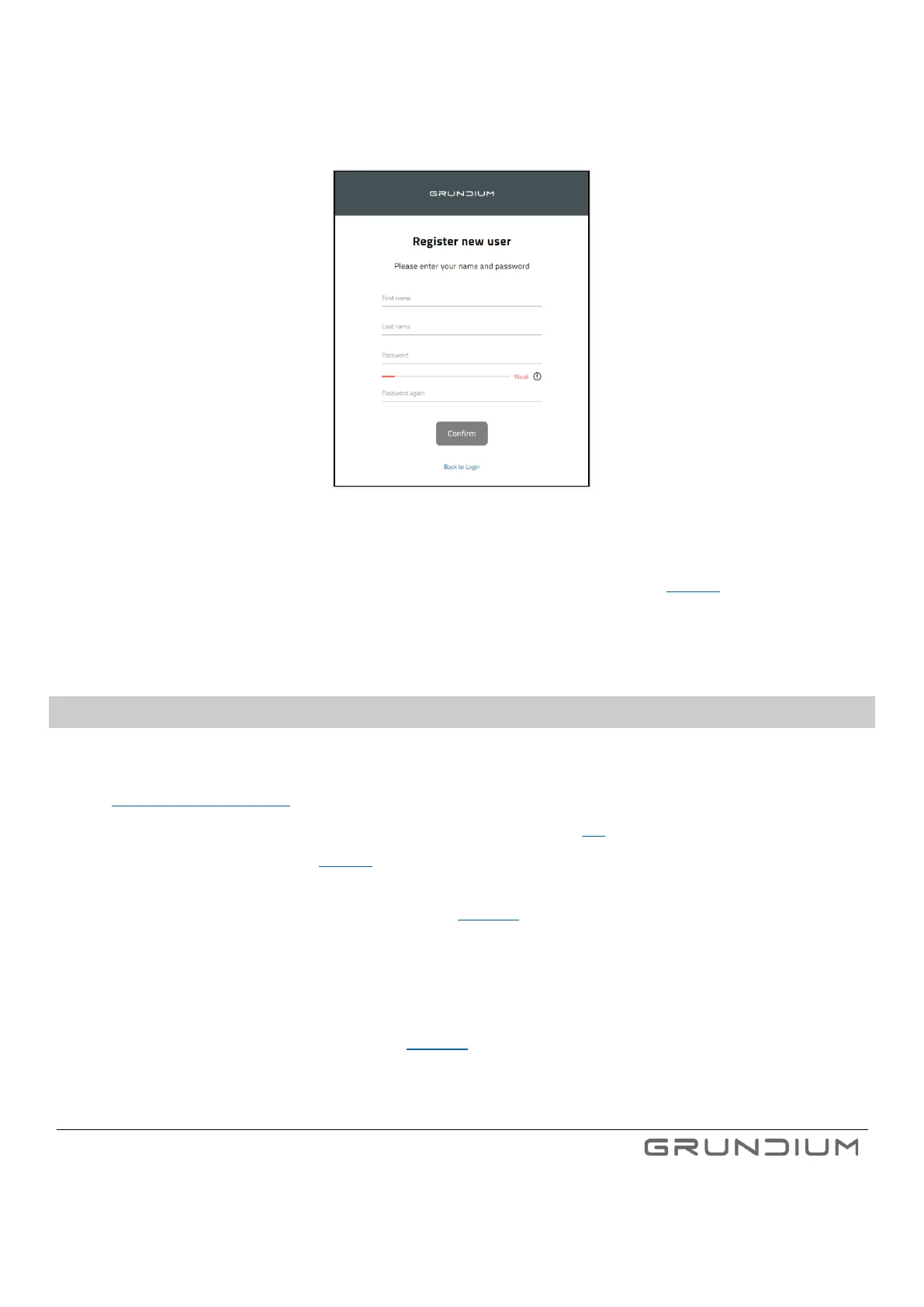
Enter your name and create a password, then click Confirm.
Image 8. Enter your name and password.
6.
After registering is done, login to the system with your email address and password (see image 5).
You now have completed the user registration process.
7.3 REGISTERING A NEW OCUS SCANNER
1.
Open the browser in your computer or tablet and type the following in the browser’s address field:
https://www.grundium.net
2.
Sign in with your user account. (If you do not have an account, see section 7.2 “Creating user account”).
3.
Click Register a new device. (See image 9).
4.
Enter the serial number of your Ocus®40 scanner. The number is printed on the label in the Quick guide and at the
bottom of the scanner. Click Register when ready. (See image 10)
5.
Select existing team from the dropdown menu or add a new team by clicking “ADD TEAM”. After entering a valid team
name click “+”. Assigning the Ocus scanner to a team allows the registered team members to access and control the
scanner.
Note: Name of the team needs to be in lower case and without spaces.
6.
Select a region from the dropdown menu. (See image 11).
Note: It is important to select region geographically closest to your own country, because it defines the used server and
WLAN/Wi-Fi parameters specific to your country.
7.
The password can be found on the label in Quick guide or at the bottom of the scanner.



 To Next Page