13 CONTROLLING MULTIPLE SCANNERS
If you are running several scanners and want to switch from one to another, click the scanner name at the top of the
Grundium.net UI to select another scanner. Select the preferred scanner from the drop-down menu.
14 SWITCHING OFF THE SCANNER
Note: If you are preparing the scanner for transportation, remove the slide from the scanner before clicking Shutdown.
There are two ways to switch off the scanner:
1.
In the microscope view, click Change slide > Shutdown.
2.
Press the power button.
During the shutdown, the power key blinks yellow. When the scanner is switched off, the power key shows a breathing green
light.
Important Notice: To prevent scanner damage, always switch off the scanner following the steps above mentioned. Never
pull off the power cord without shutting down the scanner first. Sudden power loss can corrupt scanner’s internal data
storage and can potentially lead to data loss or scanner becoming unusable.
15 SCANNER SETTINGS
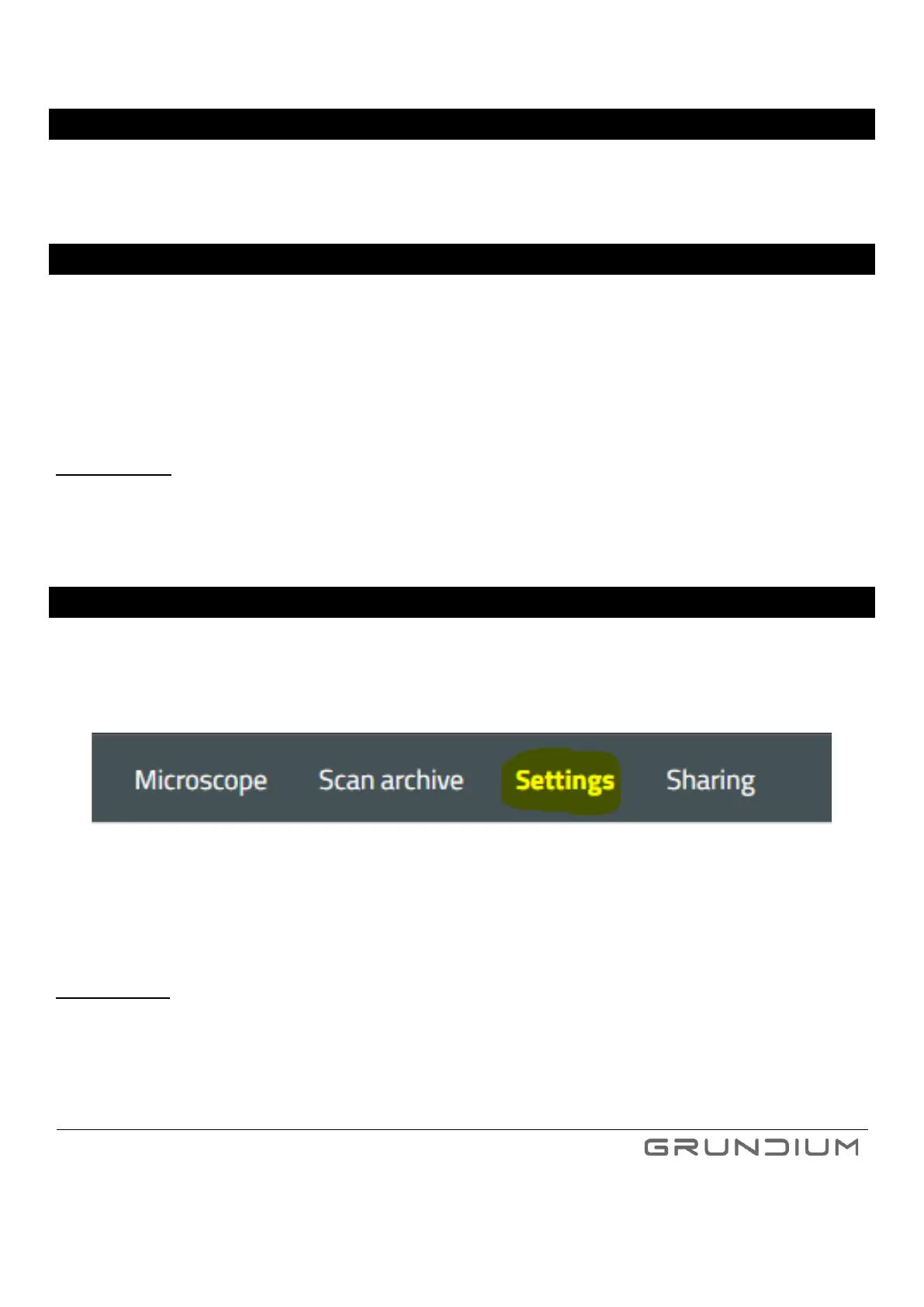
To enter the scanner settings view, click Settings.
Image 33. Settings button highlighted.
All parameters under this view are scanner specific, which means that they are applied for each user of the scanner. These
parameters include network settings, file naming, time zone, image compression and plugins in use.
Important notice: If there are several users for the scanner, please make sure that the settings, including plugins, are set
correctly for your use case every time you start using the Ocus Scanner.



 To Next Page