18.1 FACTORY RESET
In a factory reset, all user/team data and configurations will be deleted from the Ocus Scanner. To initiate the factory reset, click
i to open the info window and click Factory reset. After the factory reset has completed, the Ocus Scanner needs to be taken
into use according to instructions in chapter “First use”.
Important notice: Factory reset will remove all user generated data, including scanned images, and configurations from the
scanner. Make sure that the relevant data is exported out from the scanner before factory reset.
18.2 LOG - FILE
It is possible to download the user logs listing the history of the Ocus Scanner use. The logs include time-stamped information of
user activity with main use cases, including login, scanning, viewing the slides, and exporting. To download the log, select the log
from the drop-down menu and click Download. (See image 41).
Note: The
timestamps are in UTC
19 CLEANING THE SCANNER
Follow these steps when cleaning your Ocus scanner:
1. Switch off the scanner.
2. Remove the power cable and the network cable from the scanner.
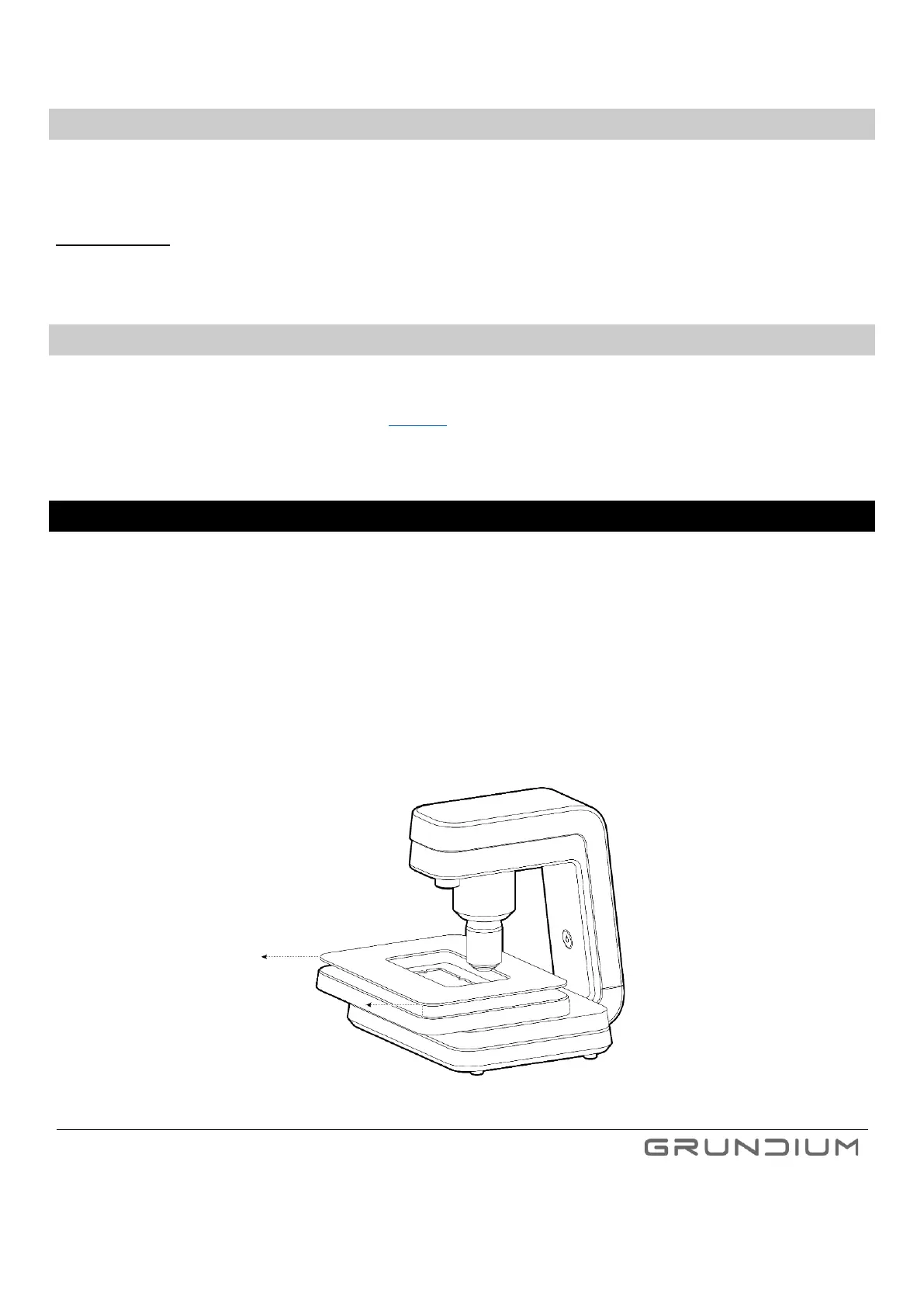
3. Slide the topmost plate to the front and carefully remove the cover plate by pushing the plate with finger in the cavity
under the right edge of the cover plate.
Note: when removing the cover plate, be careful not to damage any optics in the scanner.
Image 42. Remove the cover plate carefully when cleaning the scanner.



 To Next Page