21
Feature S3 - Auto Close
The Auto-Close feature determines whether or not the gate will close automatically after it is opened, and if so, how long
it will remain open before it begins to close. The factory setting (S5) automatically closes the gate 60 seconds after
opening. Setting S2, S3, and S4 determine other lengths of time the gate will remain open before automatically closing.
Setting S1-Off disables the automatic closing feature and causes the gate to remain open until the transmitter button (or
other entry control device) is pressed, which then closes the gate.
Feature S5 - Programming Activation
Feature S4 - Gate Sequence
This feature enables you to select the sequence of the opening and closing gates in a dual gate installation; the factory
setting (S1) is for both gates to open and close simultaneously.
Do not use this setting unless you are installing dual gate operators, see page 27.
This feature is only used to activate the programming mode.
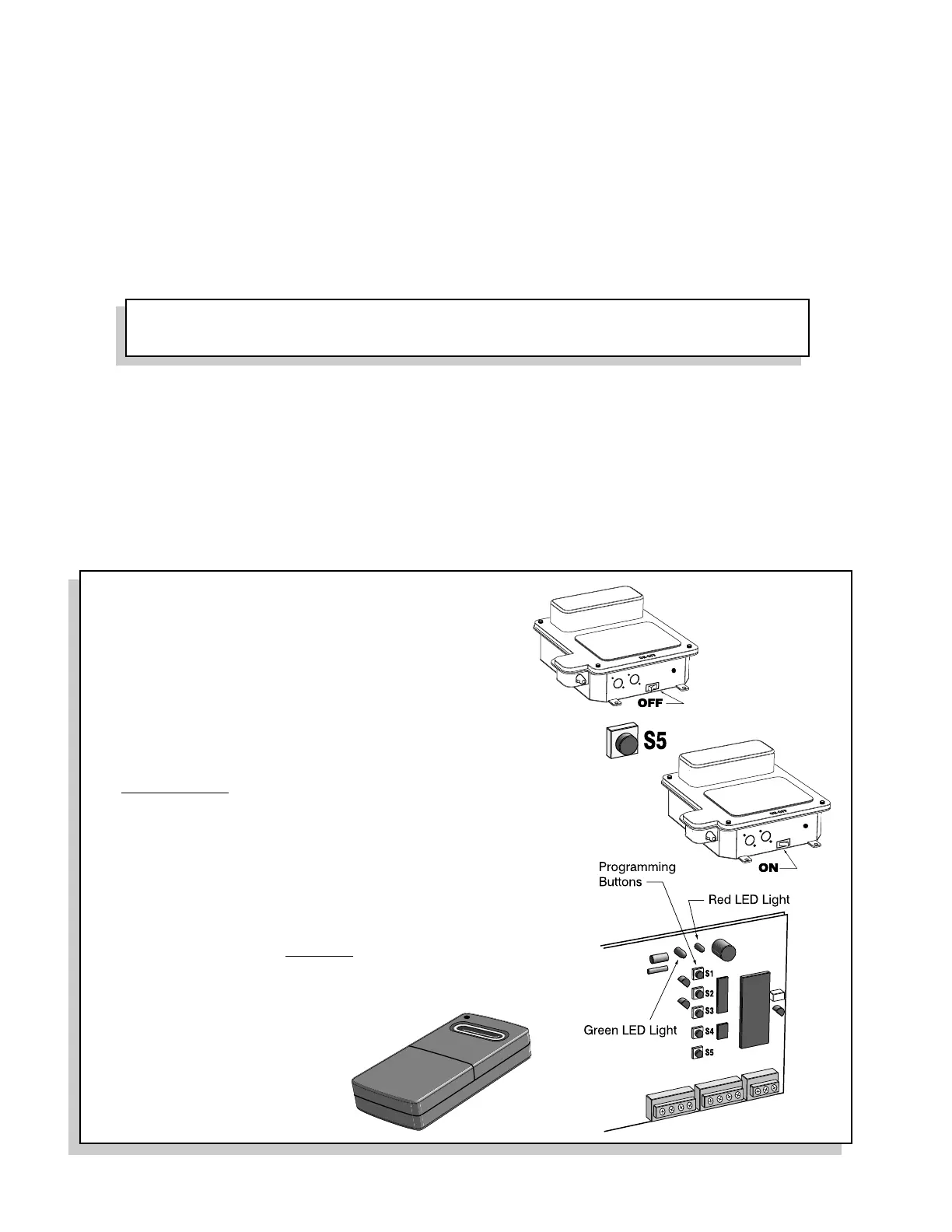
Programming Steps
1: Place the board in the Programming Mode, as follows;
A.Turn the control box OFF
B. While holding down the S5 button, turn the control box ON,
C. Immediately release the S5 button
2: Choose the first feature you wish to program (S1 to S4), and
push that button and release. Wait for the RED LED light to
stop flashing.
3: Within 4 seconds after the RED LED light stops flashing, push
the appropriate button (S1 to S5) for the desired setting. The
number of blinks of the RED LED light corresponds to the
setting number of that feature. (S1 blinks once, S2 blinks twice,
etc.)
4: To program another feature, wait at least 10 seconds then
repeat steps 2 & 3 above.
5: Store the programmed settings in control board memory by
pressing the button on the transmitter until the RED LED light
on the control board flashes bright and then returns to dim. The
settings are now stored in control board memory.



 To Next Page