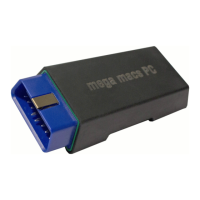
mega macs PC
Installation of the mega macs PC
Supported Operating Systems for the mega macs PC
6 Installation of the mega macs PC
6.1 Supported Operating Systems for the mega macs PC
• Microsoft Windows Vista
• Microsoft Windows 7/8
6.2 System Requirements for the mega macs PC
• at least 512 MB free internal memory
• at least 2 GB free hard drive space
• at least 1 free USB port at the PC
• Screen resolution at least 800 x 600
6.3 Installing the mega macs PC Software
An installation wizard guides you through the necessary installation steps.
Proceed as follows to install the mega macs PC software:
1. Switch on your PC.
2. Plug in the supplied pen drive (2) into the USB port of the PC.
The USB drive mega macs PC opens automatically.
3. Click >Open folder< and start the file mega_macs_pc.exe.
• You can also open the USB drive as follows: Start > My Computer > mega macs PC.
The mega macs PC Setup window appears.
4. Select the required language and click >OK<.
The selection will be saved automatically.
5. Click >Next<.
A selection window appears. A target directory for the mega macs PC software files is already suggested. If you
wish to have another target directory, you can use the >Search< function to select a suitable directory. At the end
of installation, the files will be copied into the selected target directory.
6. Click >Next<.
7. Click >Install<.
Installation is started.
8. Wait until installation is finished.
9. Click >Finish<.
A link to the mega macs PC is automatically created on the desktop.
10. Disconnect the pen drive.
Installation of the mega macs PC software is complete now.
21


 To Next Page